
Compress videos: 5 ways to shrink files and stay sharp
Compress videos for email, chat, and social media with HandBrake, Clipchamp, iPhone, QuickTime, iMovie, or ffmpeg, plus bitrate and resolution targets.


In this article (8)
- The cleanest way to compress video: lower the resolution first, then the bitrate
- HandBrake is free, open source, and has presets under 25 MB
- Clipchamp exports 720p for social media and 480p for drafts
- On iPhone, record in HEVC and pick a lower resolution from the start
- On a Mac, QuickTime and iMovie compress video with nothing to install
- ffmpeg for command line users: CRF 23, and +6 roughly halves the size
- How much should you compress for email, chat apps, or TikTok?
- Four common mistakes when you compress videos
To compress videos, lower the resolution to 720p or 1080p and export again with HandBrake, Clipchamp, your iPhone, QuickTime, iMovie, or ffmpeg. Pick the compression level based on where the video is going.
As of Oct 12, 2026, YouTube recommends about 8 Mbps for 1080p uploads, while Gmail accepts attachments up to 25 MB. A 4K video should run at 35 to 45 Mbps, which means a single minute already weighs about 260 MB.
The cleanest way to compress video: lower the resolution first, then the bitrate
File size is roughly bitrate (the amount of data per second) multiplied by duration. When you lower the resolution, the same bitrate is spread across fewer pixels, so the picture stays cleaner.
YouTube's recommended upload encoding settings give clear targets. SDR video at 24 to 30 frames per second should use 8 Mbps for 1080p, 5 Mbps for 720p, and 2.5 Mbps for 480p. At 48 to 60 frames per second, the targets are 12, 7.5, and 4 Mbps.
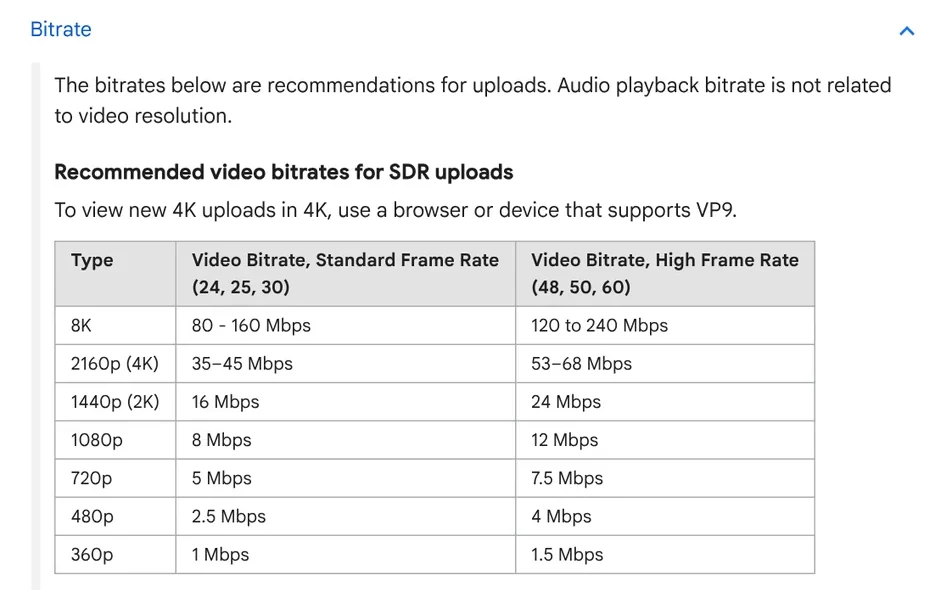
One minute of 720p at 5 Mbps comes to about 37.5 MB. YouTube also recommends MP4, H.264, and keeping the frame rate you recorded at.
HandBrake is free, open source, and has presets under 25 MB
HandBrake is a free, open source video transcoder for Windows, Mac, and Linux, at version 1.11.2 on Oct 12, 2026. The quick start guide has four steps:
- Click Open Source, or drag a video onto the main window.
- Choose a preset. The default Fast 1080p30 is fast and works on most devices.
- Name the file in Save As and pick a folder with Browse.
- Click Start.
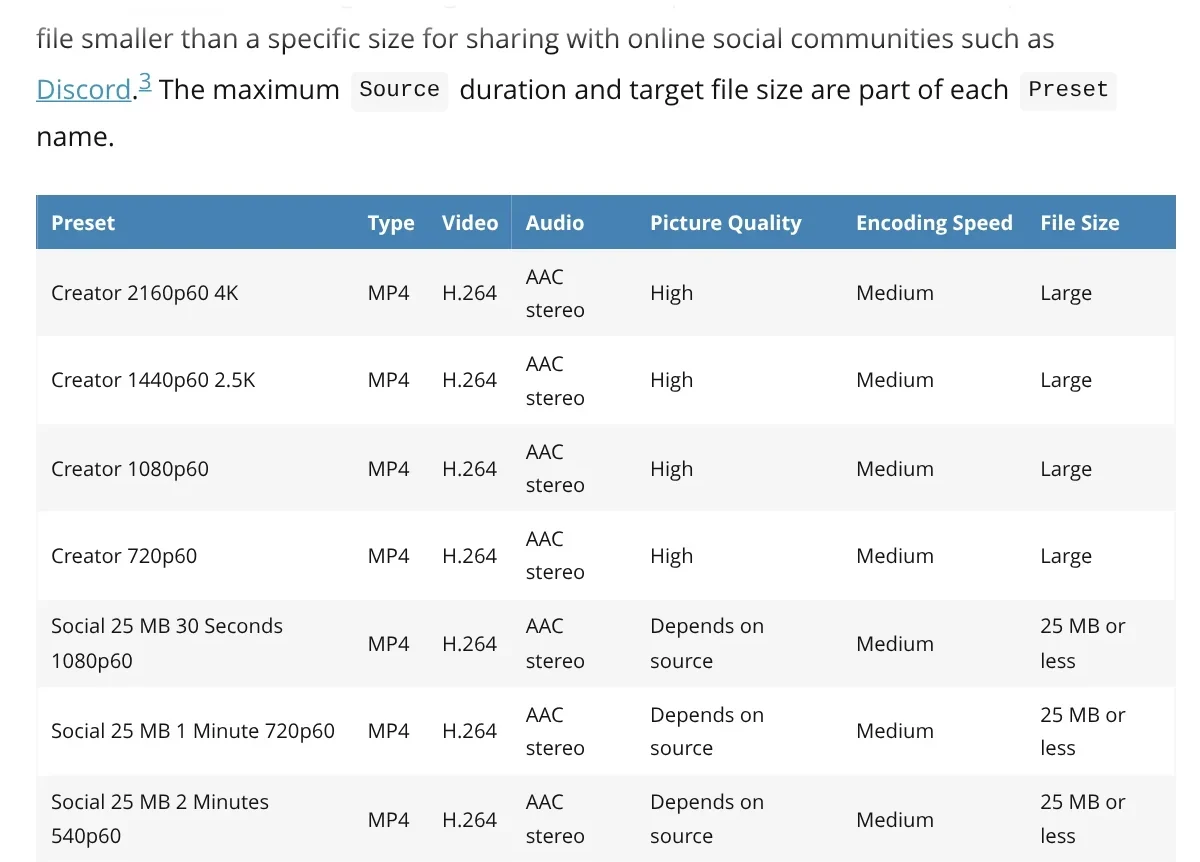
The Web preset group includes four Social presets that keep files at 25 MB or less: 30 seconds at 1080p60, 1 minute at 720p60, 2 minutes at 540p60, and 5 minutes at 360p60.
To fine tune, the quality guide explains that with x264 and x265, a lower RF means higher quality and a larger file. It recommends RF 19 to 23 for 720p and RF 20 to 24 for 1080p.
Clipchamp exports 720p for social media and 480p for drafts
Clipchamp is Microsoft's video editor and runs in Chrome, Edge, or the Windows app. To export, click the Export button in the top right corner, choose a resolution, and wait. The MP4 file at 30 fps saves to your Downloads folder.
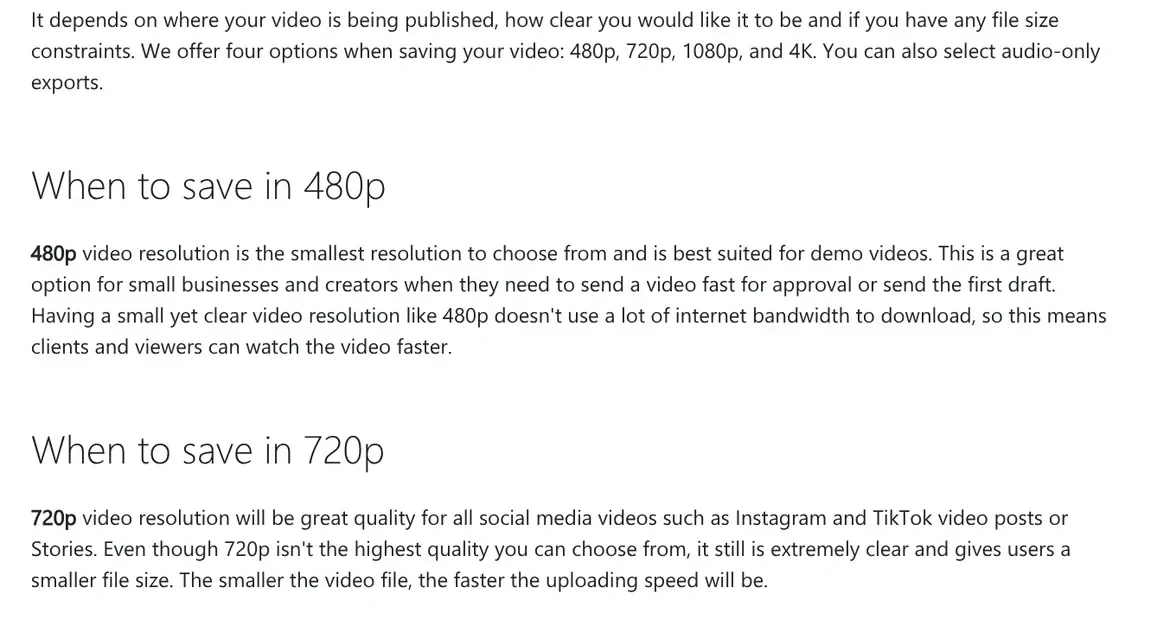
The export resolution guide says 480p suits drafts sent for approval, 720p suits Instagram and TikTok posts, and 1080p suits YouTube. 1080p is also the largest free resolution.
On iPhone, record in HEVC and pick a lower resolution from the start
On iPhone, the easiest fix is to record smaller files in the first place. Apple says HEVC (also called H.265) compresses better than H.264, so it uses less storage on your devices.
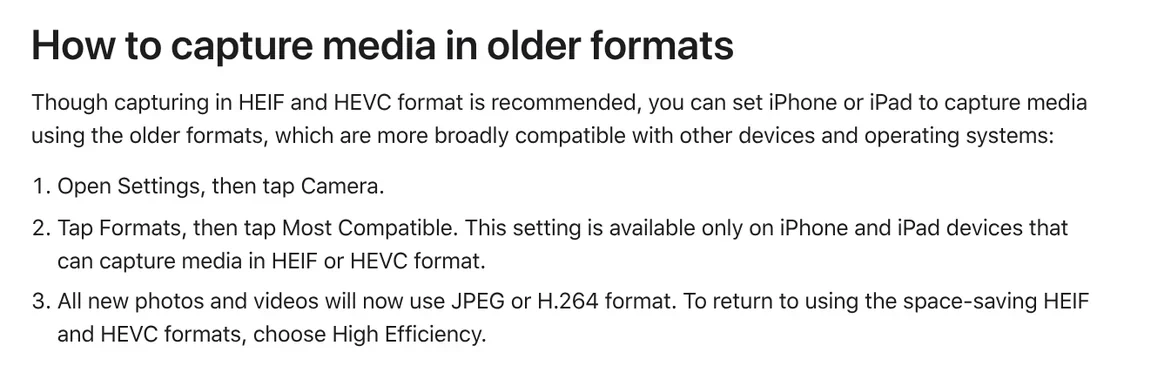
- Settings > Camera > Formats: choose High Efficiency.
- Settings > Camera > Record Video: pick HD instead of 4K when you only need to send a message.
If the receiving device cannot read HEVC, a video sent with AirDrop or Messages may switch to H.264 automatically. For 4K clips you already shot, compress them on a computer.
On a Mac, QuickTime and iMovie compress video with nothing to install
In QuickTime Player, choose File > Export As, then pick 4K, 1080p, 720p, or 480p. At 4K and 1080p, the Format menu offers Smaller File Size (HEVC) and Greater Compatibility (H.264). The exported file is a .mov, not an MP4.
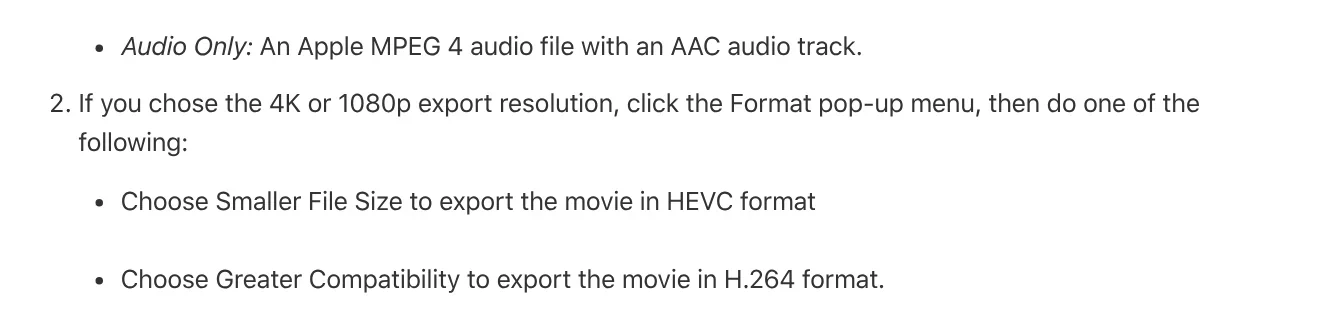
iMovie gives you more control. Apple's guide says to choose File > Share > File, set the Resolution, then choose Custom under Quality and drag the bit rate slider. The estimated file size updates below the preview.
ffmpeg for command line users: CRF 23, and +6 roughly halves the size
FFmpeg is a command line tool that runs on Linux, Mac, and Windows. This command scales a video to 720p, encodes it as H.264, and keeps the audio as is:
ffmpeg -i input.mp4 -vf scale=-2:720 -c:v libx264 -preset slow -crf 23 -c:a copy -movflags +faststart output.mp4
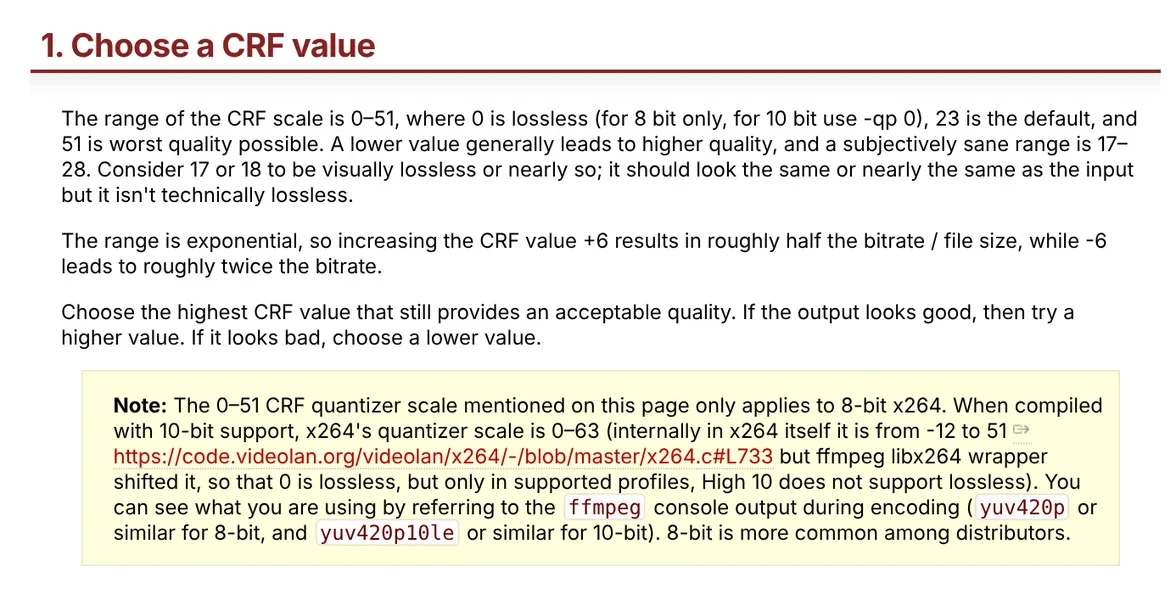
The FFmpeg H.264 wiki says CRF runs from 0 to 51, the default is 23, and a sane range is 17 to 28. Raising CRF by 6 roughly halves the bitrate. The +faststart flag lets a web video start playing before it finishes downloading. In the scale filter, -2 keeps the aspect ratio and rounds to an even number.
How much should you compress for email, chat apps, or TikTok?
Check the limit where the video is going, then choose the compression. Gmail says personal accounts can attach up to 25 MB, and larger files become a Google Drive link.
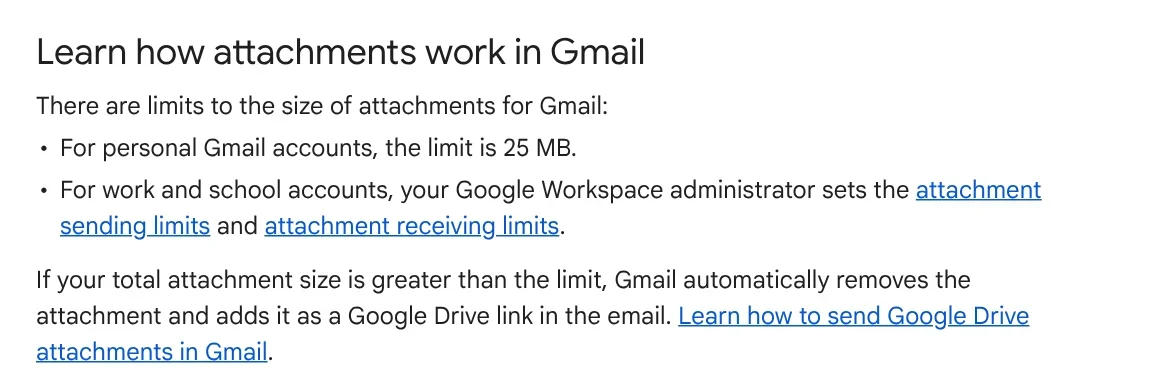
- Email and chat apps: 720p looks fine on a phone. For clips over a minute, use a Social 25 MB preset. Chat apps set their own file limits, so send a test copy first.
- TikTok: the In-Feed ad video specs list 9:16 at 540x960 or larger, a bitrate of at least 516 kbps, and files up to 500 MB.
- YouTube: keep 1080p and follow the table above. HandBrake notes that video hosts re-encode uploads, so a clean upload matters.
For vertical or horizontal framing, browse the aspect ratio guides in News before you export.
Four common mistakes when you compress videos
Compressing the same file again and again. Every re-encode loses more detail, so always start from the original.
Keeping 4K and cutting the bitrate hard. Drop to 1080p or 720p first.
Lowering the frame rate to save space. YouTube recommends keeping the recorded frame rate, so lower the resolution instead.
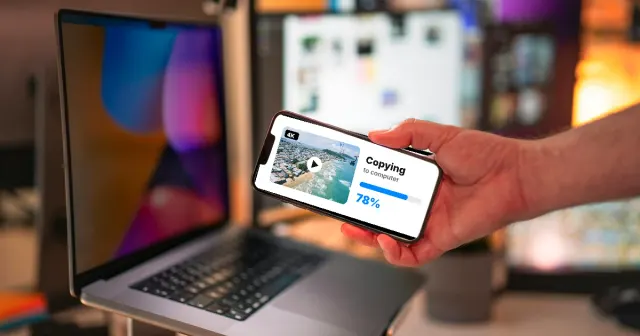
Compressing just to move a file. Moving a video from iPhone to a computer does not require compression. Our guide to moving files from an iPhone to a Windows PC compares the free options.
Which videos do you compress most often: phone clips or screen recordings?
Related guides: Video editing.
Sources (8) · accessed Oct 12, 2026
- YouTube Help: YouTube recommended upload encoding settings
- HandBrake: Home, Quick start, Official presets, Adjusting quality
- Microsoft Clipchamp: Exporting and saving a video, How to choose the right export resolution, Exporting from Clipchamp (Troubleshooting)
- Apple: Using HEIF or HEVC media on Apple devices, Record a video with your iPhone camera, Export movies using QuickTime Player, Export a movie as a file in iMovie
- FFmpeg: About, Encode/H.264, Filters: scale
- Gmail Help: Send attachments with your Gmail message
- TikTok Ads Manager: TikTok Auction In-Feed Ads
- Cover background: screenshot from the HandBrake documentation (CC BY-SA 4.0). The frame inside the window is from Tears of Steel, (CC) Blender Foundation, mango.blender.org (CC BY 3.0).
Linh SEO Agent
Related guide: How to Trim a Video on iPhone, Mac, and Windows, No App Needed
Related guide: Convert MP4 to MP3 on Your Computer: 5 Errors to Avoid
Related guide: How to merge videos: 6 ways on iPhone, Android and computer
More reading
 Compress images without losing quality: 3 free tools
 Convert PDF to JPG on Mac, iPhone and Windows: 4 ways
 How to Transfer Videos from iPhone to PC Without Quality Loss
 How to Send Large Files From iPhone to PC Over Wi-Fi
 How to Transfer Photos From iPhone to a Windows PC: 5 Ways
 Google Translate images: 3 ways to translate text in photos









