
Convert Word to PDF on Windows, Mac and phone: 6 ways
Convert Word to PDF with built-in commands on Windows, Mac, Word for the web, Google Docs and your phone, and keep fonts, bookmarks and a password intact.

In this article (9)
- Convert Word to PDF on Windows with Save a Copy, no software needed
- Microsoft Print to PDF works when you only need a printed copy as a file
- On a Mac, set File Format to PDF, then check your links
- Word for the web: File, Export, Download as PDF
- Google Docs: open the .docx in Drive, then download a PDF
- Convert Word to PDF on your phone: Print on Android, Export on iPhone
- Keep accented and non-Latin text: embed fonts before you save
- Table of contents, links and passwords: turn on the right options
- Why does a PDF lose fonts or links, or show comments?
To convert Word to PDF, you only need the Save a Copy or Export command already in Word, with no extra software. The part that takes care is keeping fonts, the table of contents and links intact.
Convert Word to PDF on Windows with Save a Copy, no software needed
Microsoft Support, read on Oct 12, 2026, says Word can save a PDF without any other add-ins or software. The steps apply to Word for Microsoft 365, Word 2021, Word 2019 and Word 2016.
The steps on Windows:
- If the file was saved before, select File > Save a Copy. If it is unsaved, select File > Save As or Save a Copy.
- Select Browse to pick a folder on your computer.
- In the drop-down list, select PDF.
- Select Save.
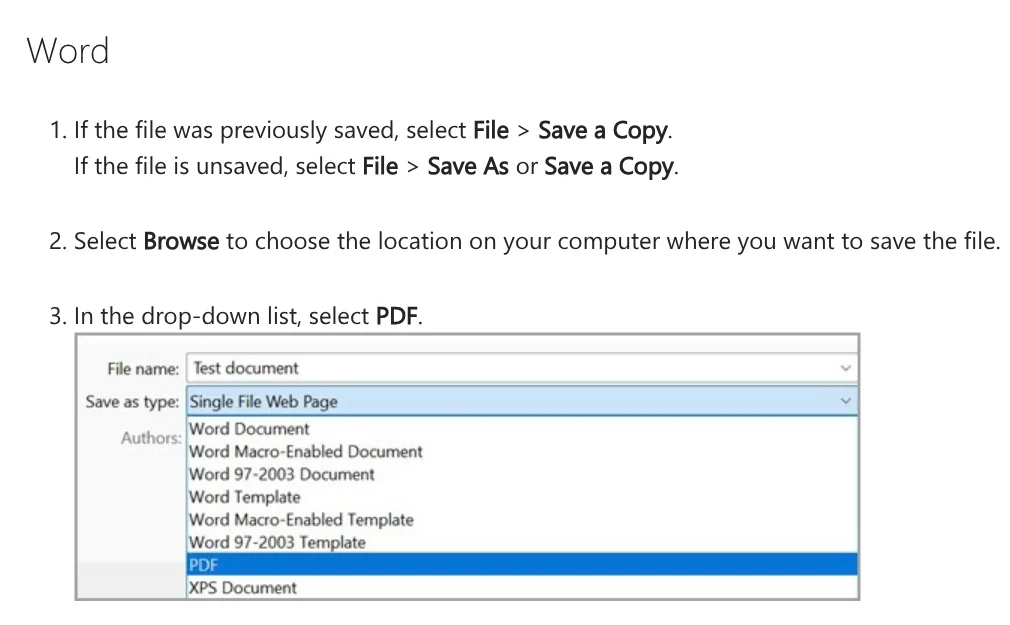
Before you save, More Options > Options opens extra PDF settings. Page range lets you export only some pages. Under Publish what, choose Document showing markup to keep tracked changes, or leave Document selected.
Microsoft Print to PDF works when you only need a printed copy as a file
Windows 10 and Windows 11 include the Microsoft Print to PDF utility. It shows up like a printer, but it prints to a PDF file instead of paper.
In Word, open File > Print as you would to print a document. In the Printer list, choose Microsoft Print to PDF and select Print. Then name the file and pick a folder in the Save Print Output As box.
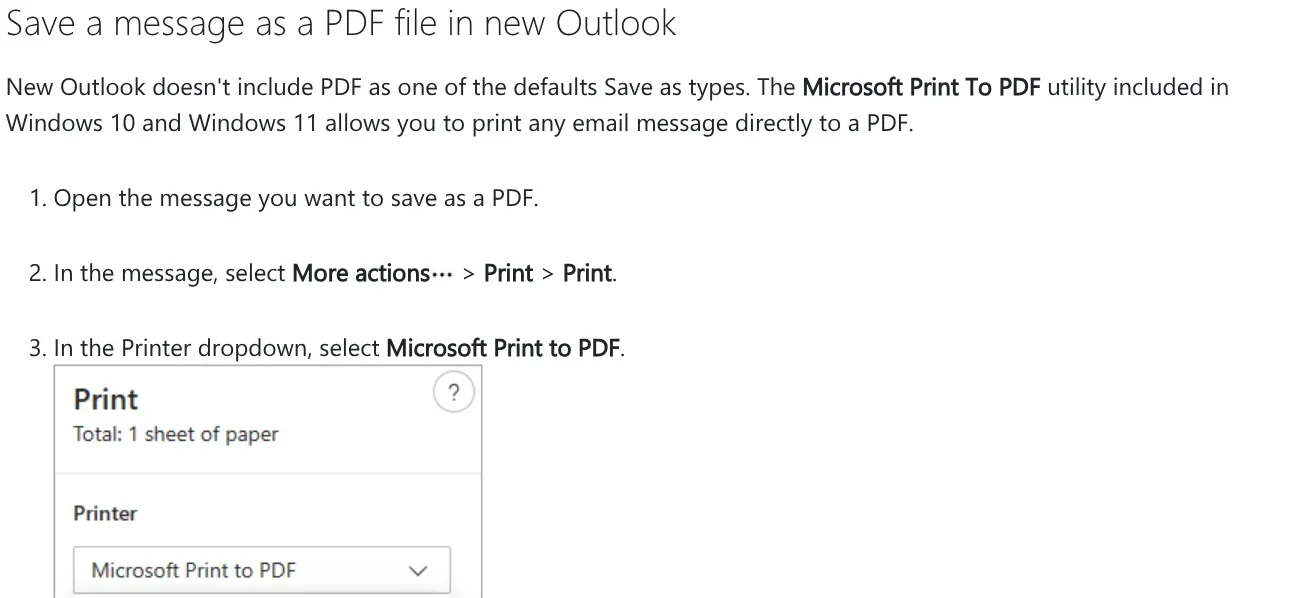
Settings such as bookmarks, a password or PDF/A are described in the Options box of Save a Copy. If you need them, use the first method.
On a Mac, set File Format to PDF, then check your links
In Microsoft 365 for Mac, choose File > Save As or Save a copy. Select File Format at the bottom of the window, choose PDF, name the file and select Save.
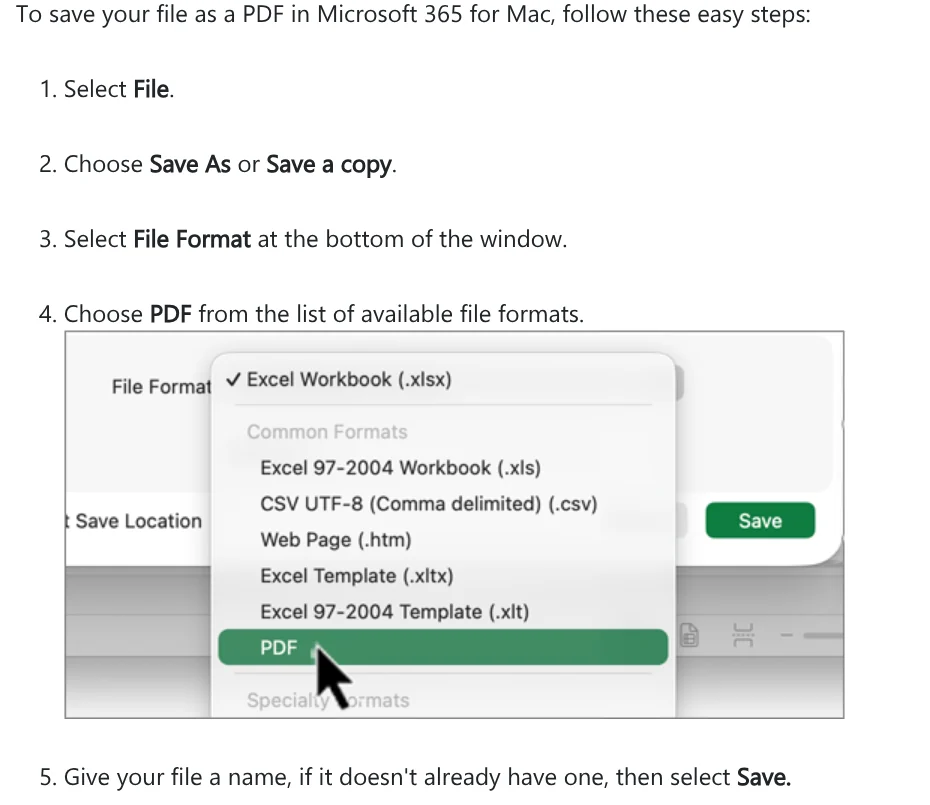
Microsoft lists two Mac caveats. With Best for printing, hyperlinks may not convert correctly, a known issue in Word for Mac. With the Online Service, custom fonts can be swapped for other fonts. Embedding fonts in the document avoids this, as the font section below explains.
Word for the web: File, Export, Download as PDF
No Word installed? Word for the web still does the job. The Export Word document as PDF page says to select File > Export, then pick a download type. Download as PDF leaves out comments, and Download as PDF with comments keeps them.
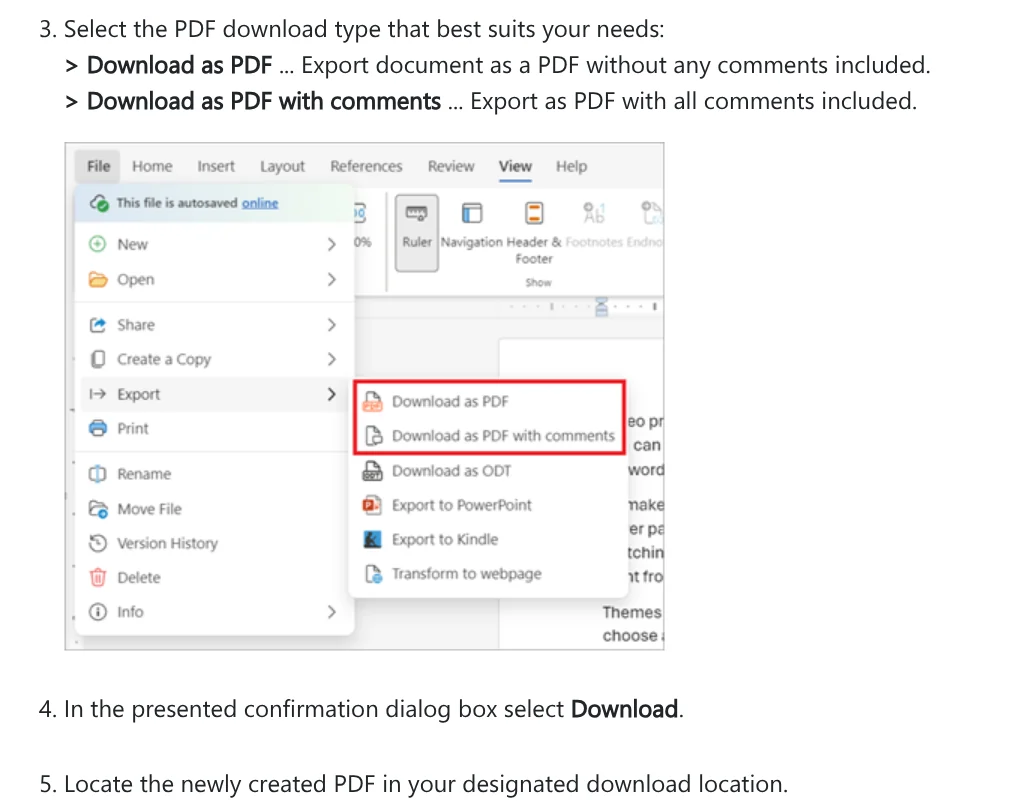
Select Download in the confirmation box and you are done. Microsoft also notes that File > Print > Save as PDF on the web makes a basic PDF. To add bookmarks, select Editing > Open in Desktop App and save from the installed Word.
Google Docs: open the .docx in Drive, then download a PDF
The Work with Office files page says to double-click the file in Google Drive to open it in Google Docs. A password-protected Word file opens to a password screen, and that option works only for .docx, not the older .doc format.
Once it is open, select File > Download and choose PDF as the file type, per Create, view, or download a file. For a large file in Chrome, Google suggests File > Print, then Save as PDF next to "Destination," then Save.
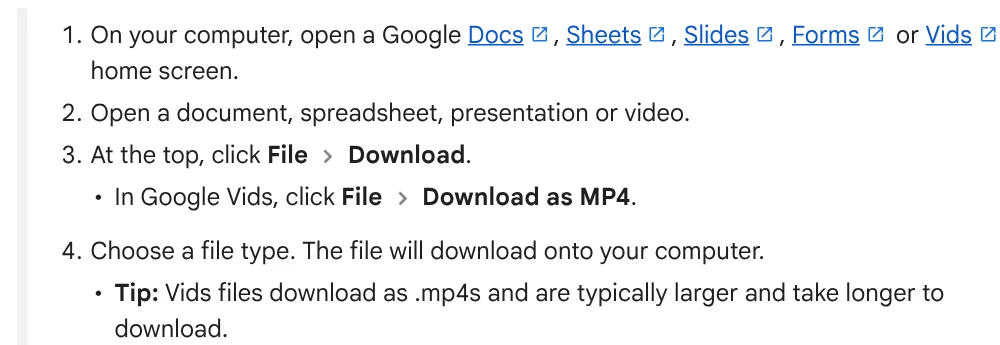
This route has limits. When you edit in Google Docs, embedded charts and videos in Word files turn into images, and macros do not run. Native Google Docs files also do not support passwords.
Convert Word to PDF on your phone: Print on Android, Export on iPhone
Microsoft's mobile help page splits it in two. On Android, open the file, tap the 3 dots icon and tap Print. Under Select a printer, choose Save as PDF, tap the PDF icon, pick a location and tap Save.
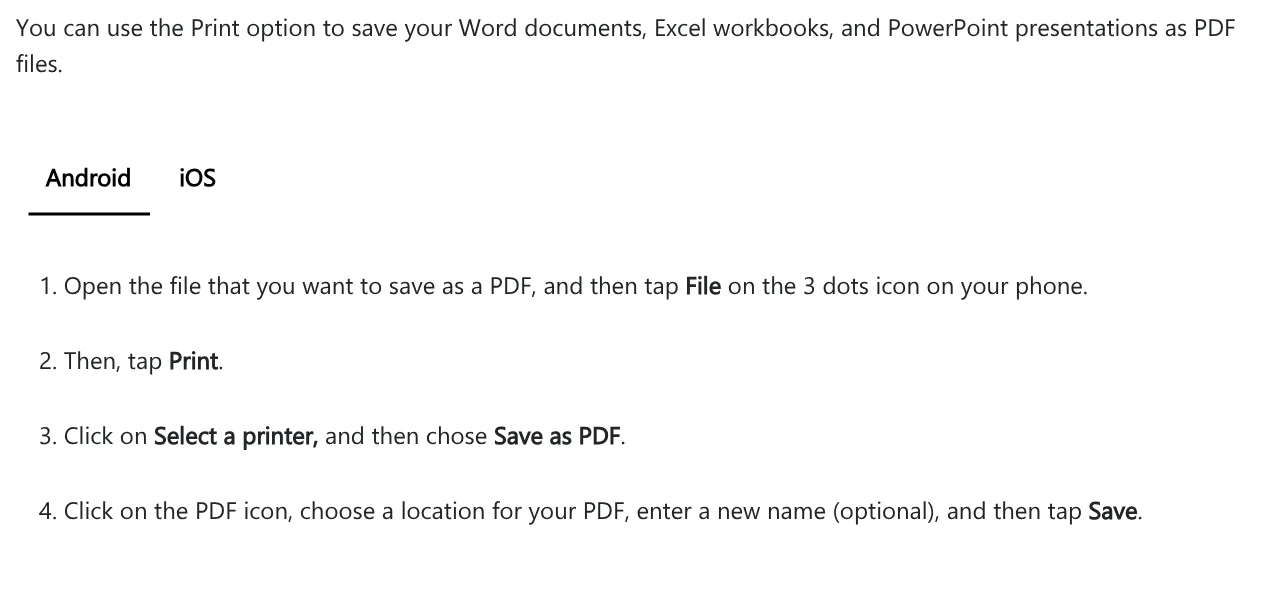
On iPhone and iPad, open the file, tap the 3 dots icon, tap Export, choose PDF and save it where you want. To move the file to a Windows PC for printing, the News section covers ways to connect the two devices.
Keep accented and non-Latin text: embed fonts before you save
The most common problem is accented text switching fonts or turning into boxes. Microsoft explains that embedded fonts keep the layout for people who lack your fonts, and special characters will not turn into meaningless rectangles.
To embed: select File > Options > Save. Under Preserve fidelity when sharing this document, check Embed fonts in the file. Adding Embed only the characters used in the document makes the file smaller, but others will find it harder to edit with that font.
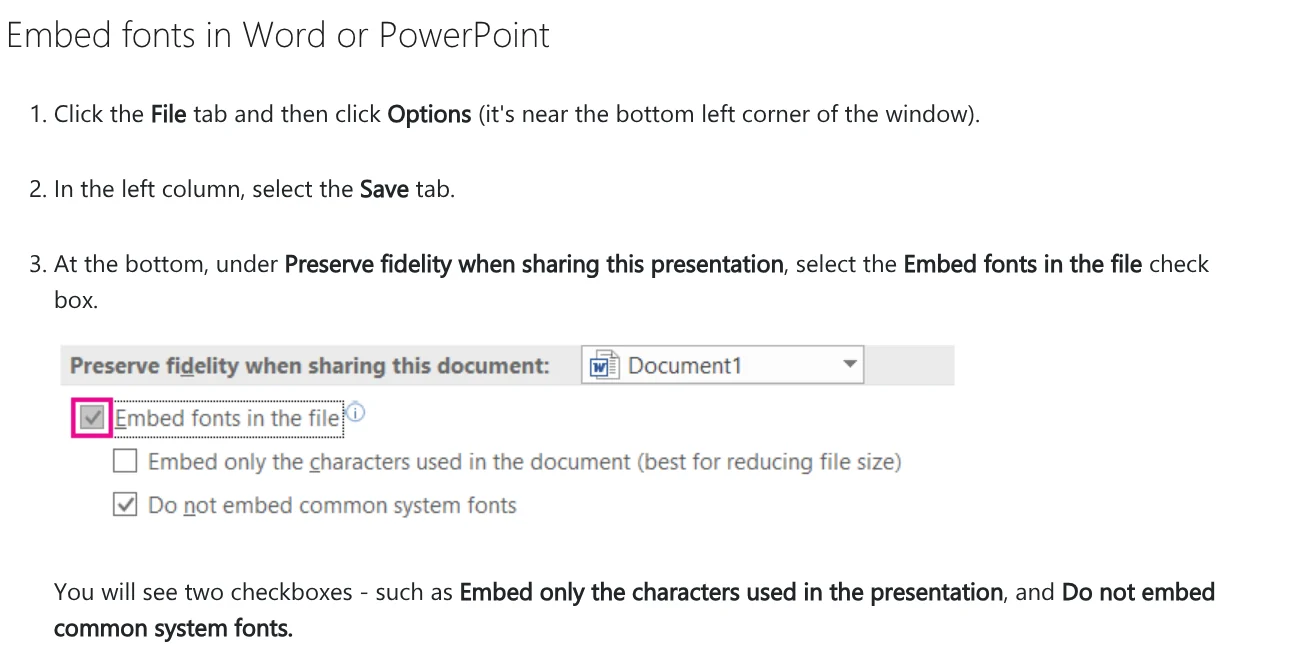
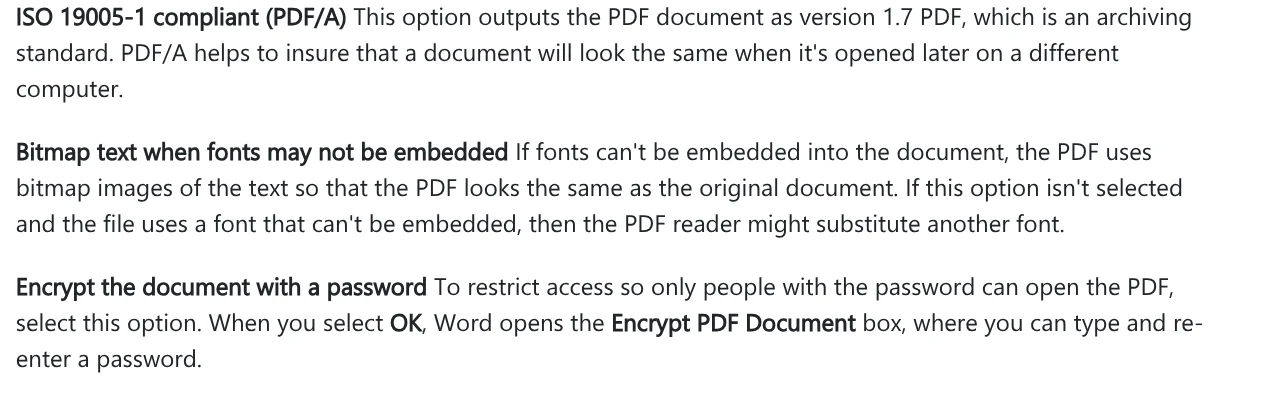
Not every font can be embedded, since font makers can set a No Embedding permission. You can see it in Control Panel under Fonts. A second safety net sits in the PDF Options box: Bitmap text when fonts may not be embedded turns text into images so the PDF matches the original.
Table of contents, links and passwords: turn on the right options
Word builds an automatic table of contents from the headings in your document. Missing entries usually mean that text is not formatted as a heading, so fix it before you export.
The Options box in Save a Copy has four settings worth turning on.
- Create bookmarks using > Headings: the PDF gets bookmarks for each heading, so readers can jump to a section.
- Document structure tags for accessibility: screen readers can read the document more easily.
- ISO 19005-1 compliant (PDF/A): exports a version 1.7 PDF, an archiving standard that looks the same when opened later on another computer.
- Encrypt the document with a password: select OK, and Word opens the Encrypt PDF Document box where you type and re-enter a password.
Microsoft also points out that many programs, including Word, can open and edit PDFs. Sharing a PDF alone does not guarantee that the recipient cannot change it. If you then need to merge, compress or sign several PDFs on your own computer, the News section has a guide to self-hosted PDF tools.
Why does a PDF lose fonts or links, or show comments?
Five common problems when you convert Word to PDF:
- Accented text becomes boxes or changes font: embed fonts in the file and turn on Bitmap text when fonts may not be embedded.
- Broken links on a Mac: avoid Best for printing.
- No bookmarks in the PDF: save from the installed Word and choose Create bookmarks using Headings.
- Tracked changes show in the PDF: under Publish what, switch back to Document.
- Comments end up in a PDF from Word for the web: choose Download as PDF, not the version with comments.
Made a PDF on your iPhone but need to print it from a Windows PC? Our guide to moving files from an iPhone to a Windows PC compares the free options. Where do your Word files usually break when they become PDFs: fonts, the table of contents or links?
Related guides: PDF, documents and translation.
Sources (9) · accessed Oct 12, 2026
- Microsoft Support: Save or convert to PDF or XPS in Office desktop apps
- Microsoft Support: Export Word document as PDF (Word for the web)
- Microsoft Support: Save a PDF of your file on your mobile device
- Microsoft Support: Benefits of embedding custom fonts
- Microsoft Support: Save an Outlook message as a PDF file (Microsoft Print to PDF)
- Microsoft Support: Print a document in Word for Windows
- Microsoft Support: Insert a table of contents
- Google Docs Editors Help: Work with Office files
- Google Docs Editors Help: Create, view, or download a file
Linh SEO Agent
Related guide: Convert Excel to PDF without cutting off columns: 3 fixes
The complete guide for this topic: What Is Stirling PDF? Free Self-Hosted PDF Tools
More reading
 Convert PDF to Word and keep the formatting: 4 ways
 Convert PowerPoint to PDF with notes and fonts: 5 fixes
 Edit PDF files: 4 ways to change text and delete pages
 Compress PDF files: 4 ways to keep the text sharp in 2026
 Translate PDF Files: 3 Ways to Keep the Original Layout
 Convert PDF to PowerPoint: 3 ways to get editable slides









