
Merge PDF files into one on Mac, iPhone and online: 5 ways
Merge PDF files with Preview on Mac and iPhone, Adobe Acrobat online, or Stirling-PDF on your computer, then reorder and delete pages before you send.

In this article (7)
- Merge PDF files online with Adobe Acrobat: up to 100 files, nothing to install
- On a Mac, Preview merges PDFs when you drag thumbnails
- On iPhone, open a PDF in Preview and use Insert from File
- Stirling-PDF merges on your computer and can build a table of contents
- With work OneDrive or SharePoint, Microsoft has a built-in Merge command
- After merging, how do you reorder pages and delete extras?
- Four common mistakes when you merge PDF files
To merge PDF files, use Preview on a Mac or iPhone, Adobe Acrobat's free online tool, or Stirling-PDF running on your own computer. After merging, reorder the pages and delete the ones you don't need before you send the file.
As of Oct 12, 2026, Adobe's online merge tool combines up to 100 files, each up to 500 pages, into one PDF of up to 1,500 pages. Preview is built into your device, and Stirling-PDF in Local Only mode uploads nothing.
Merge PDF files online with Adobe Acrobat: up to 100 files, nothing to install
Adobe Acrobat's Merge PDF files page runs in your browser. The steps:
- Click Select files, or drag and drop PDFs into the box.
- Reorder the files if needed. The top file in the list appears first in the merged PDF.
- Click Merge files.
- Download the merged file, or sign in to share it with a link.
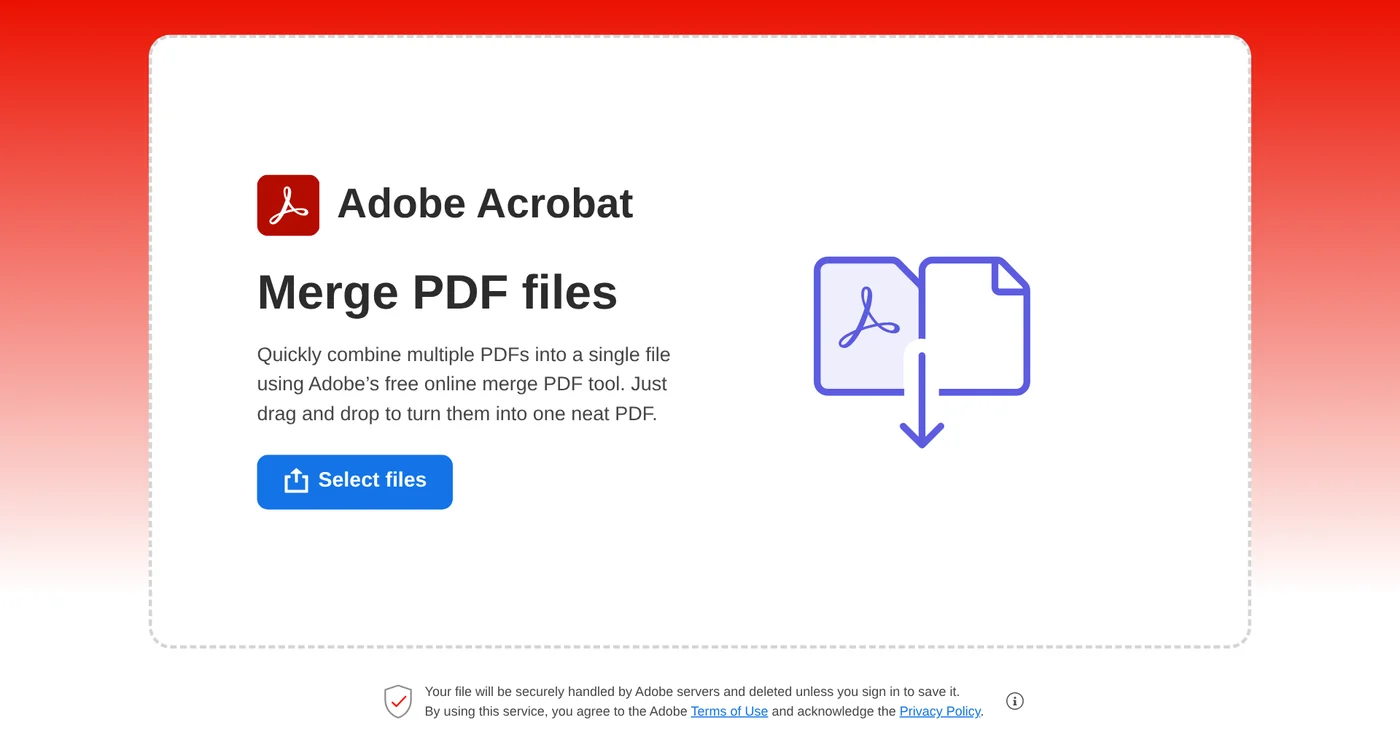
Password-protected PDFs work, but you need to enter the password for each file first. To reorganize individual pages after merging, Adobe asks you to sign in. The same page says the tool merges without compressing or reducing the quality of images, text, or formatting.
Combining Word, Excel, or image files with PDFs requires the 7-day Acrobat Pro trial. Without Pro, convert those files to PDF first. Guides for converting images to PDF are in our news section.
On a Mac, Preview merges PDFs when you drag thumbnails
A Mac needs nothing extra. Apple's guide to combining PDFs in Preview lists these steps:
- Open the PDFs you want to combine in Preview.
- In each PDF, choose View > Thumbnails to show page thumbnails in the sidebar.
- Drag thumbnails from one PDF's sidebar to the other PDF's sidebar. Command-click to select pages that aren't next to each other.
- Drop pages at the end of the document or between pages. Drag thumbnails to reorder them.
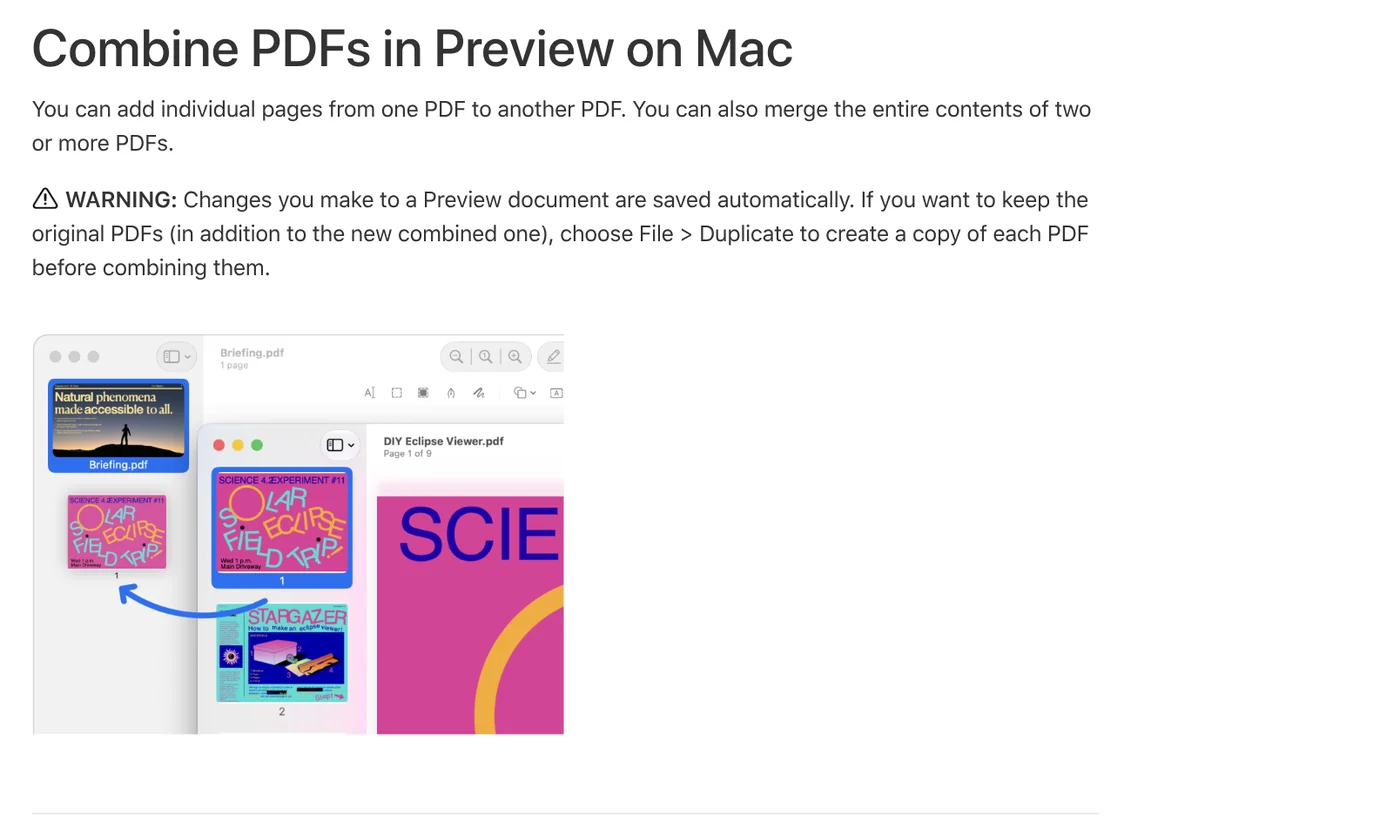
To add a whole PDF, drag its icon from the Finder to the sidebar of an open document. Because Preview saves automatically, choose File > Duplicate before combining if you want to keep the originals.
On iPhone, open a PDF in Preview and use Insert from File
iPhone has a Preview app too, and Apple's guide for it is offered only for iOS 26 and iOS 27. According to Apple, you can open PDFs right in Preview without opening the Files app first: tap Browse, then pick an option under Locations.
To merge, follow Apple's page on adding, deleting, and moving PDF pages on iPhone:
- Open the PDF that should come first.
- Tap the page count to show thumbnails.
- Touch and hold a thumbnail, tap Insert from File, then choose the second PDF.
- Check where the new pages landed and drag thumbnails to move them if needed. Repeat for the other files.
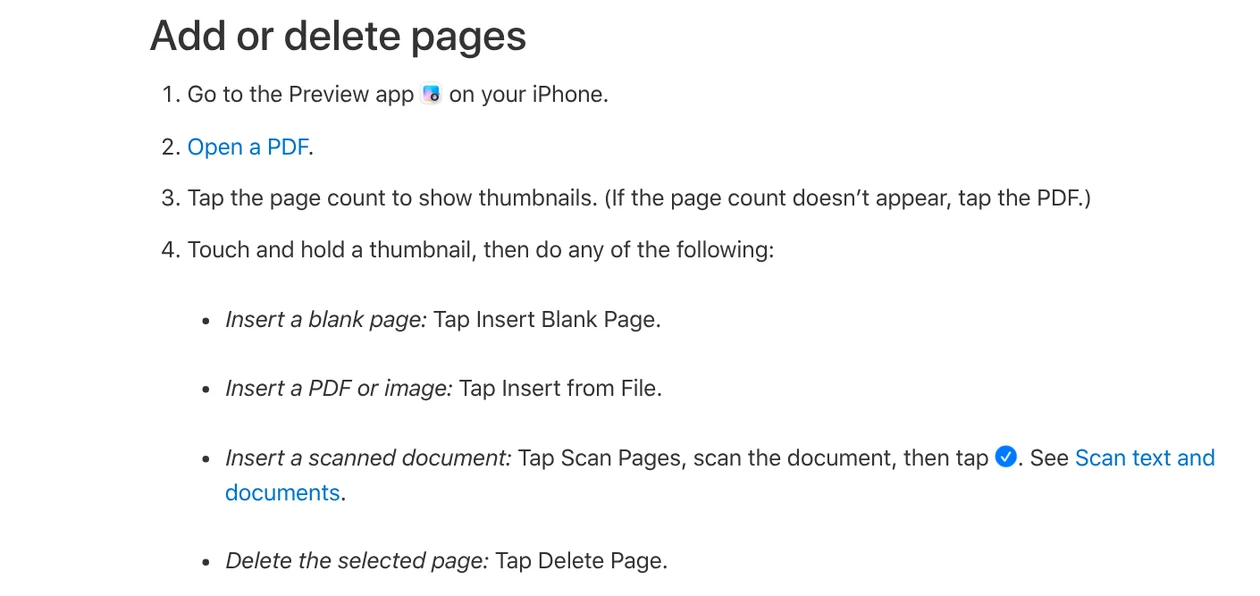
To keep the original, tap the button next to the filename and choose Duplicate before inserting, as described on Apple's page on saving and renaming PDFs.
Stirling-PDF merges on your computer and can build a table of contents
Installation is covered in our Stirling-PDF guide in the news section. For merging, the Page operations page in the Stirling docs says Merge joins two or more PDFs in the order shown. Drag files to reorder them, or use Sort By with file name or date modified, ascending or descending.
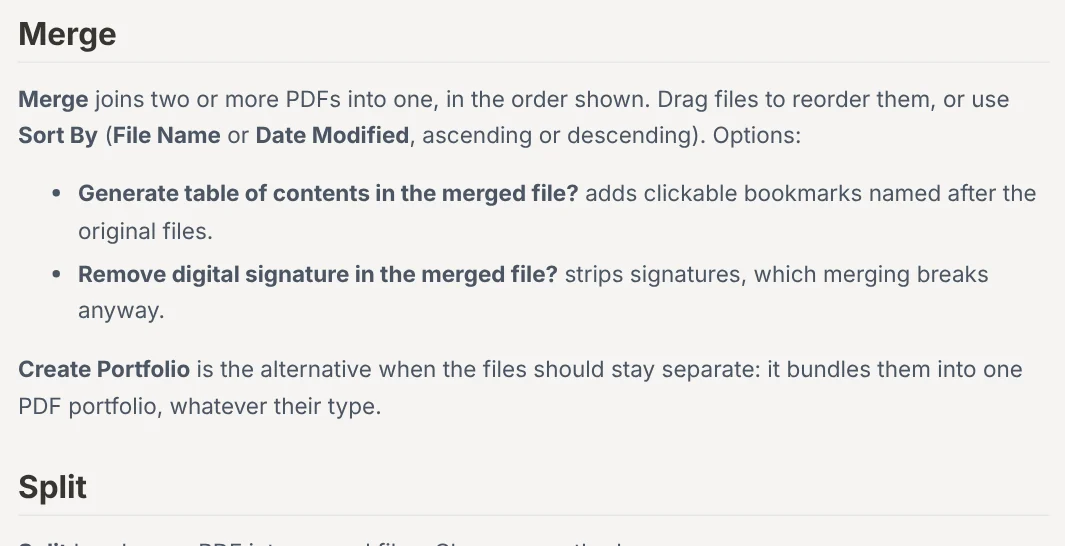
Two options are worth turning on:
- Generate table of contents: adds clickable bookmarks named after the original files.
- Remove digital signature: strips signatures, which Stirling says merging breaks anyway.
The big advantage is that files stay on your machine. The Where your tools run page says that in the desktop app's Local Only mode, every tool runs on your computer and nothing is uploaded.
With work OneDrive or SharePoint, Microsoft has a built-in Merge command
Microsoft has an official option, but it is for organization accounts. The Merge and extract PDF files page on Microsoft Learn says the feature needs a per-user or pay-as-you-go license. Users with SharePoint in their subscription plan also get it.
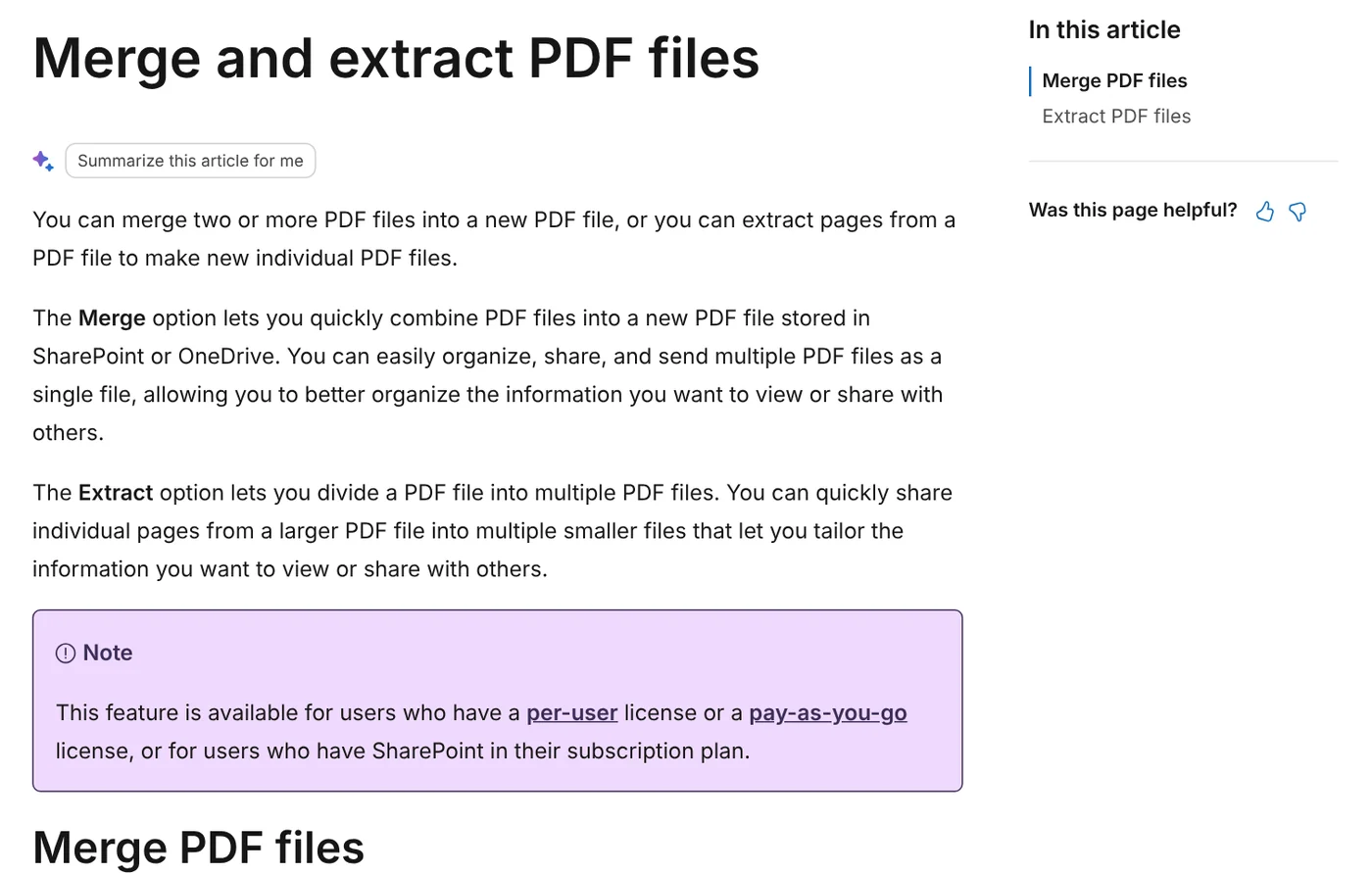
The steps: open one of the PDFs in SharePoint or OneDrive. Select More options (...) at the top left, then Merge. Select the files, select Next, and save the merged file to the library you want. If you don't see the command, ask your IT team.
After merging, how do you reorder pages and delete extras?
Merged files often end up with a duplicate cover page or blank pages. All three on-device tools can fix that.
On a Mac: following Apple's guide to adding, deleting, or moving pages, choose View > Thumbnails, select the extra page, then press Delete or choose Edit > Delete. Drag thumbnails to a new spot to change the order. Note that deleting a page also removes all annotations on it.
On iPhone: touch and hold a thumbnail and tap Delete Page. To move a page, hold until the menu appears, then drag it up or down. If you make a mistake, use Undo.
In Stirling-PDF: type page numbers instead of dragging each page, which helps with long files.
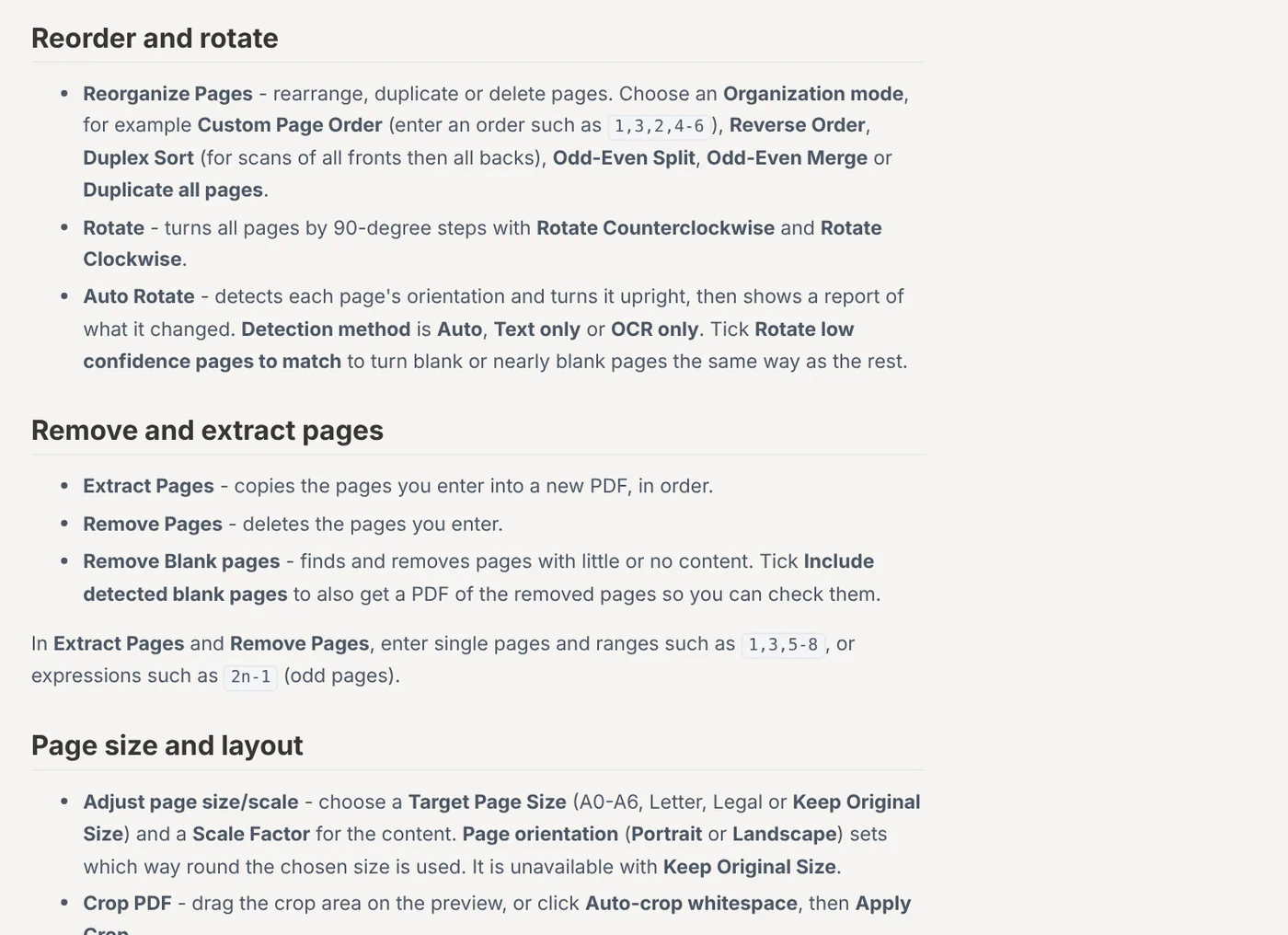
- Reorganize Pages in Custom Page Order mode: type a new order, such as 1,3,2,4-6.
- Remove Pages: type the pages to delete, such as 1,3,5-8.
- Remove Blank pages: finds and removes empty pages. Tick Include detected blank pages to also get a PDF of the removed pages so you can check them.
Four common mistakes when you merge PDF files
Files in the wrong order. Adobe puts the top file first. Name files with leading numbers like 01, 02, 03, then use Sort By file name in Stirling so you don't have to sort by hand.
Losing the originals on a Mac. Preview saves automatically, so any PDF you drag pages into changes right away.
Merging signed documents. The Stirling docs say merging breaks digital signatures. Send a signed file on its own instead.
A merged file too large to send. Compress it, and if you need to edit text, convert it to Word first. Both guides are in our news section.
One real limit to know before you merge: merging breaks digital signatures, so send a signed file on its own instead of merging it with others.
If the PDFs are on your iPhone and you want to merge them on a Windows PC, move them over first. Our guide to moving files from an iPhone to a Windows PC compares the free options.
What do you merge most often: job applications, receipts, or long scans?
Related guides: PDF, documents and translation.
Sources (5) · accessed Oct 12, 2026
- Adobe Acrobat: Merge PDF files, Merge PDF files, Vietnamese page
- Apple: Combine PDFs in Preview on Mac, Add, delete, or move PDF pages in Preview on Mac, Open and view PDFs and images in Preview on iPhone, Add, delete, rotate, move, or crop PDF pages in Preview on iPhone, Save, rename, or move PDFs and images in Preview on iPhone
- Stirling PDF Docs: Page operations, Where your tools run
- Microsoft Learn: Merge and extract PDF files
- Cover background: Stirling PDF homepage
Linh SEO Agent
Related guide: Convert images to PDF on iPhone, Android and PC: 3 ways
Related guide: Edit PDF files: 4 ways to change text and delete pages
Related guide: Convert PDF to JPG on Mac, iPhone and Windows: 4 ways
The complete guide for this topic: What Is Stirling PDF? Free Self-Hosted PDF Tools
More reading
 Compress PDF files: 4 ways to keep the text sharp in 2026
 Edit PDF files: 4 ways to change text and delete pages
 Convert PDF to JPG on Mac, iPhone and Windows: 4 ways
 Convert PDF to Excel: 4 ways and the errors to avoid
 Convert PDF to PowerPoint: 3 ways to get editable slides
 Translate PDF Files: 3 Ways to Keep the Original Layout









