
How to combine photos: 4 steps on iPhone, Android and PC
Combine photos into one frame with free tools: Google Photos on Android, iPhone and the web, Apple Shortcuts, grids in Canva. Plus how to pick a frame.


In this article (6)
- On Android, Google Photos combines up to 6 photos at a time
- On iPhone, install Google Photos or build a shortcut
- On a computer, combine photos online with Google Photos or Canva
- To put two pictures side by side, pick a 2-tile layout and line them up
- Which frame should a collage use on social media?
- Four common mistakes when you combine photos
To combine photos into one frame, all you need is Google Photos on your phone or in a browser, or a grid in Canva. Pick the frame for where you will post before you drop the photos in.
As of Oct 12, 2026, Google Photos Help says you can combine up to 6 photos in the phone app and up to 9 photos on the web. This article covers collages: several photos arranged as tiles in one image, including two pictures side by side.
| Where you combine photos | Photos per collage | What it needs |
|---|---|---|
| Google Photos app on Android | Up to 6 | At least 3 GB of RAM and Android 8.0 or up |
| Google Photos app on iPhone | Up to 6 | iOS 18 or up, and Google Photos app version 7.64 or up |
| Google Photos on the web | Up to 9 | A browser at photos.google.com; Google suggests editing a collage in the app |
| Canva grid | You pick the tile count | Save as PNG or JPG; the background remover carries a Pro label |
On Android, Google Photos combines up to 6 photos at a time
Most Android phones come with Google Photos. According to Google Photos Help on making collages, the quickest way starts from your photos:
- Open the Google Photos app and select up to 6 photos.
- At the bottom, tap Create, then Collage.
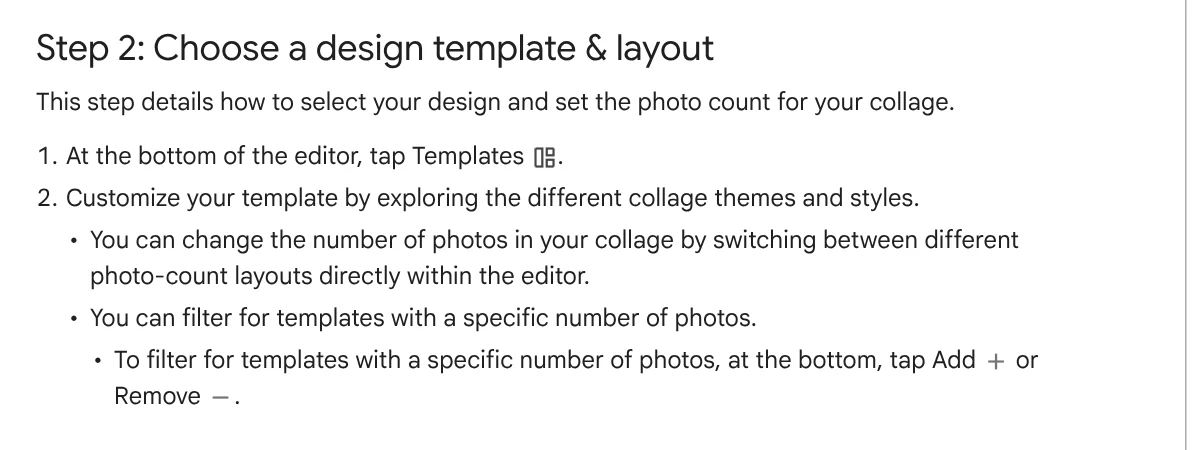
- Tap Templates to change the layout and the number of tiles.
- Tap Save to keep the collage in your library, or tap Share to send it right away.
The Border tool changes the border width, corner radius and color. Touch and hold a photo to rotate it or drag it to another tile.
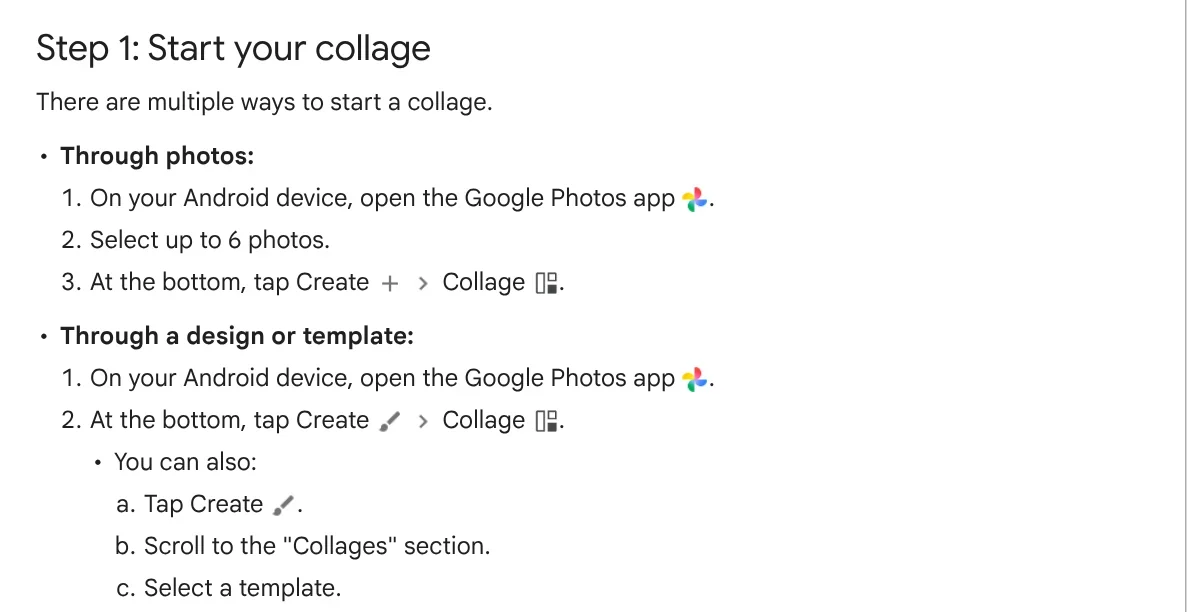
The help page lists two limits. Your device needs at least 3 GB of RAM and Android 8.0 or up. Grid templates don't let you drag the borders or layer photos on top of each other.
On iPhone, install Google Photos or build a shortcut
On iPhone, you have two free ways to combine photos: a free Google app, or Apple's built-in Shortcuts app.
Option 1: Google Photos for iPhone. The steps match Android: select up to 6 photos, tap Create, then Collage. The iPhone version of the help page lists what the new collage editor needs: iOS 18 or up, and Google Photos app version 7.64 or up.

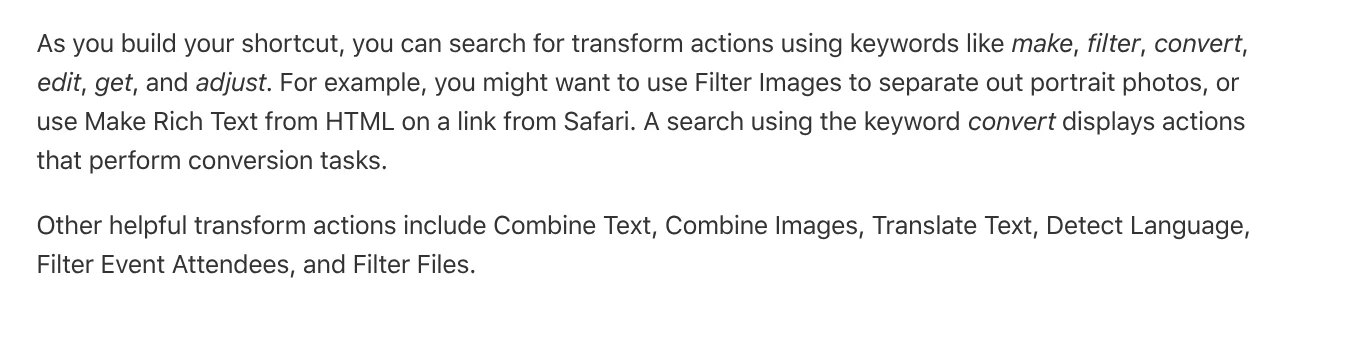
Option 2: Apple's Shortcuts app. Apple's page on transform actions lists a Combine Images action. Following Create a custom shortcut, tap the plus button at the top, name the shortcut, then tap Add Action. Add an action to pick photos, the Combine Images action, and an action to save the image to your library, then tap Done.
This route has no decorative templates, but you build it once and reuse it.
On a computer, combine photos online with Google Photos or Canva
Google Photos on the web. The Computer version of the help page says: go to photos.google.com, hover over a photo, click the check mark and select up to 9 photos, then click Create new, Collage. To edit a collage, Google suggests making it in the app.

Canva. A good fit when you want to set the background, text and tile count yourself. Canva Help on grids explains: in the editor, select Elements, go to Grids and pick one. Click Uploads to bring in your own photos, then drag a photo over the grid until it snaps inside. The Spacing button on the toolbar adjusts the gap between tiles.
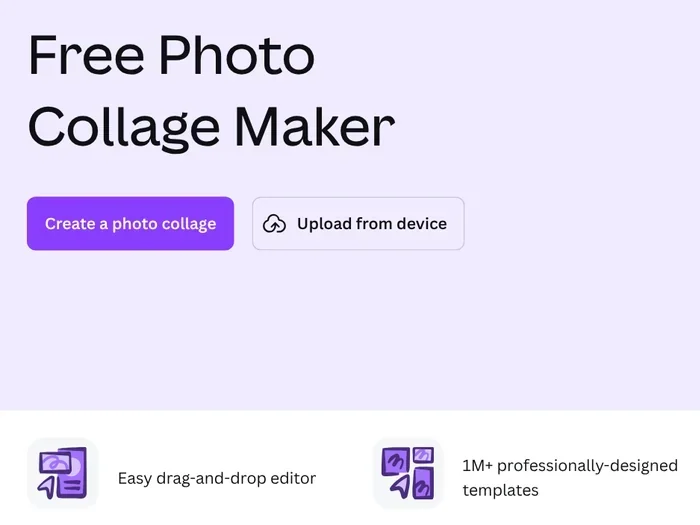
According to Canva's Free Photo Collage Maker page, you can save a collage as a PNG or JPG. The background remover on Canva's collage page (Vietnamese page) carries a Pro label.
To put two pictures side by side, pick a 2-tile layout and line them up
Two pictures side by side work well for before and after shots, two sides of a product, or two angles.
In Google Photos, select exactly 2 photos and make a collage. At the Templates step, the help page lets you filter templates by photo count with Add or Remove. Pinch or spread two fingers on a tile to zoom the photo inside it.
To make two photos look like a pair, match their orientation: two portrait photos side by side, two landscape photos stacked. Zoom each tile so both subjects sit at the same height, and keep a thin border in one color.
Which frame should a collage use on social media?
Collages get cropped when the frame doesn't fit where you post. Instagram Help on image resolution says photos with an aspect ratio between 1.91:1 and 3:4 keep their original resolution. Outside that range, the photo is cropped to fit a supported ratio.
For Facebook, Meta's table of aspect ratios by placement recommends 4:5 for Facebook Feed, for both images and videos.
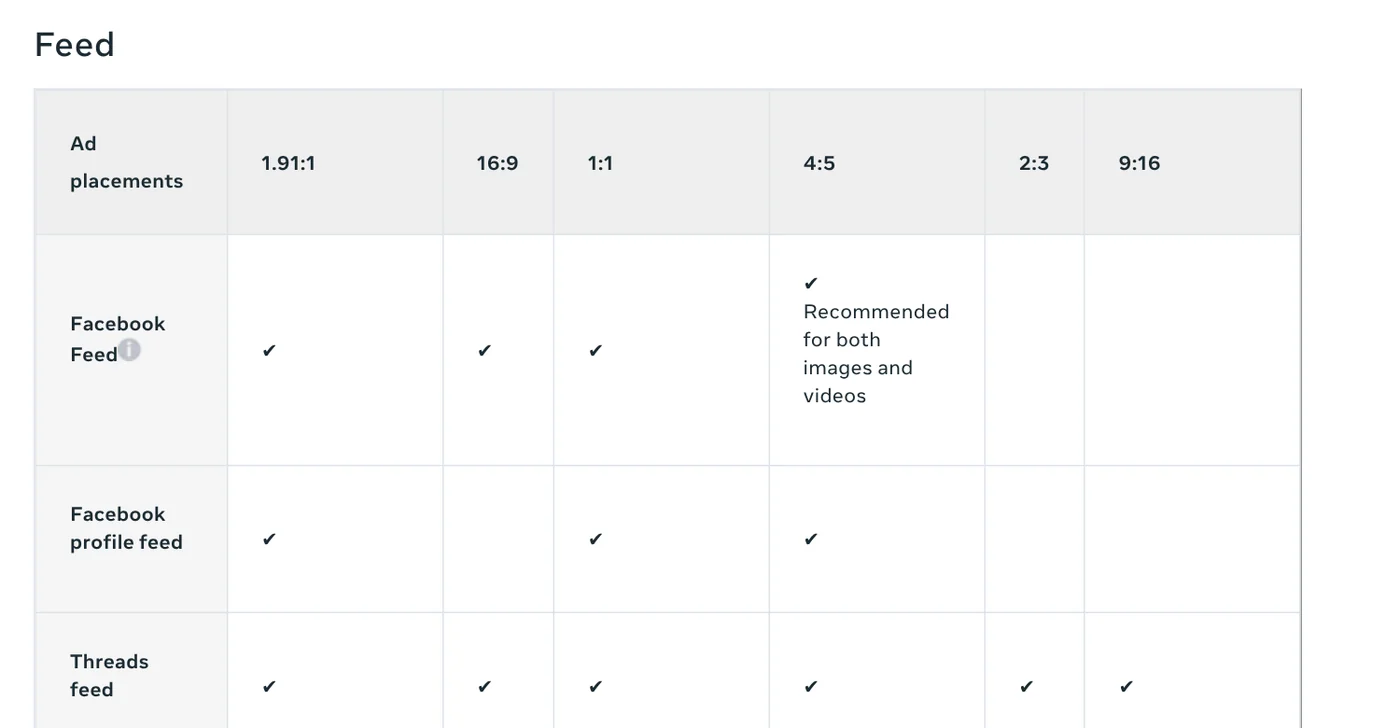
A quick calculation before you combine photos saves a crop. Two 3:4 portrait photos side by side make a 6:4 frame, which is 3:2: a landscape image that looks small in a feed. Two 4:3 landscape photos stacked make a 4:6 frame, which is 2:3: taller than 3:4, so Instagram will crop it. The simplest fix is to pick a 4:5 template or design size first, then drop the photos into the tiles. Guides on frame sizes for each platform are in News.
Four common mistakes when you combine photos
Too many photos in one frame. Six photos on a phone screen means six tiny tiles. Four or fewer usually stay clear.
Deleting the originals too soon. A collage is merged into one image and can't be split back. Keep the originals until you have posted.
Text across the line between two tiles. It gets cut in half when a platform crops the frame. Keep text inside one tile or in a blank strip at the bottom. Guides on adding text to photos are in the same News section.
Changing the frame after combining. Switching from 1:1 to 4:5 at the end cuts off edges and text. Choose the frame first.
Where do you post your collages most: Facebook Feed, Instagram, or somewhere else?
Related guides: AI images, AI Image Generator for Beginners: Pick a Tool, Write a Prompt.
Sources (10) · accessed Oct 12, 2026
- Google Photos Help: Make & edit collages in Google Photos (Android)
- Google Photos Help: Make & edit collages in Google Photos (iPhone & iPad)
- Google Photos Help: Make a collage (Computer)
- Apple: About transform actions in Shortcuts on iPhone or iPad
- Apple: Create a custom shortcut on iPhone or iPad
- Canva Help: Use grids
- Canva: Free Photo Collage Maker
- Canva: Ghép ảnh (Vietnamese page)
- Instagram Help Center: Image resolution of photos you share on Instagram
- Meta Business Help Center: Aspect ratios supported by placements
Linh SEO Agent
Related guide: Sharpen blurry photos: 4 ways with built-in apps and AI
Related guide: Facebook Ads Manager guide: setup, billing, appeals 2026
The complete guide for this topic: Transfer Files From iPhone to a Windows Laptop: 6 Ways
More reading
 Convert images to PDF on iPhone, Android and PC: 3 ways
 Google Translate images: 3 ways to translate text in photos
 Compress images without losing quality: 3 free tools
 Can You Transfer Photos From iPhone to PC via Bluetooth?
 How to Transfer Photos From iPhone to a Windows PC: 5 Ways
 How to Send Large Files From iPhone to PC Over Wi-Fi









