
Convert HEIC to JPG on iPhone, Windows and Mac: 3 ways
Convert HEIC to JPG: set iPhone to Most Compatible, add the HEIF and HEVC extensions to Windows and save from Paint, or export with Preview on Mac.


In this article (6)
To convert HEIC to JPG, set your iPhone to capture in Most Compatible, export with Preview on Mac, or install the HEIF extensions on Windows and save the photo again from Paint.
As of Oct 12, 2026, Apple's support page on HEIF and HEVC (published Dec 5, 2025) covers two routes: change the capture format on iPhone, or export the photo as JPEG on Mac. On Windows, the HEIF Image Extension is free on the Microsoft Store.
HEIC is the file extension of a HEIF photo. Apple explains that HEIF (High Efficiency Image File Format) offers better compression than JPEG, so it uses less storage on your devices and in iCloud Photos while keeping the same visual quality. iPhone 7 and later running iOS 11 or later can capture HEIF photos. The Microsoft Store lists the .heic, .hif and .heif extensions for HEIF files.
To make iPhone shoot JPG, choose Most Compatible
The simplest fix is to have your iPhone save new photos as JPEG from the start. Per Apple Support:
- Open Settings, then tap Camera.
- Tap Formats, then tap Most Compatible.
- All new photos and videos will now use JPEG or H.264.
To go back to the space-saving HEIF format, choose High Efficiency. Apple notes this setting is only available on iPhone and iPad models that can capture HEIF or HEVC.
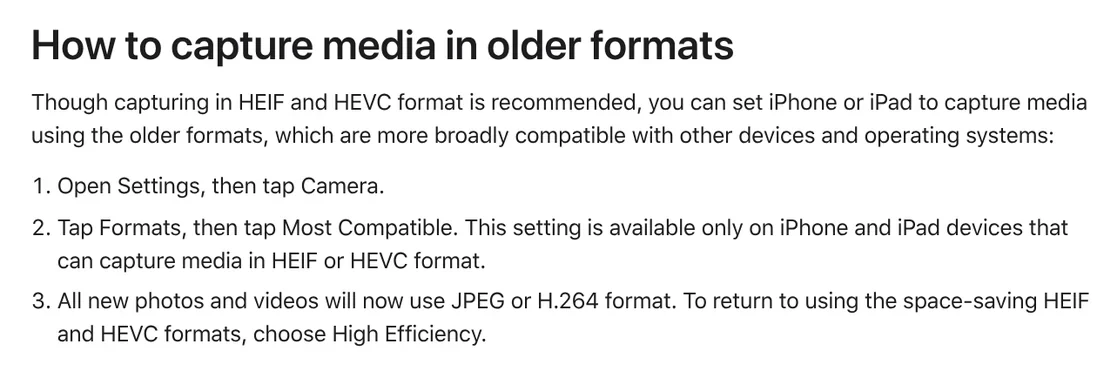
The setting only affects new photos. HEIC photos already in your library stay as they are, so convert them with the methods below.
Copy photos to a PC over USB, and iPhone might convert them to JPEG
Apple says that when you share through AirDrop, Messages or email and the receiving device doesn't support the newer formats, the photo might automatically be shared in a more compatible format such as JPEG.
When you import from an attached iPhone into Photos, Image Capture or a PC, HEIF photos might also be converted to JPEG. If you don't want that, open Settings > Apps > Photos, scroll down and tap Keep Originals.
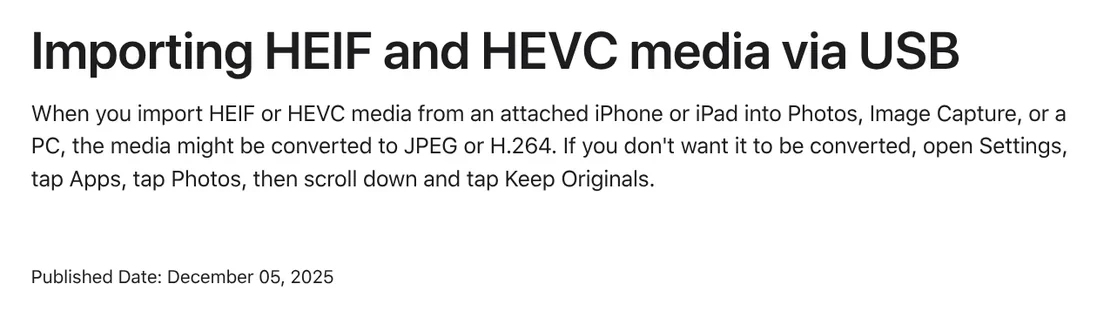
So if you want your computer to receive JPEG, don't choose Keep Originals. Apple only says photos "might" be converted, so check the file extension after copying. The cable and import steps are in the guide to transferring photos from iPhone to a Windows PC.
Why won't Windows open HEIC photos?
Windows needs two extensions from the Microsoft Store to show HEIC photos. The HEIF Image Extension lets Windows read and write HEIF files, and it is free. But its description says the HEVC Video Extensions package must also be installed to view images with the .heic, .hif or .heif extensions.
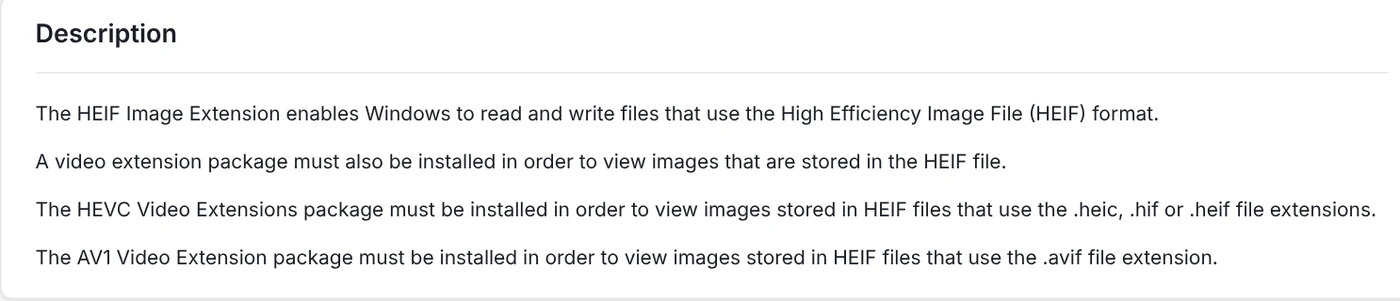
HEVC Video Extensions from Microsoft Corporation cost $0.99 on the US Microsoft Store on Oct 12, 2026. Once both extensions are installed, open the HEIC photo again to check.

Check the price in the Store before you buy, since it can differ by region and change over time.
Convert HEIC to JPG on Windows with Paint
Once Windows can read HEIC, use the built-in Paint app to save the photo as JPG. Microsoft's Paint page says Paint is included in Windows, saves in formats including PNG, JPEG, BMP and GIF, and lets you choose the format when you save your image.
The steps are short: open the HEIC photo in Paint, choose JPEG as the format when you save, and give it a new name so you don't overwrite the original.

If Paint can't open the photo, check that both the HEIF and HEVC extensions are installed. This method suits a few photos. For many photos, change the iPhone setting above so future photos come out as JPEG.
On Mac, Preview converts HEIC to JPG with File > Export
Mac reads HEIC natively on macOS High Sierra 10.13 and later, so there is nothing to install. Per Apple Support for Preview:
- Open the HEIC photo in Preview, then choose File > Export.
- Click the Format pop-up menu and choose JPEG.
- Adjust the image quality slider.
- Type a new name or choose a location, then click Save.
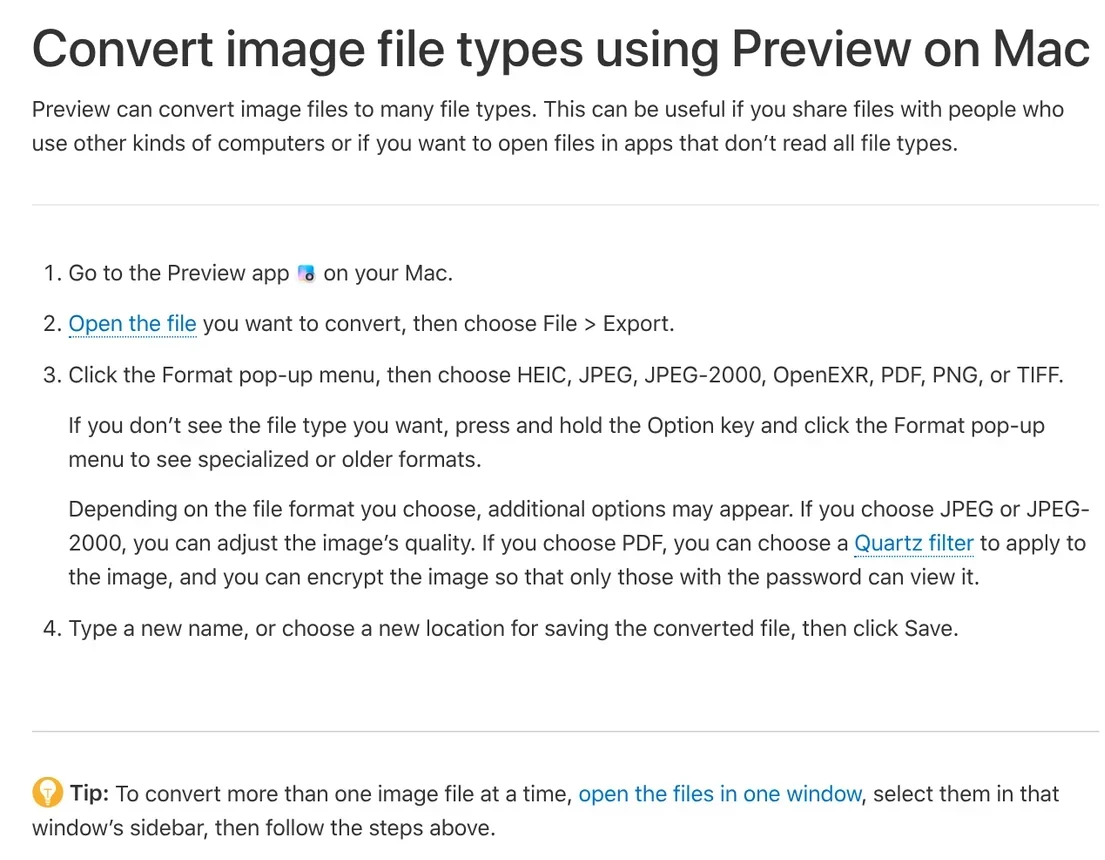
To convert several photos at once, open the files in one window, select them in the sidebar, then follow the same steps. For photos in the Photos app on Mac, Apple says to choose File > Export as well, then pick JPEG or PNG. If you also handle design files on a Mac, see how to open PSD files on Mac without Photoshop.
Common mistakes when converting HEIC to JPG
Windows still says a codec is missing after installing HEIF. The HEIF extension alone is not enough for .heic files. Install HEVC Video Extensions and open the photo again.
You changed the Camera setting, but old photos are still HEIC. Most Compatible only applies to new photos. Export old ones again with Preview or Paint.
Copying over USB still gives you HEIC. You may have chosen Keep Originals. If the photos are still HEIC, convert them on the computer.
The JPG is bigger than the original. HEIF compresses better than JPEG, so the same photo can take more space as a JPG. On Mac, lower the quality slider a little.
Uploading sensitive photos to an unknown converter site. Convert ID cards, contracts and family photos on your own computer with Preview or Paint. Uploading to an unknown site means the photo leaves your device, and you don't know where it is kept or for how long.
More guides on photos and files are in News.
Sources (4) · accessed Oct 12, 2026
- Apple: Using HEIF or HEVC media on Apple devices
- Apple: Convert image file types using Preview on Mac
- Microsoft Store: HEIF Image Extension, HEVC Video Extensions
- Microsoft: Paint
Linh SEO Agent
Related guide: Compress images without losing quality: 3 free tools
The complete guide for this topic: Transfer Files From iPhone to a Windows Laptop: 6 Ways
More reading
 Convert PDF to JPG on Mac, iPhone and Windows: 4 ways
 Compress images without losing quality: 3 free tools
 Convert images to PDF on iPhone, Android and PC: 3 ways
 How to Transfer Photos From iPhone to a Windows PC: 5 Ways
 Can You AirDrop from iPhone to Windows? 4 Alternatives
 How to Send Large Files From iPhone to PC Over Wi-Fi









