
Compress PDF files: 4 ways to keep the text sharp in 2026
Compress a PDF with Adobe Acrobat online, Word, Preview on Mac, or Stirling-PDF on your computer. Which level keeps text sharp, and when not to compress.

In this article (7)
- Compress a PDF online with Adobe Acrobat: three levels, files up to 2 GB
- If you still have the Word file, compress the images and export a new PDF
- On a Mac, Preview has a built-in Reduce File Size filter
- Stirling-PDF compresses on your computer by level 1 to 9 or by target size
- How much can you compress a PDF before the text gets hard to read?
- Don't compress files you need to print or submit as originals
- Three common mistakes when you compress a PDF
To compress a PDF, use Adobe Acrobat online, export it again from Word, use Preview on a Mac, or run Stirling-PDF on your computer. Start with light compression and check the text before you send it.
As of Oct 12, 2026, Adobe's online PDF compressor accepts files up to 2 GB, while Word, Preview, and Stirling-PDF compress on your own machine. All four mainly lower the resolution of images inside the file, so scanned documents are the most likely to end up with blurry text.
Compress a PDF online with Adobe Acrobat: three levels, files up to 2 GB
Adobe Acrobat's Compress a PDF page runs in your browser with nothing to install. The steps:
- Click Select a file, or drag and drop a PDF into the box.
- Choose a High, Medium, or Low compression level.
- Wait for Acrobat to shrink the file, then download it or sign in to share it.
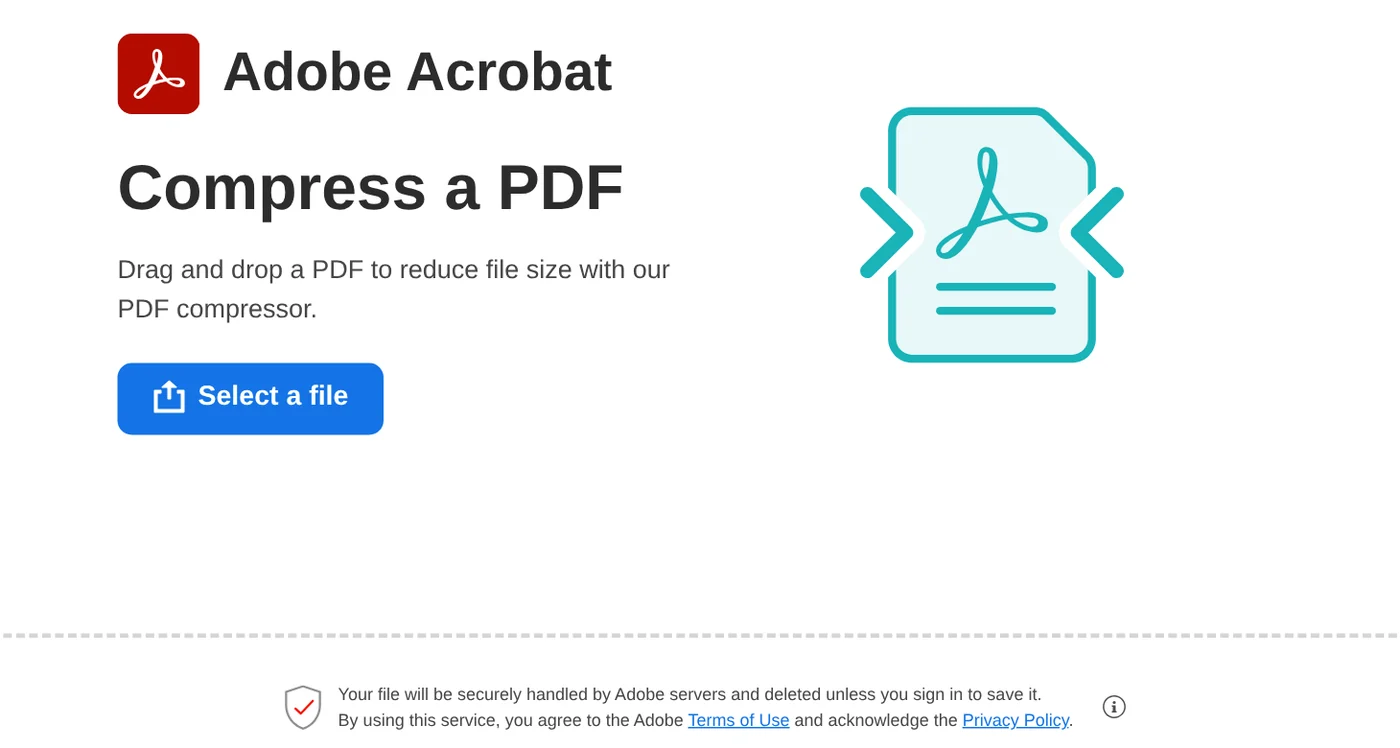
Adobe says compression reduces image resolution, flattens interactive layers, and removes unused metadata. You can download the result without signing in.
The online tool is free with limited use. The same page says unlimited compression, batch processing, and advanced settings require a paid Acrobat plan. Password-protected PDFs need the password first. Acrobat Pro has a free 7-day trial that lets you set PPI (pixels per inch) for color, grayscale, and monochrome images.
If you still have the Word file, compress the images and export a new PDF
If you have the original .docx, compress the images in Word and save a fresh PDF. Microsoft Support gives these steps for Word on Windows:
- Select a picture to show the Picture Format tab, then select Compress Pictures in the Adjust group.
- Clear Apply only to this picture so every picture in the document is compressed.
- Select Delete cropped areas of pictures. The cropped parts are gone for good.
- Choose a resolution and select OK.
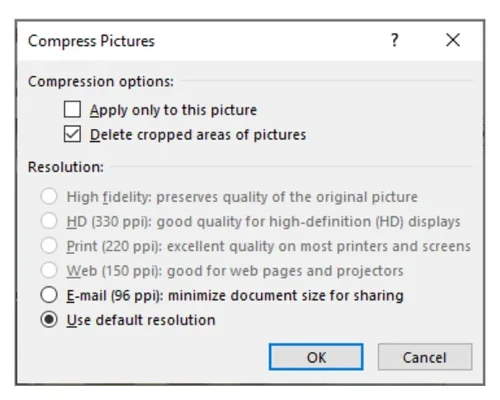
Then, following Microsoft's guide to saving Office files as PDF, select File > Save a Copy, choose PDF in the list, and select Save. This only compresses the pictures. Typed text stays as it is.
On a Mac, Preview has a built-in Reduce File Size filter
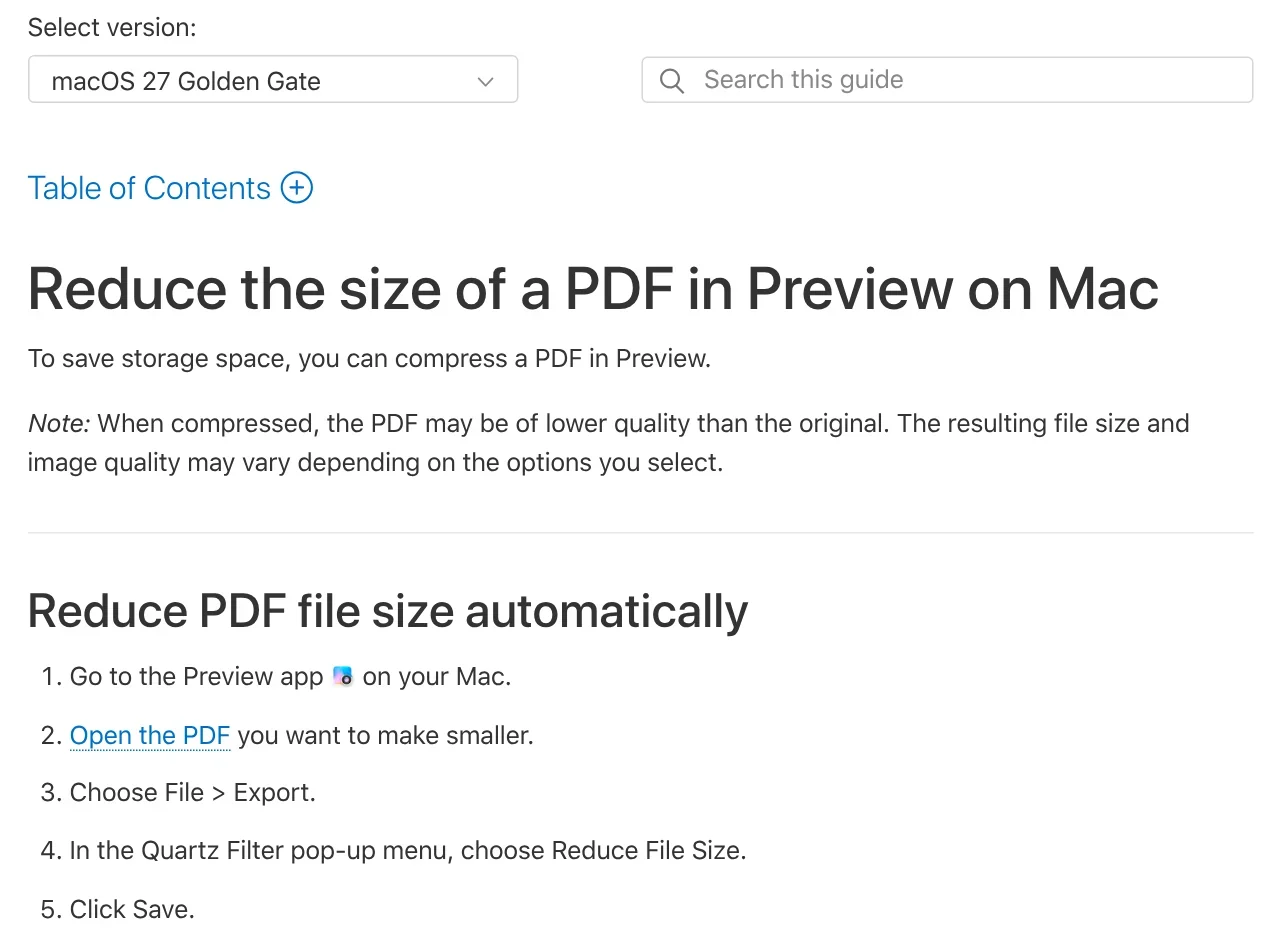
A Mac needs nothing extra. Apple's Preview guide, now shown for macOS 27, lists these steps:
- Open the PDF in Preview.
- Choose File > Export.
- In the Quartz Filter pop-up menu, choose Reduce File Size.
- Click Save. If asked to replace the existing file, click Cancel and enter a new name to keep the original.
The Export dialog also has three checkboxes: Create Linearized PDF, Optimize images for screen, and Save images as JPEG. Try them one at a time.
Stirling-PDF compresses on your computer by level 1 to 9 or by target size
For how to install Stirling-PDF, see the News section. For compression, the Compress page in the Stirling docs offers two methods:
- Quality: drag the slider from 1 to 9, default 5. Higher levels give smaller files but can blur images.
- File Size: enter a desired size in KB or MB, and Stirling gets as close as it can.
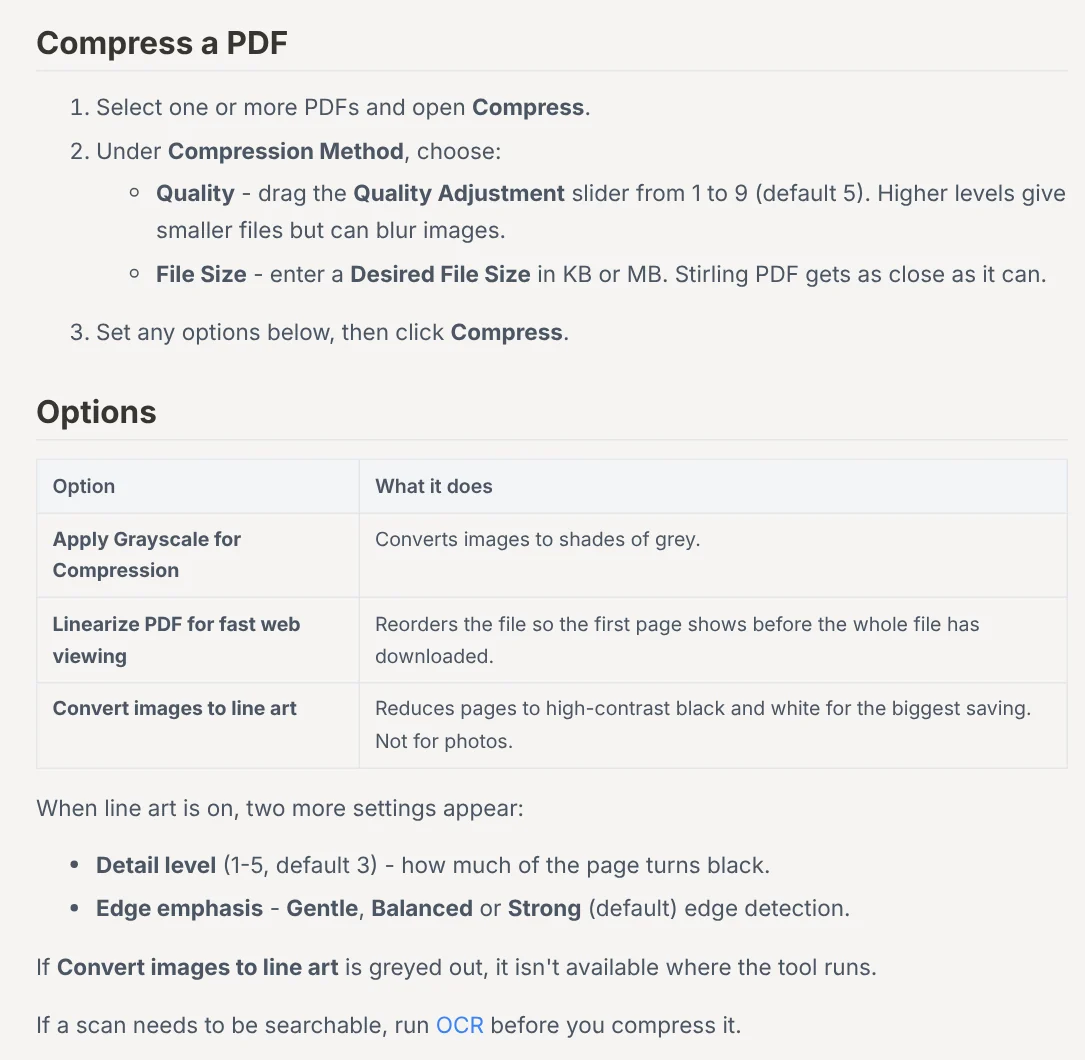
The line art option turns pages into high-contrast black and white for the biggest saving, but it is not meant for photos.
The main benefit is that your file stays on your machine. Where your tools run says that in the desktop app's Local Only mode, tools run on your computer and nothing is uploaded, though line art usually needs a server. Stirling Cloud on the web is different: the FAQ says its compress tool sends the file to Stirling's servers.
How much can you compress a PDF before the text gets hard to read?
Microsoft's resolution levels are a good guide. In the Compress Pictures dialog, Print is 220 ppi, Web is 150 ppi, and E-mail is 96 ppi. Microsoft recommends a default of 150 ppi or lower, since in most cases you won't need more.
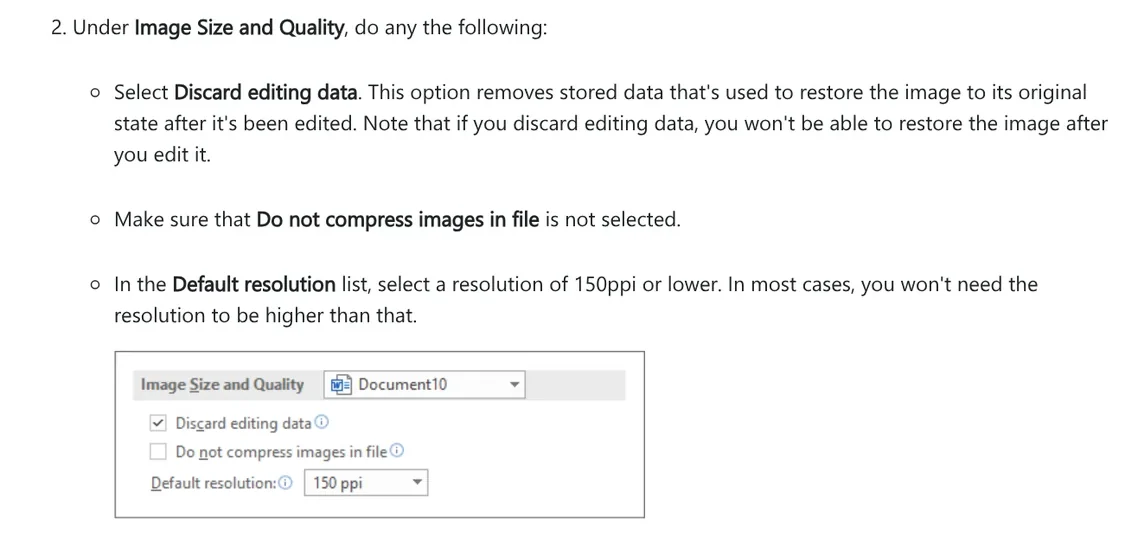
After compressing, zoom to 200% on the page with the smallest text, such as footnotes, stamps, or signatures. If it reads clearly, keep it. If it blurs, compress again more lightly: try Low in Adobe first, and start at level 5 in Stirling.
Scans break most easily because the text is an image too. Stirling suggests running OCR (text recognition) before compressing if a scan needs to be searchable.
Don't compress files you need to print or submit as originals
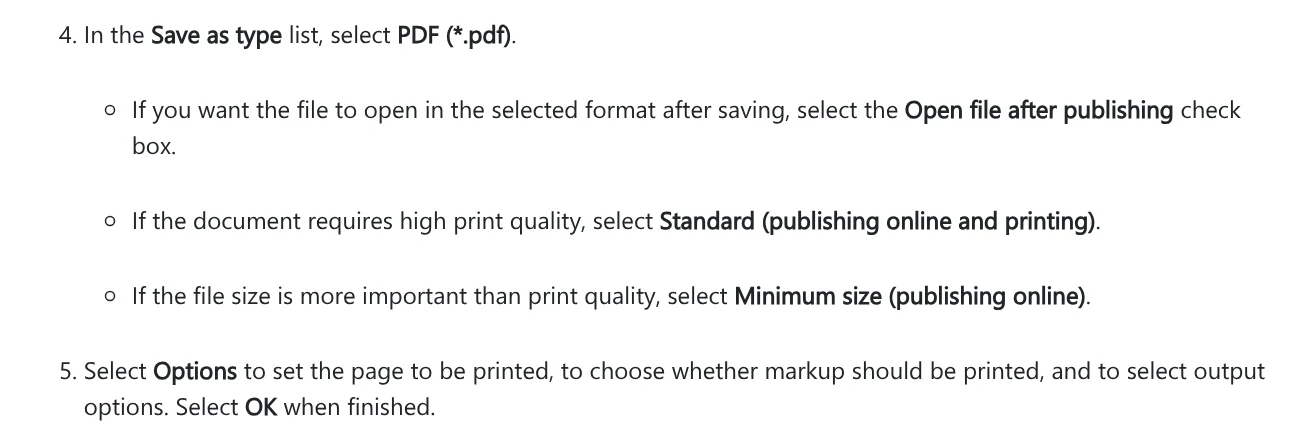
Compression trades quality for size. Microsoft's PowerPoint save as PDF steps split the choice in two. For high print quality, choose Standard (publishing online and printing). Choose Minimum size (publishing online) only when file size matters more than print quality.
Keep the original when you have:
- Files going to print: catalogs, posters, drawings. 96 or 150 ppi suits screens, not paper.
- Forms you still need to fill in: Adobe says compression includes flattening interactive layers, so keep the original to keep filling it in.
- Documents with signatures, stamps, or small numbers. If you must compress to fit an upload limit, check every page.
Three common mistakes when you compress a PDF
Overwriting the original. Once the original is gone, you can't get the quality back. Always save to a new file.
Compressing a scan at the strongest level. Letters break up easily, so start light.
Uploading sensitive documents. For contracts and ID documents, compress with Word, Preview, or Stirling-PDF in Local Only mode.
If the PDF is on your iPhone, move it to your computer first. Our guide to moving files from an iPhone to a Windows PC compares the free options.
Are the PDFs you compress most often scans, or documents exported from Word?
Related guides: PDF, documents and translation.
Sources (4) · accessed Oct 12, 2026
- Adobe Acrobat: Compress a PDF, Compress a PDF (Vietnamese page)
- Microsoft: Reduce the file size of your Word documents, Save or convert to PDF or XPS in Office desktop apps
- Apple: Reduce the size of a PDF in Preview on Mac
- Stirling PDF Docs: Compress, Where your tools run, FAQ
Linh SEO Agent
Related guide: Convert images to PDF on iPhone, Android and PC: 3 ways
Related guide: Convert PDF to JPG on Mac, iPhone and Windows: 4 ways
Related guide: Edit PDF files: 4 ways to change text and delete pages
The complete guide for this topic: What Is Stirling PDF? Free Self-Hosted PDF Tools
More reading
 Merge PDF files into one on Mac, iPhone and online: 5 ways
 Edit PDF files: 4 ways to change text and delete pages
 Convert PDF to JPG on Mac, iPhone and Windows: 4 ways
 Translate PDF Files: 3 Ways to Keep the Original Layout
 Convert PDF to PowerPoint: 3 ways to get editable slides
 Convert PDF to Word and keep the formatting: 4 ways









