
Compress images without losing quality: 3 free tools
Compress images and keep them sharp: pick the right format, use Squoosh, Paint or Preview on Mac, set up your iPhone, and size photos for web and social.

In this article (7)
- Compress images the right way: resize first, pick the format second
- Squoosh compresses images online in your browser, and the file stays on your device
- On Windows and Mac, the built-in apps are enough to reduce image file size
- iPhone shoots HEIC. Should you switch to Most Compatible?
- Send photos by messaging app and email without losing quality
- Size guide: 1080 pixels for Instagram, 1200 pixels for the web
- Three common mistakes when compressing images
To compress images and keep them sharp, resize them to the pixel size you actually need, then save as JPEG or WebP at a moderate quality. Squoosh, Paint and Preview on Mac all do this for free.
As of Oct 12, 2026, all three tools are free. File size depends on two things: the number of pixels and how the image is encoded. So resize first, then choose a format and a quality level.
Compress images the right way: resize first, pick the format second
Each format suits a different kind of image. Google's web.dev guide recommends JPEG, lossy WebP or AVIF for photos and screenshots. If you need to keep fine detail at the highest resolution, use PNG or lossless WebP. Logos, text and icons are best as vector formats such as SVG.
If your website or app accepts WebP, it is usually the lighter choice. According to the WebP page on Google for Developers, lossless WebP images are 26% smaller than PNGs. Lossy WebP images are 25 to 34% smaller than comparable JPEGs at the same quality. Chrome, Safari, Firefox, Edge and Opera all support WebP.

HEIC is the format iPhone uses for photos. Apple says HEIF offers better compression than JPEG, so it uses less storage while keeping the same visual quality. The downside is that not every device or website can open it, so the iPhone section below explains when to switch.
Squoosh compresses images online in your browser, and the file stays on your device
Squoosh is an image compression web app from Google Chrome Labs, open source under the Apache-2.0 license on GitHub. Unlike many online compressors, Squoosh does not send your image to a server. All compression happens on your own device. The site only uses Google Analytics to count visits and record the image size before and after compression.
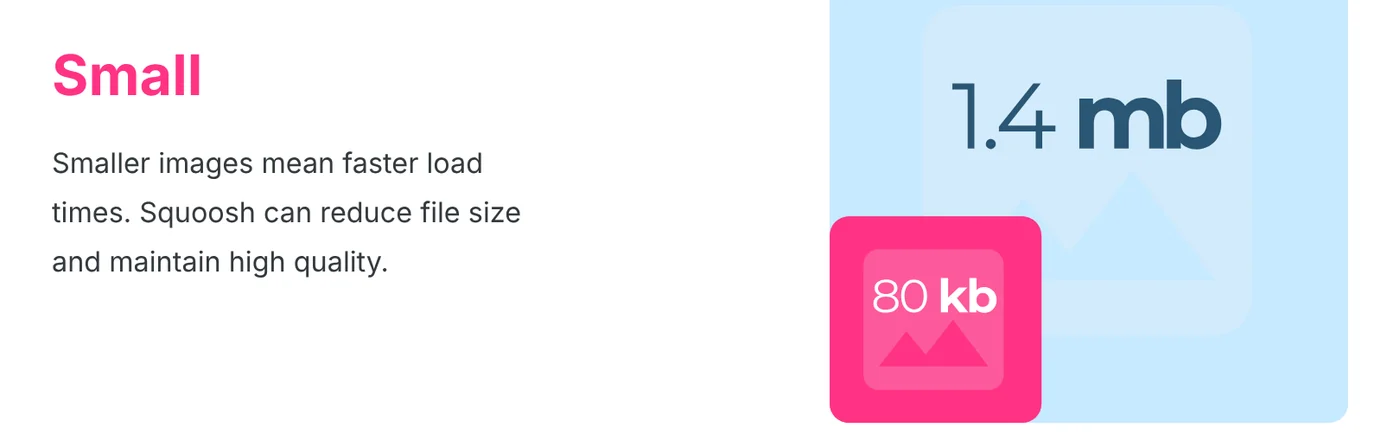
It takes three steps:
- Open squoosh.app, then drag your image in or use the Paste button.
- In the Edit panel, turn on Resize to reduce the pixel count.
- Under Compress, choose a format, drag the Quality slider, then click the download button.
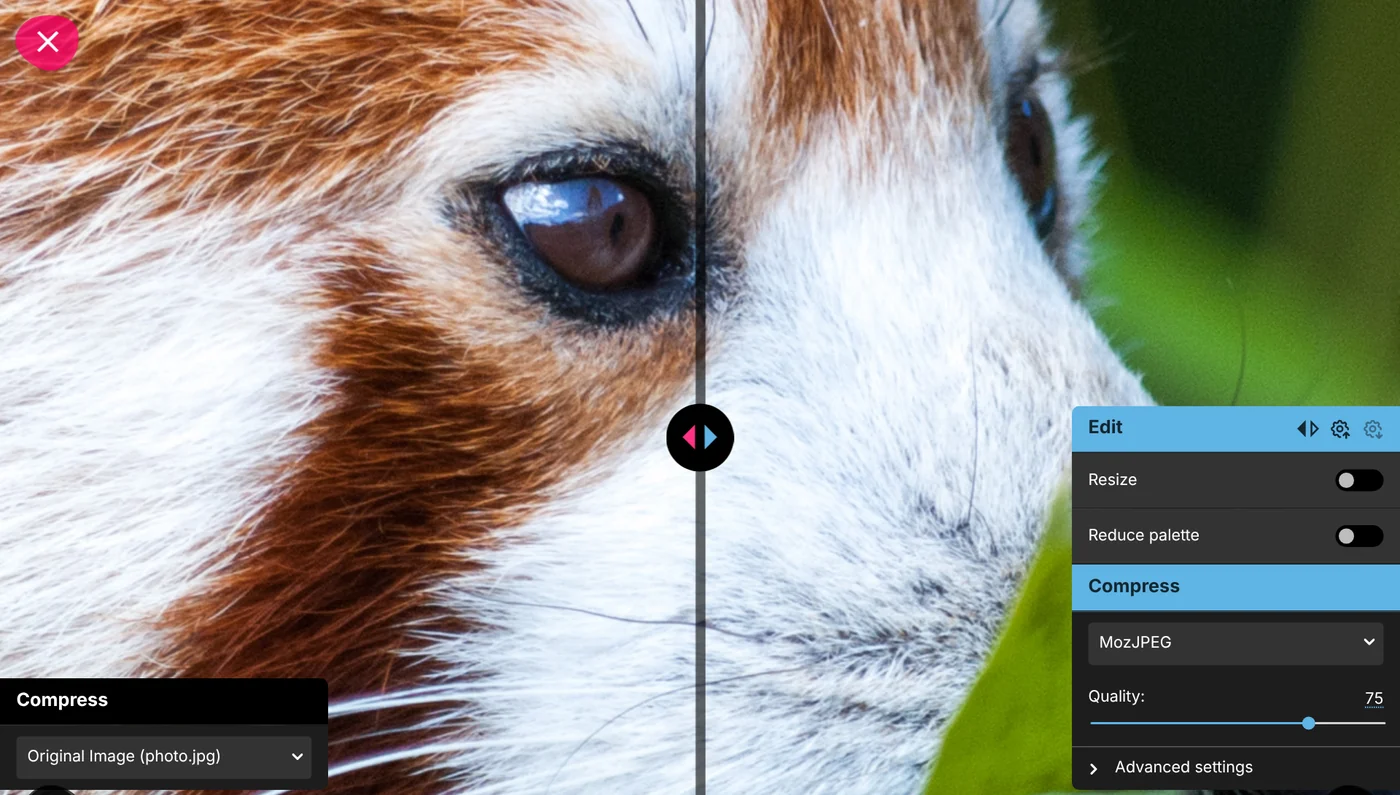
The format list includes AVIF, MozJPEG, WebP, OxiPNG, JPEG XL (beta) and a few others. The slider in the middle of the screen compares the original with the compressed version on the same image, so you can check hair or small text before you download.
On Windows and Mac, the built-in apps are enough to reduce image file size
On Windows, Paint can resize images. According to Microsoft's Paint page, you select Resize on the Home tab, then enter the new size in pixels or as a percentage of the original. Then save it as a JPEG, the format web.dev recommends for photos.

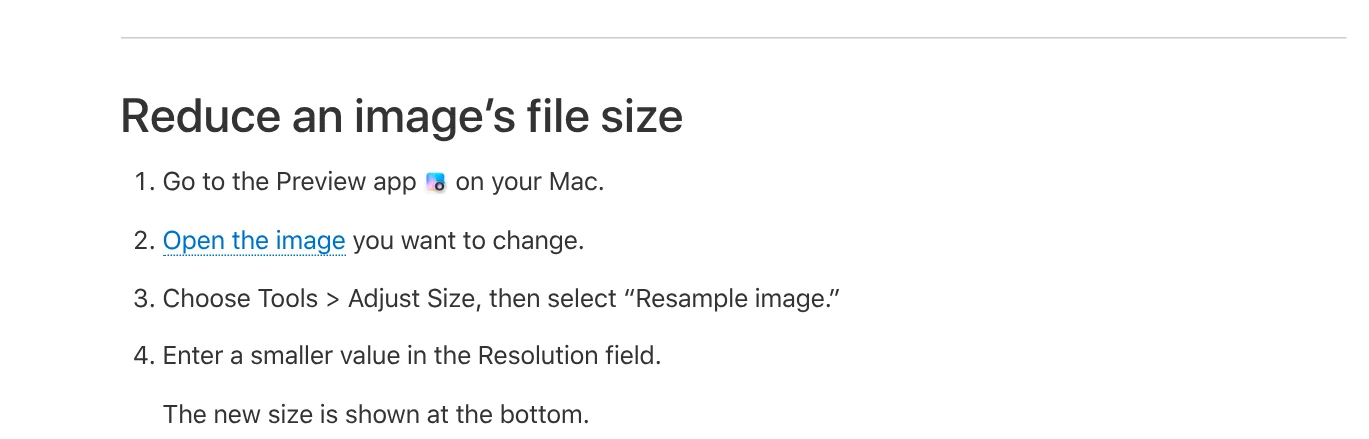
On a Mac, Preview can reduce file size. Apple Support says to open the image, choose Tools > Adjust Size, select Resample image, then enter a smaller value in the Resolution field. The new size appears at the bottom of the dialog. To do several images at once, open them in the same window, select them in the sidebar, and repeat the steps.
Preview also lets you set quality when you export. According to Apple, choose File > Export, then pick HEIC, JPEG, PNG or another format. When you choose JPEG, a quality slider appears, and a lower setting gives a lighter file.
iPhone shoots HEIC. Should you switch to Most Compatible?
Only if you often send photos to devices or websites that can't read HEIC. Apple's HEIF and HEVC support page says to open Settings > Camera > Formats and tap Most Compatible. New photos will then be saved as JPEG. To go back to the space-saving format, choose High Efficiency.
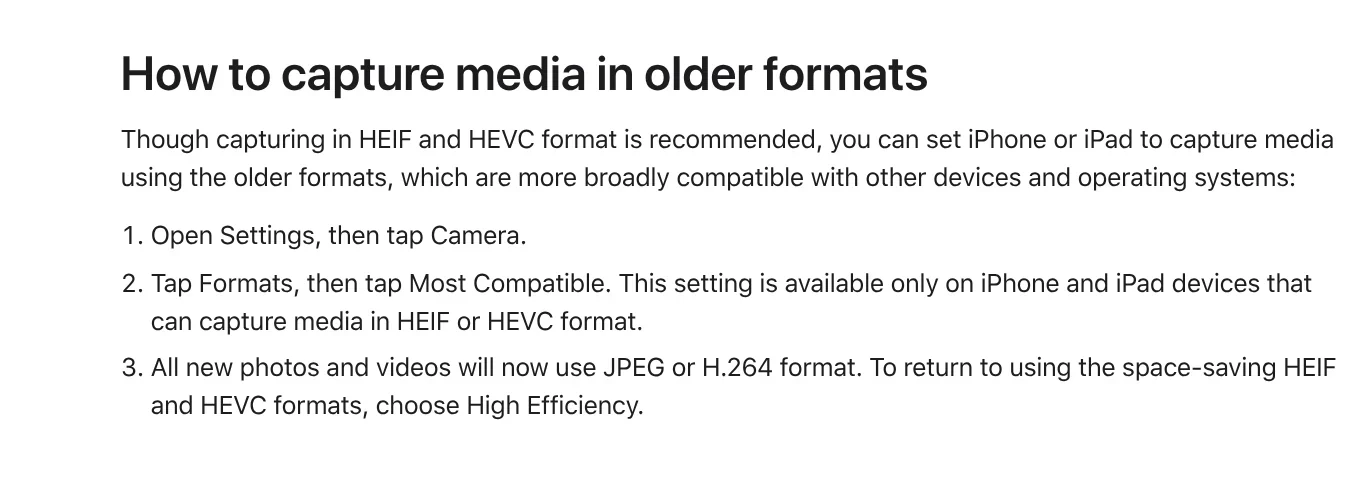
When you import photos to a PC over USB, Apple says HEIF files might be converted to JPEG. To keep the original files, go to Settings > Apps > Photos, scroll down and tap Keep Originals. More ways to move photos are in News.
Send photos by messaging app and email without losing quality
Messaging apps often have their own quality settings. In Vietnam, for example, WhatsApp Help (Vietnamese page) lists three photo modes. Standard sends fast at medium quality. HD is sharper, up to 2560p for photos. Original keeps every detail of the source file but is currently only for zCloud users. You pick the mode from the resolution button after choosing the photo, before you tap send.
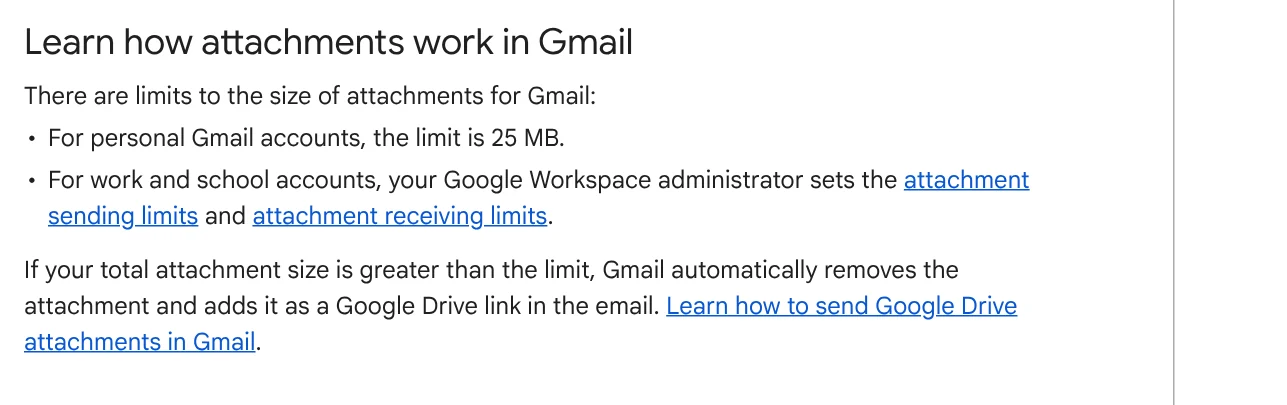
Gmail limits attachments. According to Gmail Help, personal accounts can send up to 25 MB per email. Above that, Gmail removes the attachment and adds it as a Google Drive link instead. So resize a batch of phone photos before you attach them.
Sometimes you need the exact original, such as a product photo for print. Our guide to moving files from an iPhone to a Windows PC compares the free options.
Size guide: 1080 pixels for Instagram, 1200 pixels for the web
There is no need to keep a huge photo when the place you post it shows far fewer pixels. Instagram Help Center says photos are uploaded at a width of up to 1080 pixels. Wider photos are sized down to 1080 pixels, and photos narrower than 320 pixels are enlarged. Aspect ratios between 1.91:1 and 3:4 are kept, and anything outside that range is cropped.
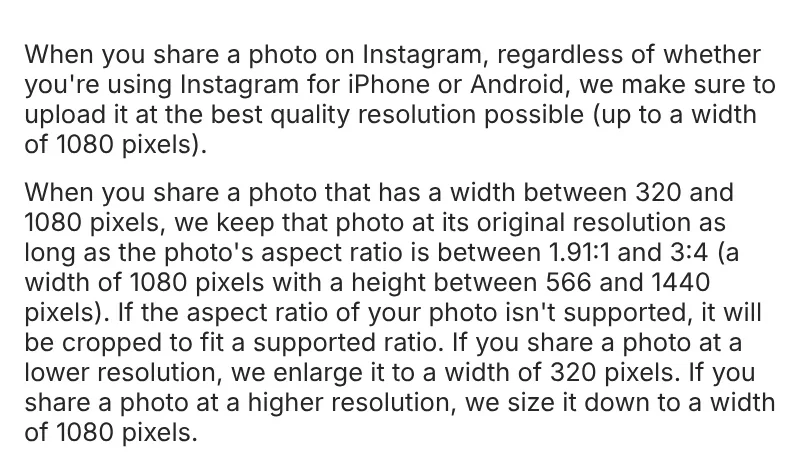
For social media, you can bring the width down to 1080 pixels before compressing. Choosing between 4:5, 1:1 and 16:9 frames? Check the guides in News so the important part of the photo doesn't get cropped.
For images on a website, Google recommends large images at least 1200 px wide to give a page a better chance of a large preview in Discover. Google also notes that images are often the largest contributor to overall page size, which makes pages slow to load.
Three common mistakes when compressing images
Compressing the same file again and again. According to web.dev, lossy mode discards some information to make images smaller. Each time you reopen a compressed copy and save it again, you lose a bit more. Keep the original and always compress from it.
Using low-quality JPEG for images with small text or logos. When you need to keep fine detail, web.dev recommends PNG or lossless WebP. Logos, text and icons are best as SVG.
Compressing first and editing later. Once detail is gone, any sharpening tool can only guess it back. Sharpen, crop or add text on the original, and compress as the very last step.
Do you mostly compress images for social media, for a website, or to send to clients?
Related guides: AI images.
Sources (11) · accessed Oct 12, 2026
- web.dev: Choose the right image format
- Google for Developers: An image format for the Web
- Squoosh: squoosh.app, GitHub repository
- Microsoft: Paint
- Apple: Crop, resize, or rotate an image in Preview on Mac
- Apple: Convert image file types using Preview on Mac
- Apple: Using HEIF or HEVC media on Apple devices
- WhatsApp Help: Photo and video sending modes on WhatsApp (Vietnamese page)
- Gmail Help: Send attachments with your Gmail message
- Instagram: Image resolution of photos you share on Instagram
- Google Search Central: Get on Discover, Image SEO best practices
Linh SEO Agent
Related guide: Convert HEIC to JPG on iPhone, Windows and Mac: 3 ways
More reading
 How to Transfer Videos from iPhone to PC Without Quality Loss
 Compress videos: 5 ways to shrink files and stay sharp
 Convert HEIC to JPG on iPhone, Windows and Mac: 3 ways
 How to combine photos: 4 steps on iPhone, Android and PC
 Convert PDF to JPG on Mac, iPhone and Windows: 4 ways
 Convert images to PDF on iPhone, Android and PC: 3 ways









