
Convert PDF to PowerPoint: 3 ways to get editable slides
Convert PDF to PowerPoint with editable text using Adobe Acrobat or Stirling-PDF. Inserting a PDF in PowerPoint or Google Slides only gives you images.

In this article (6)
- Convert PDF to PowerPoint with editable text: export to PPTX
- Only need to show the PDF: insert it into PowerPoint as a picture or object
- Google Slides cannot open a PDF directly: go through PPTX first
- Why does a PDF to PowerPoint conversion give you images instead of text?
- Sensitive documents should not go to unknown converter sites
- Pick the method by what you will do with the slides
To convert PDF to PowerPoint and still edit the text, export the PDF to a PPTX file with Adobe Acrobat or Stirling-PDF. Inserting a PDF into PowerPoint or Google Slides only gives you an image.
Convert PDF to PowerPoint with editable text: export to PPTX
As of Oct 12, 2026, there are two kinds of results when you bring a PDF into a presentation. The first is a new PPTX file with the text in text boxes you can edit. The second is the PDF placed on a slide like a picture. For the first kind, you need a real converter.
Adobe Acrobat online: nothing to install, one slide per page
On Adobe's PDF to PPT converter, click Select a file or drag your PDF into the drop zone, then download the converted PowerPoint file. The page's FAQ says each PDF page becomes a slide in the new file. Adobe says your file is handled on Adobe servers and deleted unless you sign in to save it. Once signed in, you can edit the file in PowerPoint for the web.
Acrobat on your computer: keep the layout or keep the text flowing
If you have Acrobat installed, Adobe's export guide (Adobe Vietnam site, English text) lists the steps: open the PDF, choose File > Export To or Tools > Export PDF, pick the PowerPoint format, then click the gear icon to set export options.
Two options matter. Retain Page Layout keeps the slide looking like the PDF, but Adobe notes it may split the text into different text box groups. Retain Flowing Text lets text wrap and flow through the document, which suits you if you plan to rewrite the content.
Stirling-PDF: convert to PPTX or ODP on your own server
Stirling-PDF is an open source PDF toolkit you install yourself, covered in the News section. The Convert page lists the steps: select the file, open Convert, choose PPTX (or ODP) under Convert to, then click Convert Files.
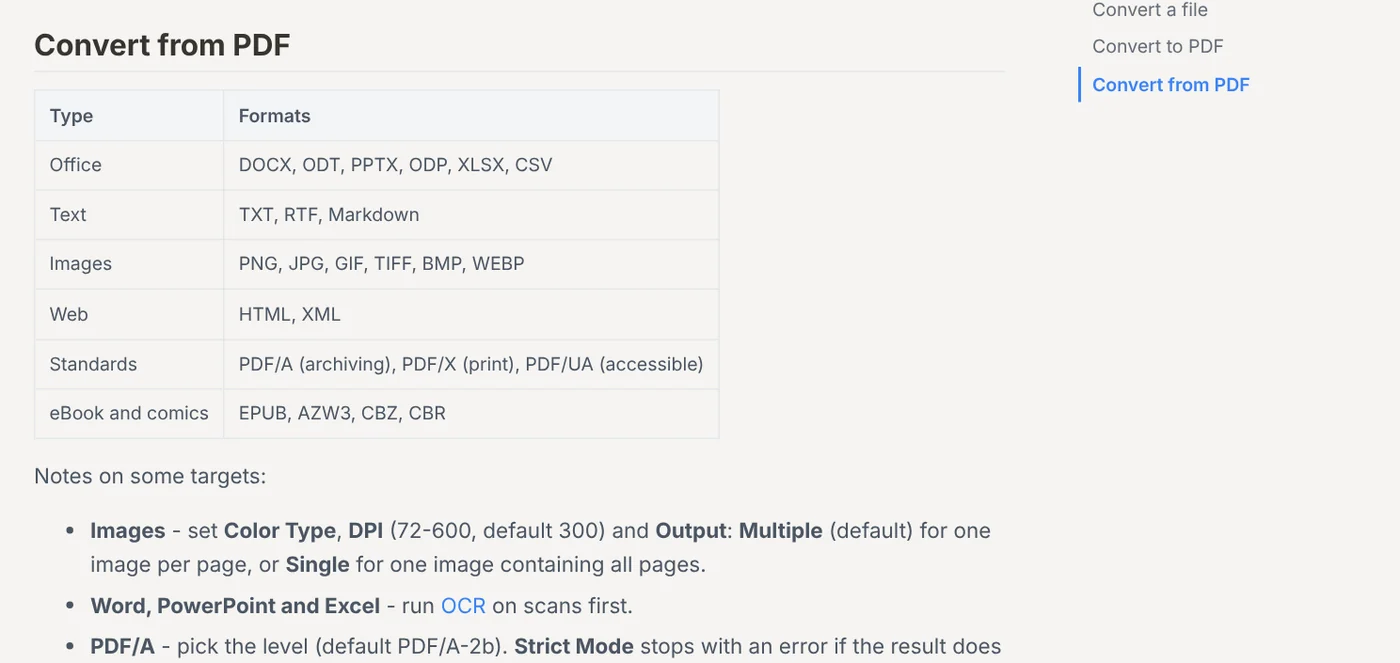
One catch: in the desktop app, the Where your tools run page lists PDF to PowerPoint among the tools that usually need Stirling Cloud or a server. A Docker server set up once works for both Word and PowerPoint conversions.
Only need to show the PDF: insert it into PowerPoint as a picture or object
If you do not need to edit the text, PowerPoint has two built-in ways to put a PDF on a slide. Microsoft Support says both apply to PowerPoint for Microsoft 365, PowerPoint 2024, 2021, 2019 and 2016. PowerPoint for the web cannot insert PDF content.
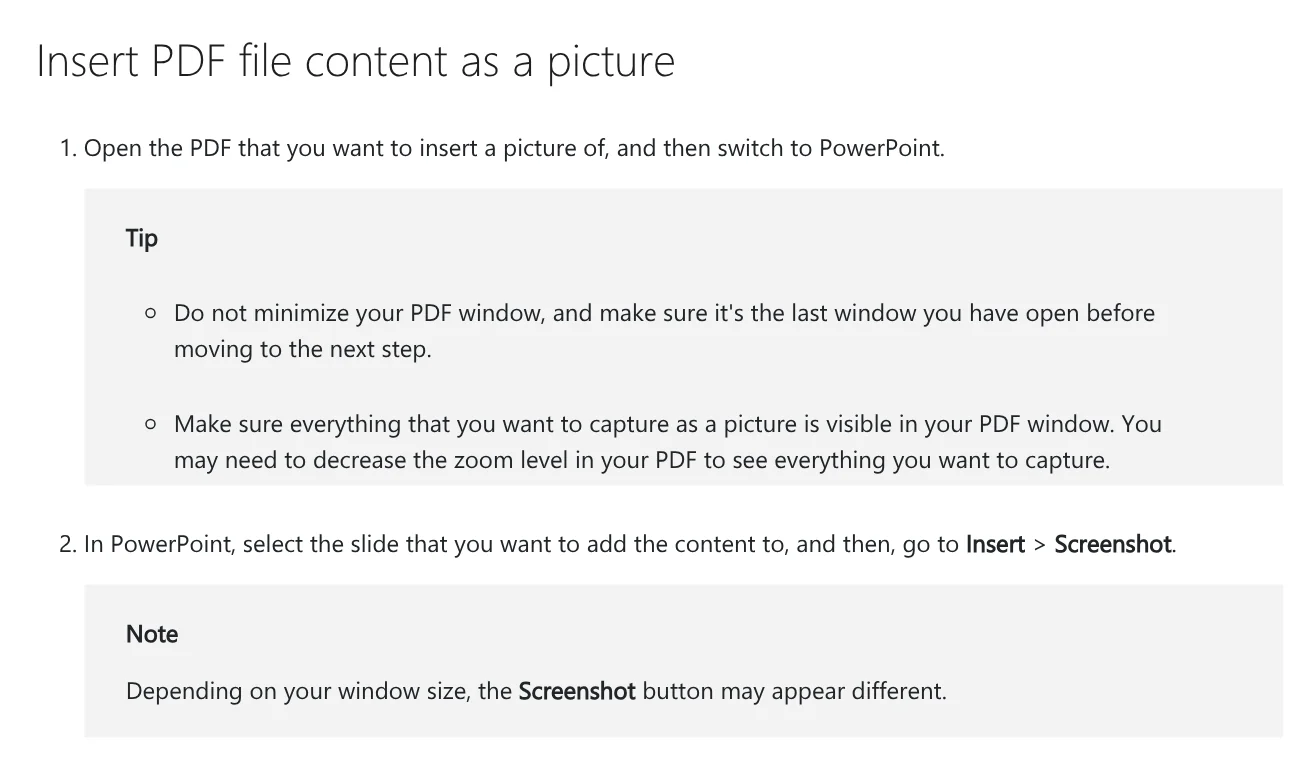
Insert as a picture. Open the PDF, switch to PowerPoint, go to Insert > Screenshot, choose Screen Clipping, then drag a box around the area you want. It lands on the slide as a picture you can adjust from the Picture Tools Format tab. Microsoft advises not to minimize the PDF window, and to zoom out in the PDF if you want the whole page.
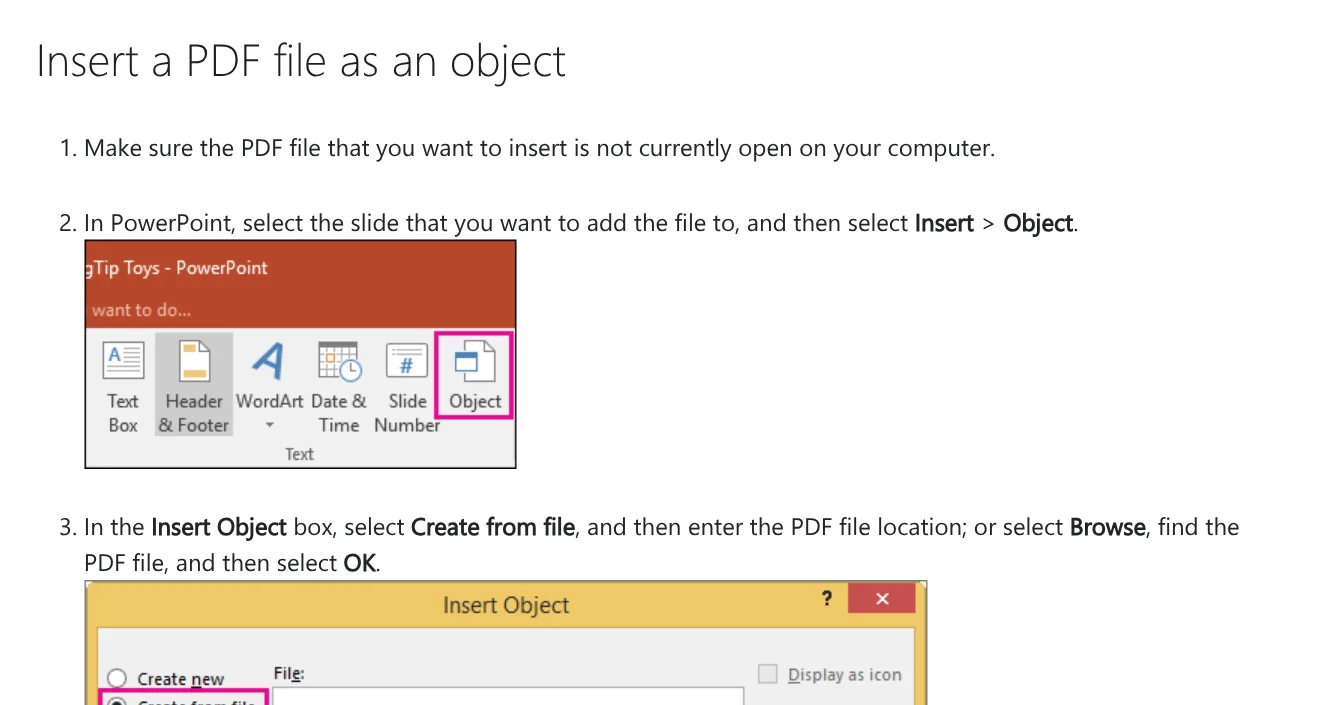
Insert as an object. Close the PDF first, go to Insert > Object, choose Create from file, click Browse, find the file and click OK. Microsoft says the PDF quality will be reduced, but you can double-click the image to open the full file. To open the PDF during a slide show, select the image, go to Insert > Links > Action, choose Object action and Open.
The Microsoft page does not describe either method as letting you type over the PDF text on the slide. If you need to edit the words, go back to exporting a PPTX.
Google Slides cannot open a PDF directly: go through PPTX first
The Work with Office files page lists the file types you can convert to Google Slides: .ppt, .pptx, .pptm, .pps, .ppsx, .ppsm, .pot, .potx, .potm and .odp. PDF is not on that list. Google only lists PDF under OCR, for converting to Google Docs.
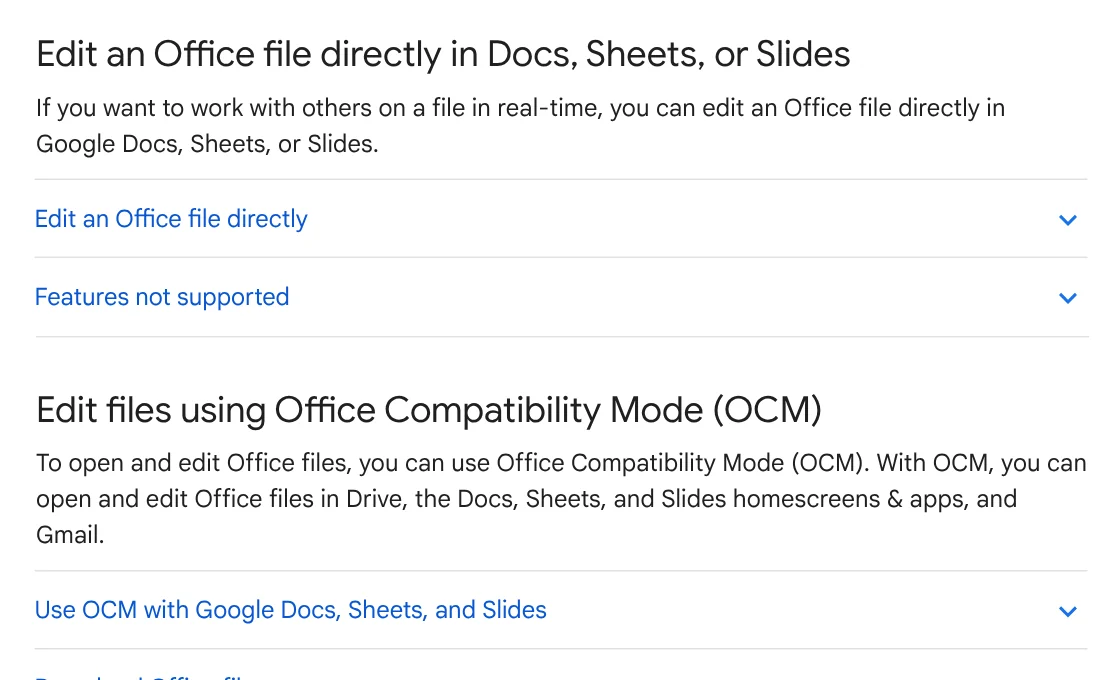
So the shortest route is to convert the PDF to PPTX with Acrobat or Stirling-PDF, upload it to Google Drive and double-click it. Google says a double-click opens the Office file in Slides so you can work on it with others in real time.
If you only need a picture of each page, export the PDF to images first. Stirling's Convert page lets you pick a DPI from 72 to 600 (default 300) and Multiple for one image per page. Then, following the insert images help page, go to Insert > Image > Upload from computer.
Why does a PDF to PowerPoint conversion give you images instead of text?
The most common reason: the PDF is a scan. Each page is just a photo with no text layer, so the converter has no text to put into text boxes. You need OCR (optical character recognition) first.
In Acrobat, Adobe says the Recognize Text option is useful when converting a scanned document, analyzing the file for content before saving it to the target format. For Stirling-PDF, the Convert page says to run OCR on scans before converting to PowerPoint. The OCR / Cleanup scans tool has you pick the document's languages and an OCR Mode, then click Process OCR and Review.
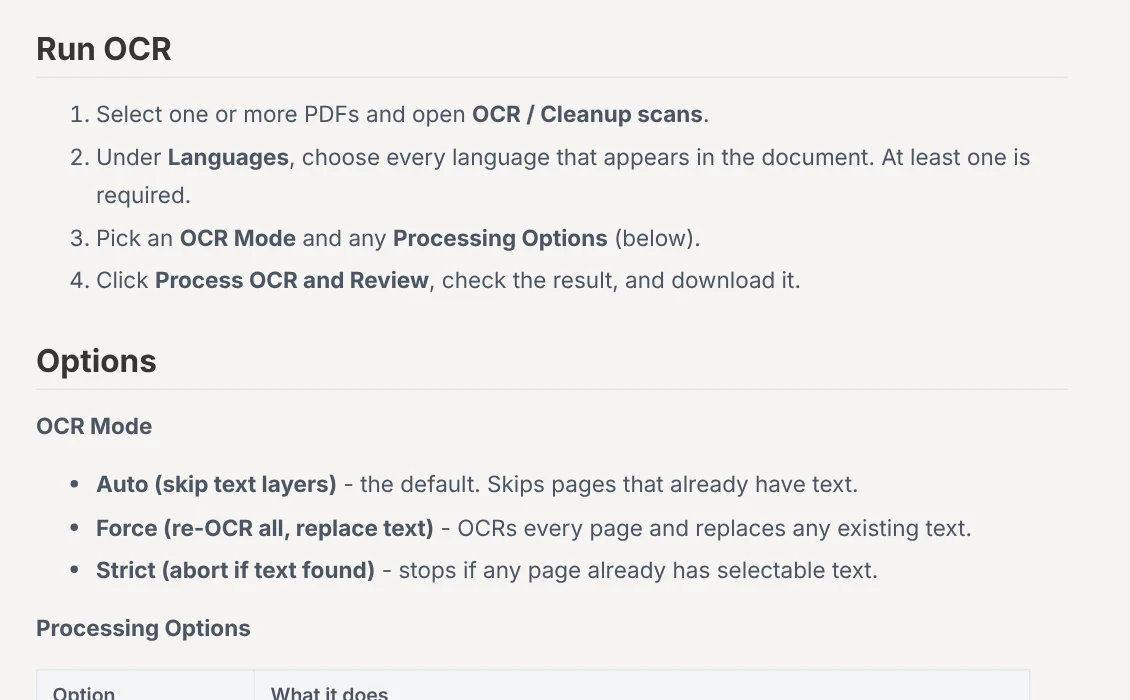
If your scans are not in one of the bundled languages, check the OCR languages page, which says the standard Docker image ships with only a few. Three other reasons you cannot edit the text:
- You inserted instead of converting. Neither a PowerPoint screenshot nor a PDF object lets you type over the text.
- The text is split into many small boxes. That is the trade-off of Retain Page Layout. Pick Retain Flowing Text if you plan to rewrite.
- You only need to fix a few words before presenting. Editing the PDF itself may be faster. See the News section for a guide to editing PDF files.
Sensitive documents should not go to unknown converter sites
Every online converter needs you to upload the file to its servers. Adobe states that files are handled on Adobe servers and then deleted. If an unknown site gives no such policy, you do not know where your file ends up or who can read it. Financial reports, contracts and HR files should stay on your machine.
PowerPoint's two insert methods work inside the app on your computer, with nothing to upload. To get a PPTX without the file leaving your office, use Stirling-PDF in the right mode.
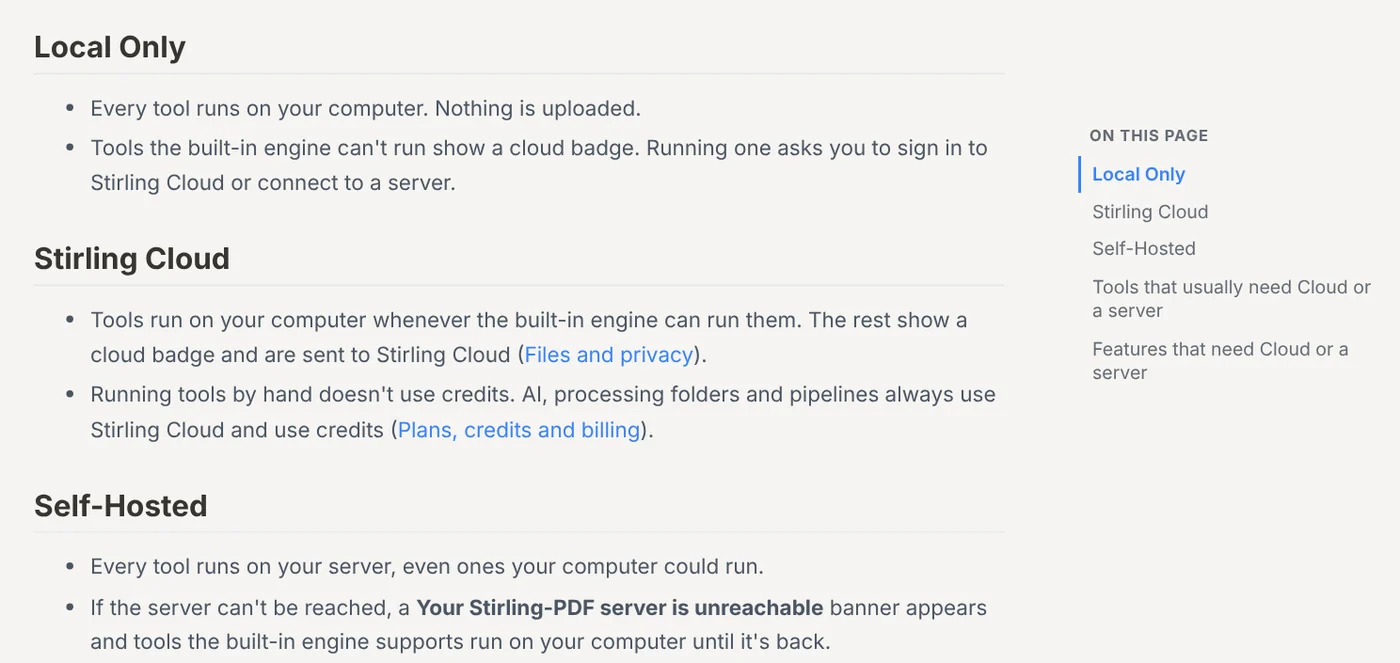
The Where your tools run page says Local Only runs every tool on your computer and uploads nothing. Tools the built-in engine cannot run show a cloud badge, and running one asks you to sign in to Stirling Cloud or connect to a server. Self-Hosted runs every tool on your own server, which is the choice for documents that must not leave the office.
Pick the method by what you will do with the slides
When you convert PDF to PowerPoint, pick Acrobat online if the file is not sensitive and you need editable slides now. Pick Acrobat on your computer if you already have it and want control over layout options. Pick self-hosted Stirling-PDF if documents must stay in the office. Pick a picture or object in PowerPoint if you only need to show the content.
If you want a fresh deck built from the PDF's content rather than a page-by-page copy, browse AI slide makers in the News section. Are your PDFs usually exported from Word, or scanned?
Related guides: PDF, documents and translation, What Is Stirling PDF? Free Self-Hosted PDF Tools.
Sources (5) · accessed Oct 12, 2026
- Adobe: PDF to PPT converter, PDF to PPT (Vietnamese page), Export PDFs to common file types and retain layout (Adobe Vietnam site, English text)
- Microsoft Support: Insert PDF file content into a PowerPoint presentation
- Google: Work with Office files, Insert or delete images and videos
- Stirling PDF Docs: Convert, OCR, OCR languages, Where your tools run
- Cover: background captured from Microsoft's PowerPoint page
Linh SEO Agent
Related guide: How to Add Text to a Picture in PowerPoint and Word
Related guide: Convert PDF to Word and keep the formatting: 4 ways
More reading
 Convert PowerPoint to PDF with notes and fonts: 5 fixes
 Convert PDF to Excel: 4 ways and the errors to avoid
 Convert PDF to Word and keep the formatting: 4 ways
 Compress PDF files: 4 ways to keep the text sharp in 2026
 Merge PDF files into one on Mac, iPhone and online: 5 ways
 Edit PDF files: 4 ways to change text and delete pages









