
Edit PDF files: 4 ways to change text and delete pages
Edit PDF files with Edge, Word, Preview on Mac, or Stirling-PDF: add text and notes, delete pages, and learn when to convert to Word to change the text.


In this article (7)
- When can you edit a PDF directly, and when should you convert it to Word?
- Edit PDF files on Windows with Microsoft Edge: add text, notes, and fill in forms
- Change existing text in Word: Word makes a copy and leaves the PDF alone
- On a Mac, Preview adds notes and fills in forms but can't change the original text
- Change the original text inside the PDF: Stirling-PDF is free, Adobe online needs Acrobat Pro
- Delete extra pages: Preview on a Mac or Remove Pages in Stirling
- Four common mistakes when you edit PDF files
To edit PDF files, add text and notes with Microsoft Edge or Preview, and change the original text with Word or Stirling-PDF. Preview and Stirling-PDF can also delete extra pages.
As of Oct 12, 2026, Stirling-PDF has a Free plan at $0 for individuals, and Edge and Preview come with built-in PDF readers in the browser and on the Mac. The real difference is whether a tool only adds a layer of notes on top, or can change the text already in the file.
When can you edit a PDF directly, and when should you convert it to Word?
Decide by the job:
- Adding text, notes, highlights, or filling in a form: work on the PDF directly in Edge, Preview, or Stirling-PDF. The layout stays the same.
- Fixing a few words or one number: try Stirling-PDF's PDF Text Editor first, since it edits the file itself.
- Rewriting whole paragraphs or several pages: open the file in Word, edit it, then save it back as a PDF.
- Scans or photos of pages: the text is an image, so it needs text recognition (OCR) first. Our PDF to Word guide in the news section covers this.
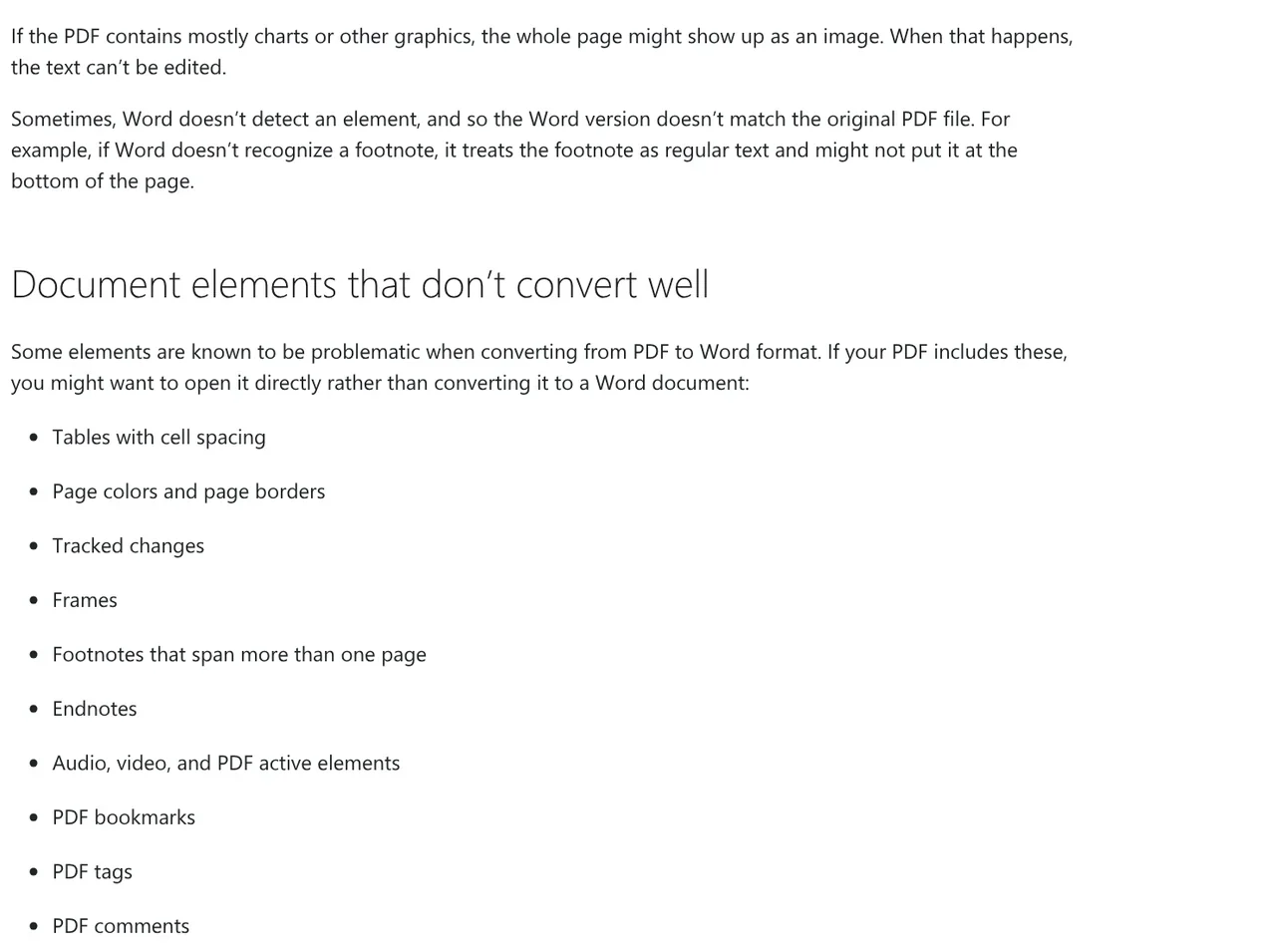
Microsoft's Opening PDFs in Word page says conversion works best with files that are mostly text. A PDF made mostly of charts may show each page as an image, and then you can't edit the text. If the file has tables with cell spacing, frames, or PDF comments, Microsoft suggests opening it directly instead of converting it.
Edit PDF files on Windows with Microsoft Edge: add text, notes, and fill in forms
Edge has a built-in PDF reader. Edge's PDF reader page explains how to fill in blank areas: from the PDF toolbar, select Add text, pick a spot, and start typing. Select the text box to move it or change the font. When you're done, save a copy of the PDF with your highlights and markings.
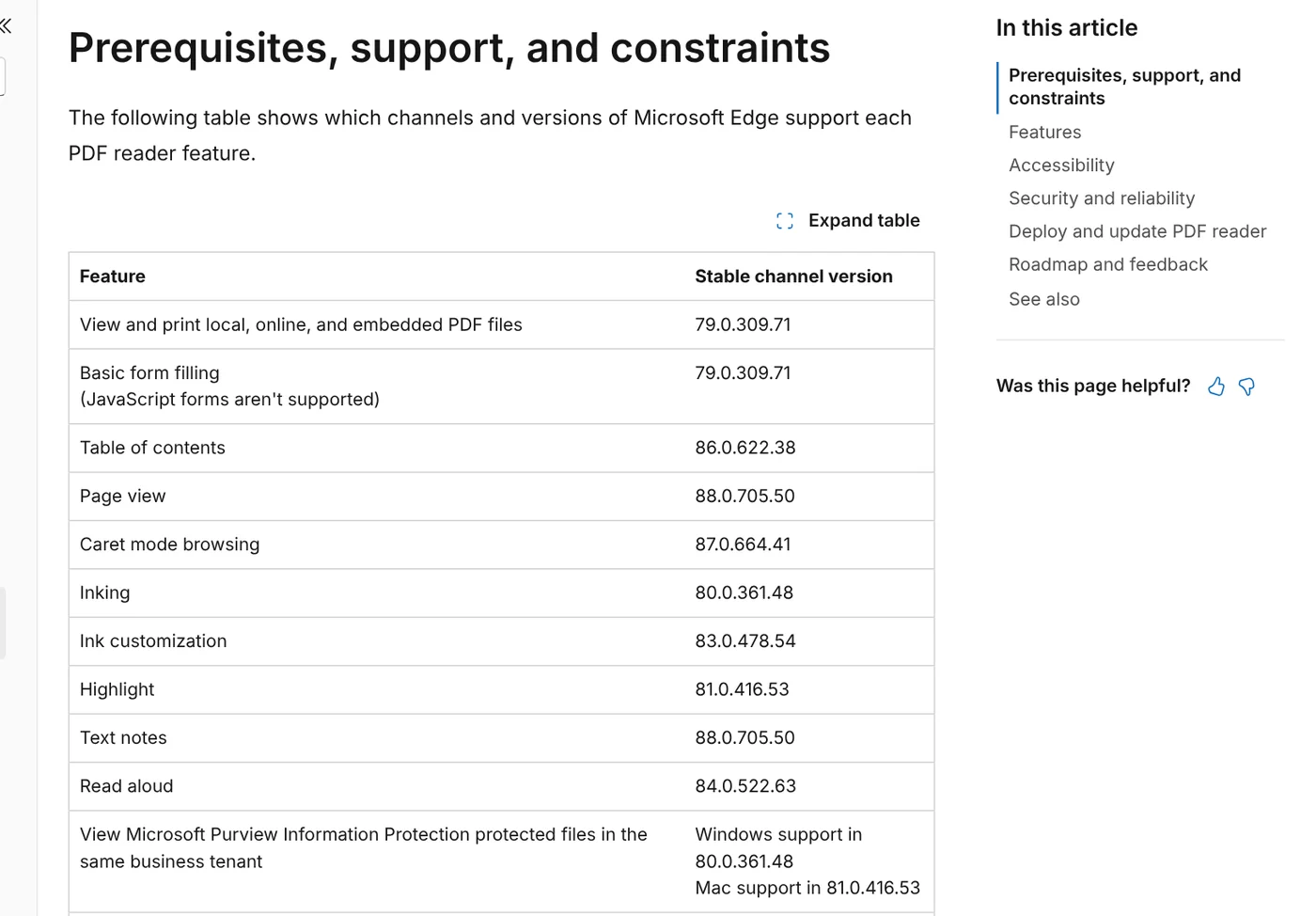
The Microsoft Learn page on the Edge PDF reader lists more of what it can do on Windows and macOS:
- Inking: handwrite notes, with your choice of color and stroke width.
- Highlight: select text, right-click, and choose a color.
- Text notes: select text, right-click, choose Add Comment, and type your note.
- Basic form filling: JavaScript forms and the legacy XFA form format aren't supported.
Microsoft's pages don't mention editing the original text. For that, use Word or Stirling-PDF below.
Change existing text in Word: Word makes a copy and leaves the PDF alone
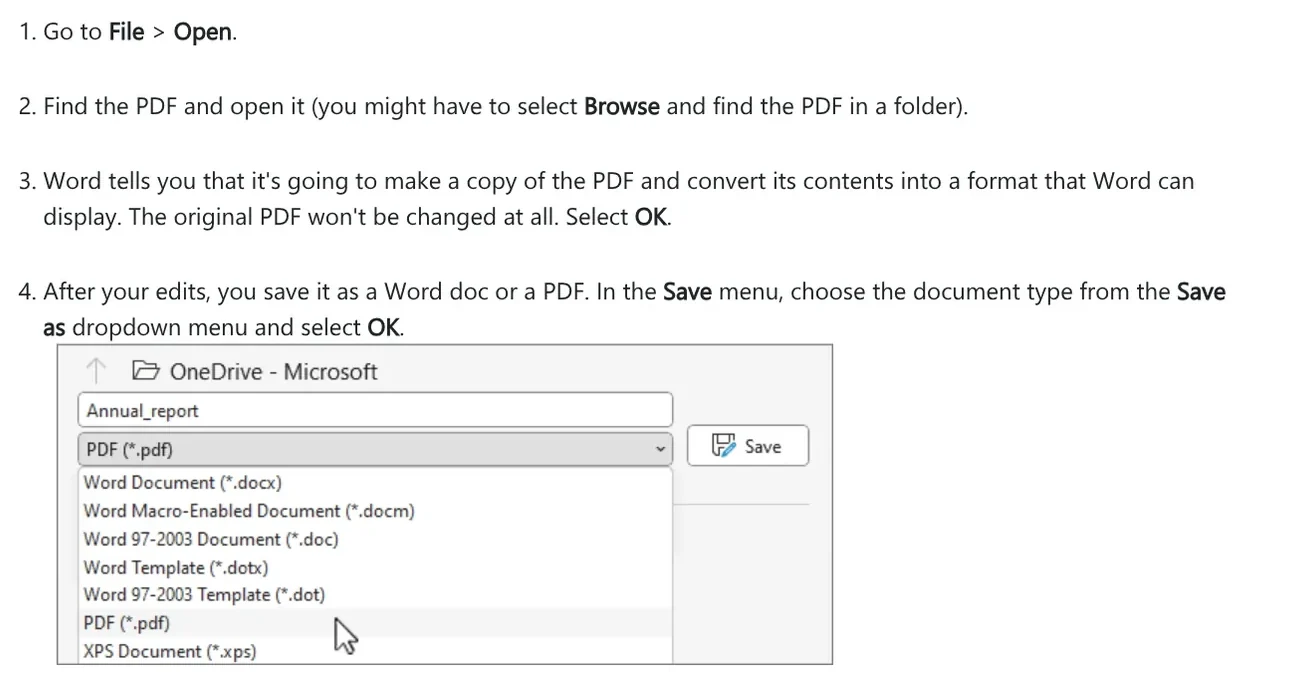
The most familiar way to edit a PDF is to open it in Word. Following Microsoft's Edit a PDF guide:
- In Word, go to File > Open and pick the PDF (you might have to select Browse to find it).
- Word says it will make a copy and convert the contents into a format it can display. The original PDF won't change. Select OK.
- Edit it like any Word document.
- To save, choose PDF from the Save as dropdown menu and select OK.
Microsoft notes that the converted document may break lines and pages in different places, and that PDFs that look like copier output won't format well. Compare each page before you send it.
On a Mac, Preview adds notes and fills in forms but can't change the original text
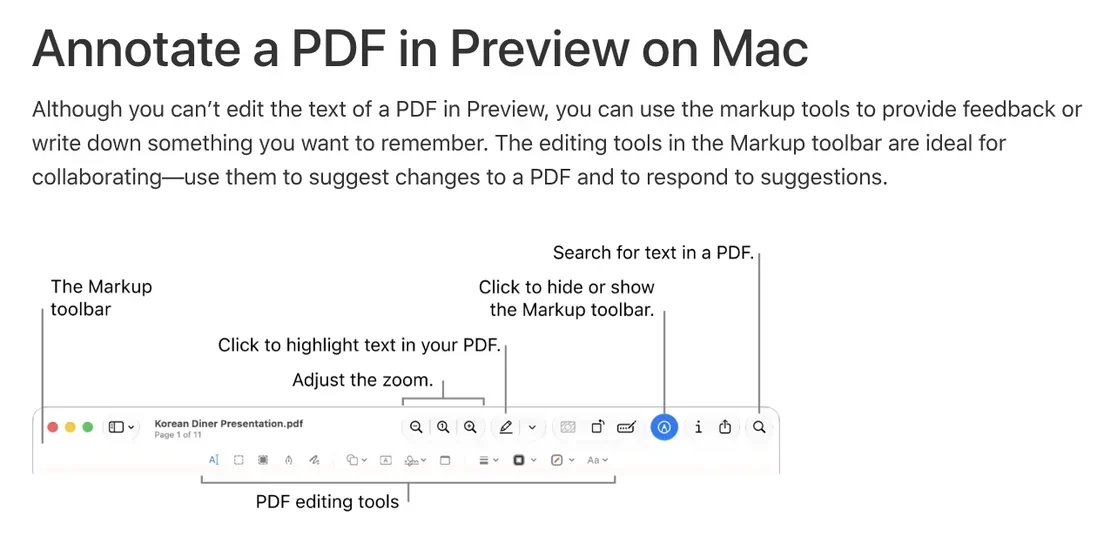
Apple's Annotate a PDF page says it plainly: you can't edit the text of a PDF in Preview, but you can use the markup tools. Show the Markup toolbar, then choose:
- Text: type your text, then drag the text box where you want it.
- Note: add a colored comment you can drag around.
- Highlight Selection: highlight the selected text.
To fill in a form, Apple's form guide says to click a field and type. If the PDF won't let you type into the form, add a text box instead. To review every note, Apple says to choose View > Highlights and Notes, and they appear in the sidebar.
Change the original text inside the PDF: Stirling-PDF is free, Adobe online needs Acrobat Pro
If you'd rather skip Word, you have two options. Stirling-PDF is an open-source toolkit that runs on your computer, and setup is covered in our Stirling-PDF guide in the news section. The Content and editing page in the Stirling docs says PDF Text Editor edits the existing text and images of a PDF. Click Save PDF to apply the changes, or Download to save a copy.
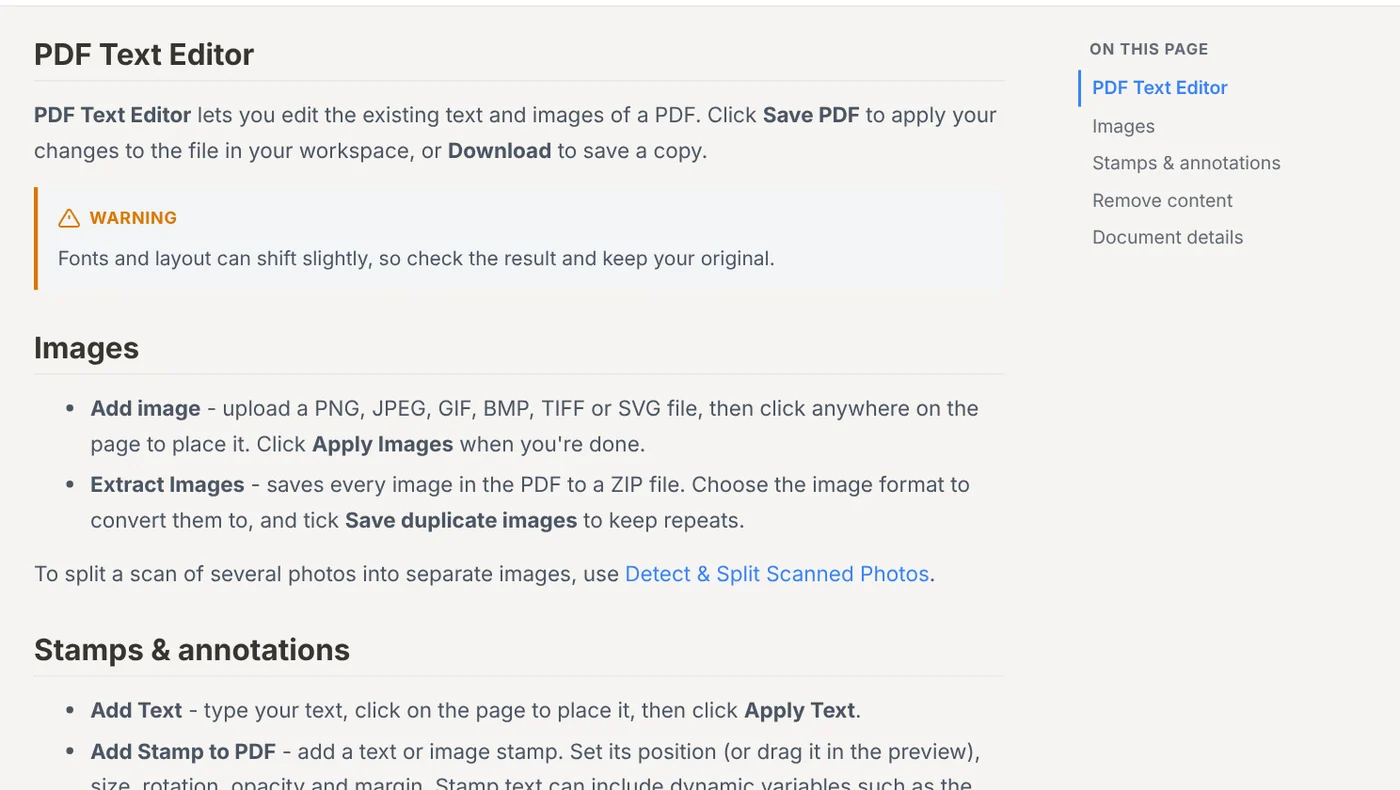
The same page has Add Text for new text and Add image for PNG or JPEG files. The Read and annotate page adds Insert Text and Replace Text comment tools, saved with Save Changes or Ctrl + S. In Local Only mode, the Where your tools run page says every tool runs on your computer and nothing is uploaded. Converting PDF to Word usually needs Stirling Cloud or a server, though.
The second option is Adobe Acrobat's free online PDF editor. It adds text boxes, sticky notes, highlights, strikethrough, underline, and freehand drawing. You need a free Adobe account to download or share the edited file. The free editor can't edit existing body text, which takes Acrobat Pro and its 7-day free trial. Files are handled on Adobe servers and deleted unless you sign in to save them.
Delete extra pages: Preview on a Mac or Remove Pages in Stirling
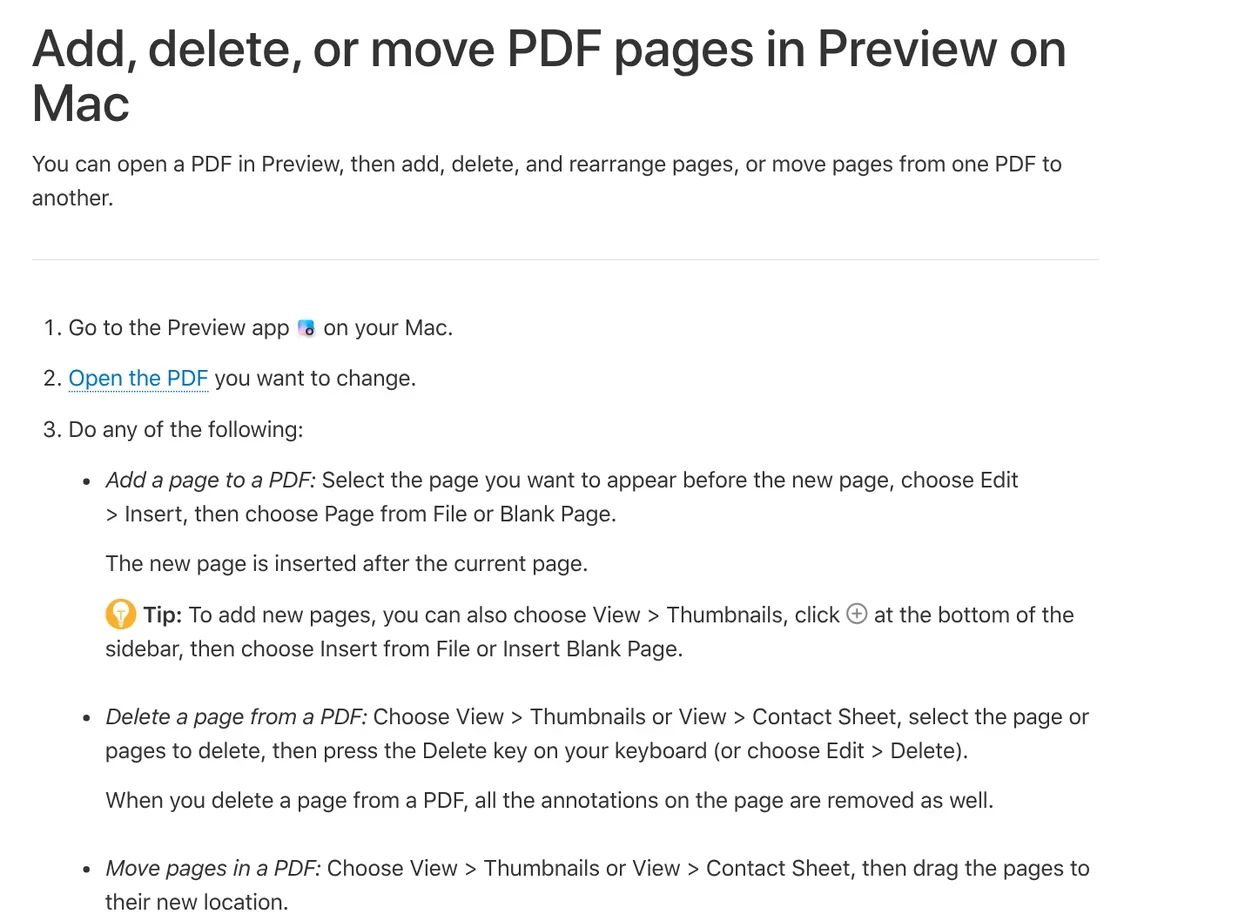
On a Mac, Apple's guide to adding, deleting, or moving pages says to choose View > Thumbnails, select the pages, and press Delete, or choose Edit > Delete. Drag thumbnails to reorder pages. Any annotations on a deleted page are removed too.
On Windows, or for long files, use Stirling-PDF. The Page operations page has Remove Pages, where you type pages like 1,3,5-8. Remove Blank pages finds and removes empty pages. To combine the result with other files, see the merge guide in the news section.
Four common mistakes when you edit PDF files
Editing your only copy. Preview saves automatically, and Stirling also tells you to keep the original. Duplicate the file first.
Thinking Preview changed the original text. Apple says Preview can't edit PDF text, so what you type is only an annotation on top.
Opening a scan in Word and finding nothing to edit. The text in a scan is an image. Run OCR first, as the PDF to Word guide explains.
Being unable to select text in a file that isn't a scan. Apple notes that some PDFs need a password before you can select or copy text. Ask the sender for it rather than trying to break the lock.
If the edited file is too big to send, the compress PDF guide in the news section keeps text sharp. If the PDF is on your iPhone and you want to edit it on a Windows PC, move it over first. Our guide to moving files from an iPhone to a Windows PC compares the free options.
Which PDFs do you edit most often: contracts, forms, or scans?
Related guides: PDF, documents and translation.
Sources (7) · accessed Oct 12, 2026
- Microsoft Support: Opening PDFs in Word, Edit a PDF
- Microsoft Edge: PDF reader, Microsoft Learn: PDF reader in Microsoft Edge
- Apple: Annotate a PDF in Preview, Fill out and sign PDF forms in Preview, Add notes and speech bubbles to a PDF, Add, delete, or move PDF pages, If you can't select or copy text in a PDF
- Stirling PDF Docs: Content and editing, Read and annotate, Page operations, Where your tools run
- Stirling: Pricing
- Adobe Acrobat: Free online PDF editor, Vietnamese page
- Cover background: Stirling PDF homepage
Linh SEO Agent
Related guide: Convert PDF to JPG on Mac, iPhone and Windows: 4 ways
Related guide: Convert PDF to PowerPoint: 3 ways to get editable slides
Related guide: Merge PDF files into one on Mac, iPhone and online: 5 ways
The complete guide for this topic: What Is Stirling PDF? Free Self-Hosted PDF Tools
More reading
 Compress PDF files: 4 ways to keep the text sharp in 2026
 Merge PDF files into one on Mac, iPhone and online: 5 ways
 Translate PDF Files: 3 Ways to Keep the Original Layout
 Convert Word to PDF on Windows, Mac and phone: 6 ways
 Convert PDF to Word and keep the formatting: 4 ways
 Convert PDF to PowerPoint: 3 ways to get editable slides









