
Convert Excel to PDF without cutting off columns: 3 fixes
Convert Excel to PDF with Save a Copy, then set a print area, fit columns on one landscape page, add page breaks, export every sheet, on Mac and in Sheets.


In this article (8)
- Convert Excel to PDF on Windows: Save a Copy, then choose PDF
- Export several sheets into one PDF: choose them under Publish what
- Set a print area so the PDF holds only the table you want to send
- Stop columns from being cut off: go landscape and fit to 1 page wide
- Long tables: add page breaks and repeat the header row
- Mac, iPhone and Excel for the web each take a different route
- Google Sheets: pick the range under File, Print
- Why does an Excel PDF cut off columns, miss pages or lose links?
To convert Excel to PDF, you only need the Save a Copy command already in Excel. To keep columns from being cut off, set a print area, switch to landscape and fit the sheet to one page wide before you save.
Convert Excel to PDF on Windows: Save a Copy, then choose PDF
Microsoft Support, read on Oct 12, 2026, says Excel can save a PDF and that you don't need any other software or add-ins. The steps apply to Excel for Microsoft 365, Excel 2024 and Excel 2021.
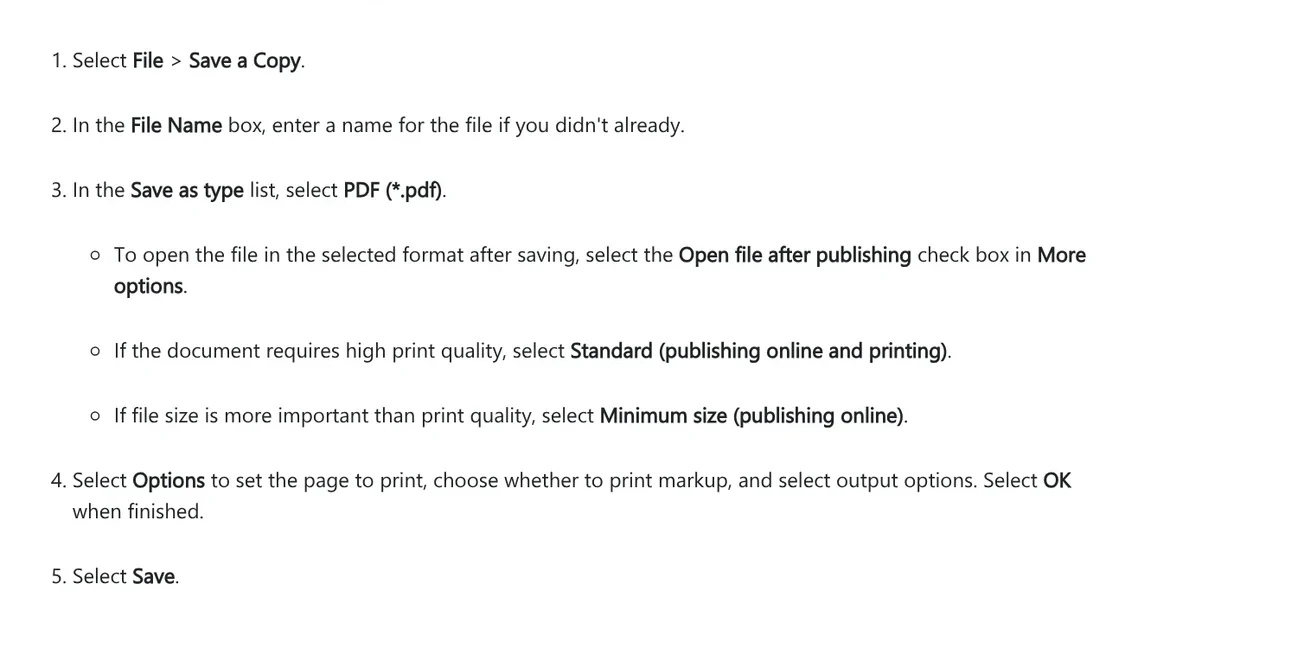
- Select File > Save a Copy and enter a file name if the workbook has none.
- In the Save as type list, select PDF (*.pdf).
- Choose Standard for good print quality, or Minimum size when a small file for sharing online matters more.
- Select Options to pick the pages and the part of the workbook to export, then select Save.
If you also need to convert Word documents, the news section has a separate guide that covers fonts and the table of contents.
Export several sheets into one PDF: choose them under Publish what
A workbook with many tabs can easily end up as a PDF with missing sheets if you save without opening Options. The PDF Options dialog has two settings to check. Page range lets you export only some pages, and Publish what is where you pick the part of the workbook that goes into the PDF.
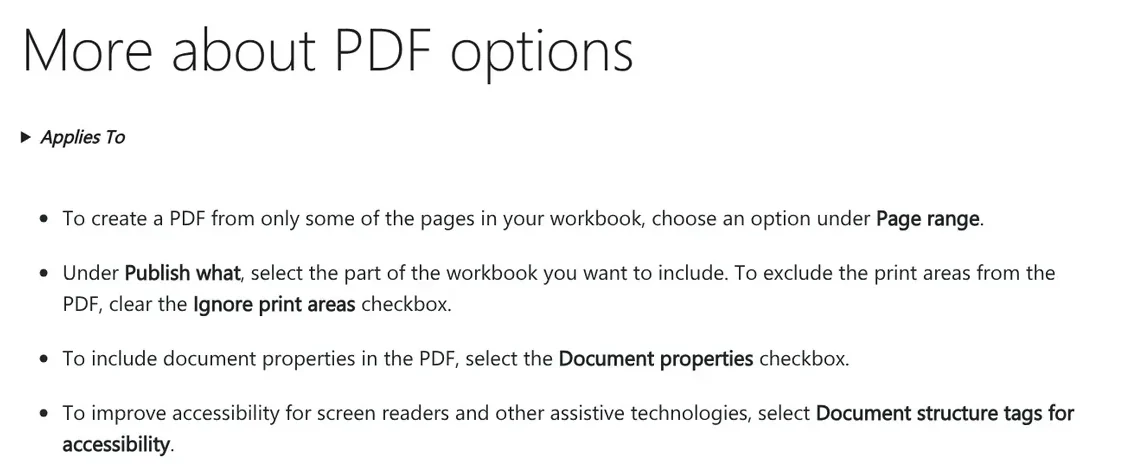
The same dialog has Document structure tags for accessibility, which helps screen readers read the table. ISO 19005-1 compliant (PDF/A) exports to a long-term archiving standard, useful for reports you need to keep for years.
Set a print area so the PDF holds only the table you want to send
A print area is one or more ranges of cells you choose to print instead of the whole sheet. Following Microsoft's print area steps, select the cells, then on the Page Layout tab, in the Page Setup group, select Print Area > Set Print Area. The print area is saved with the workbook.
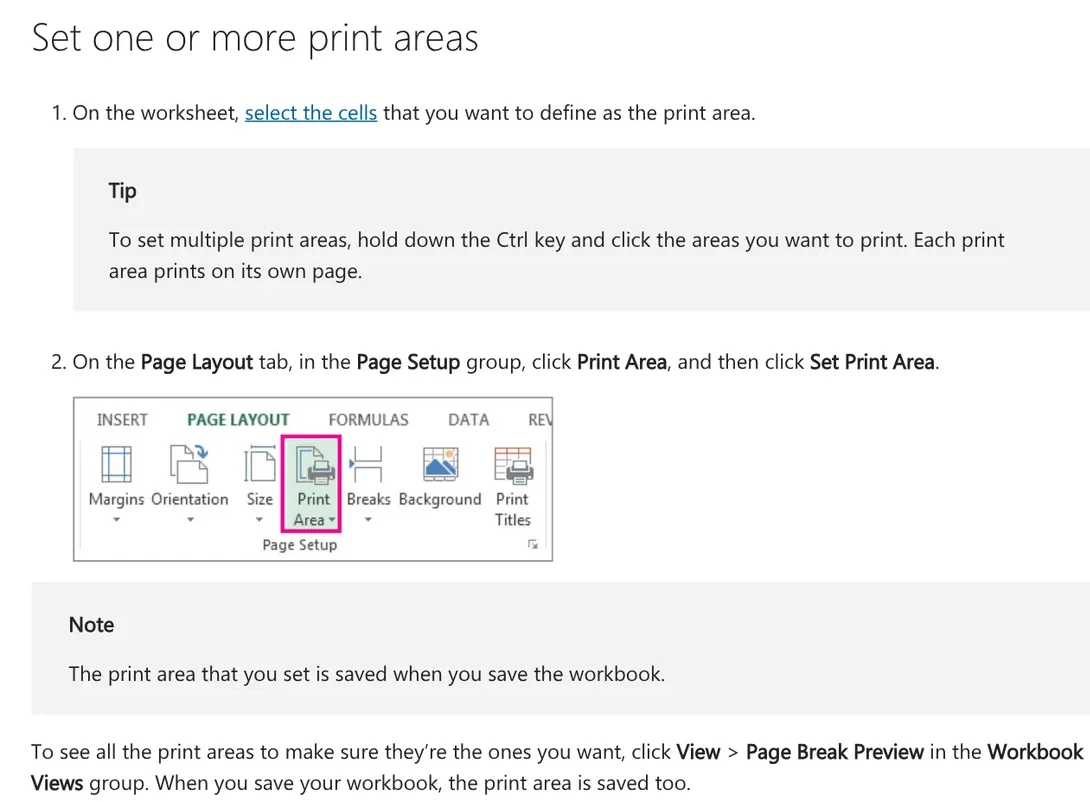
Two things often catch people out. If you hold Ctrl to set several areas, each area prints on its own page. And when a sheet already has a print area, Excel prints only that area. To get the whole sheet, select Ignore print area.
Stop columns from being cut off: go landscape and fit to 1 page wide
The familiar problem when you convert Excel to PDF is a wide table that splits, with the last few columns jumping to another page. Microsoft suggests three ways to handle it.
- Change the orientation: go to Page Layout > Page Setup > Orientation and select Landscape.
- Fit to width: in the Scale to Fit group, set Width to 1 page and leave Height at Automatic. Columns fit on one page while rows can still run over several pages.
- Use a larger paper size: go to Page Layout > Page Setup > Size if the table has many columns.
To put the whole sheet on one page, open the Page Setup dialog, select the Page tab, under Scaling select Fit to, then choose 1 page wide by 1 tall.
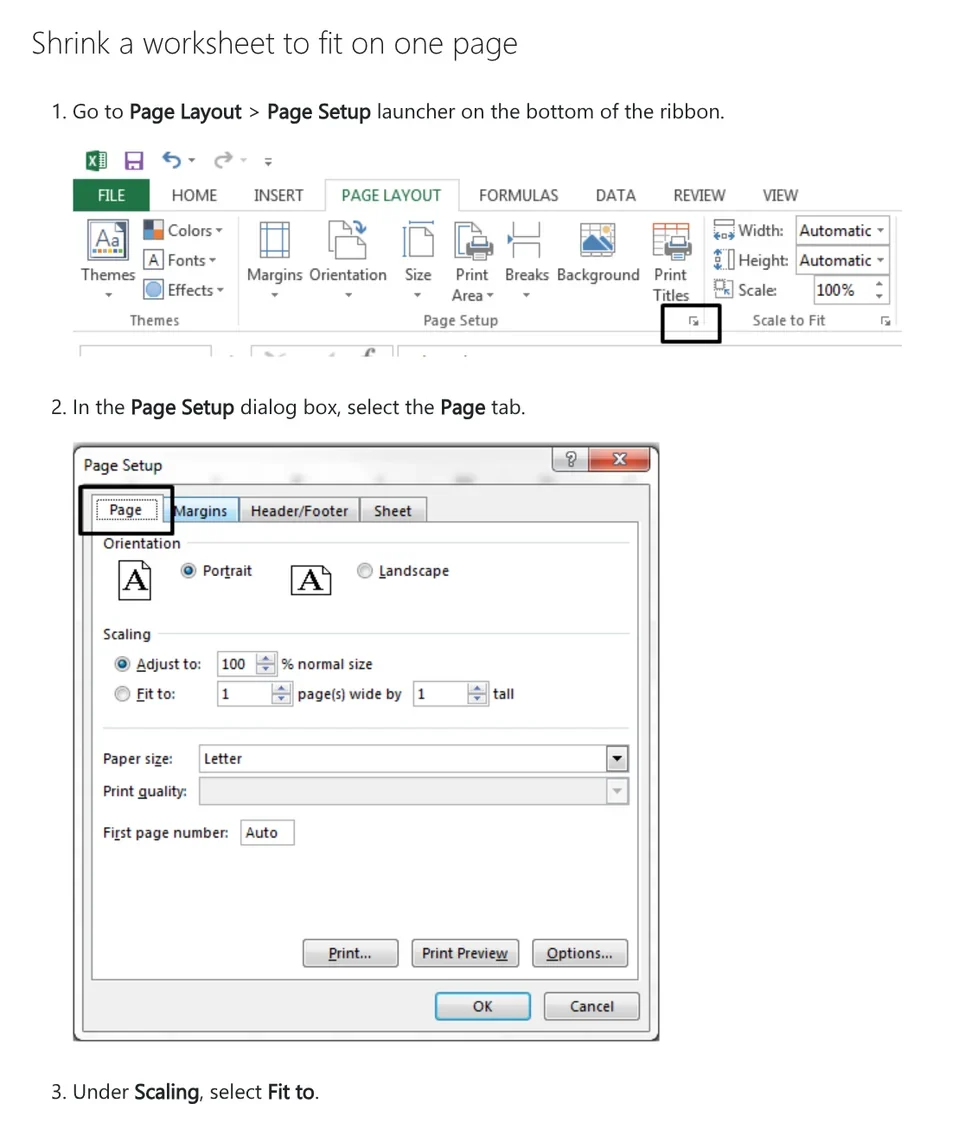
Microsoft warns that squeezing a sheet onto one page can make it hard to read. Check the number in the Scale box. If it is low, switch to landscape or a larger paper size instead of shrinking further.
Long tables: add page breaks and repeat the header row
Excel adds automatic page breaks based on paper size, margins and scale. The page break guide recommends working in View > Page Break Preview, where dashed lines are automatic breaks and solid lines are breaks you added. Select the row just below where you want the break, then go to Page Layout > Breaks > Insert Page Break.
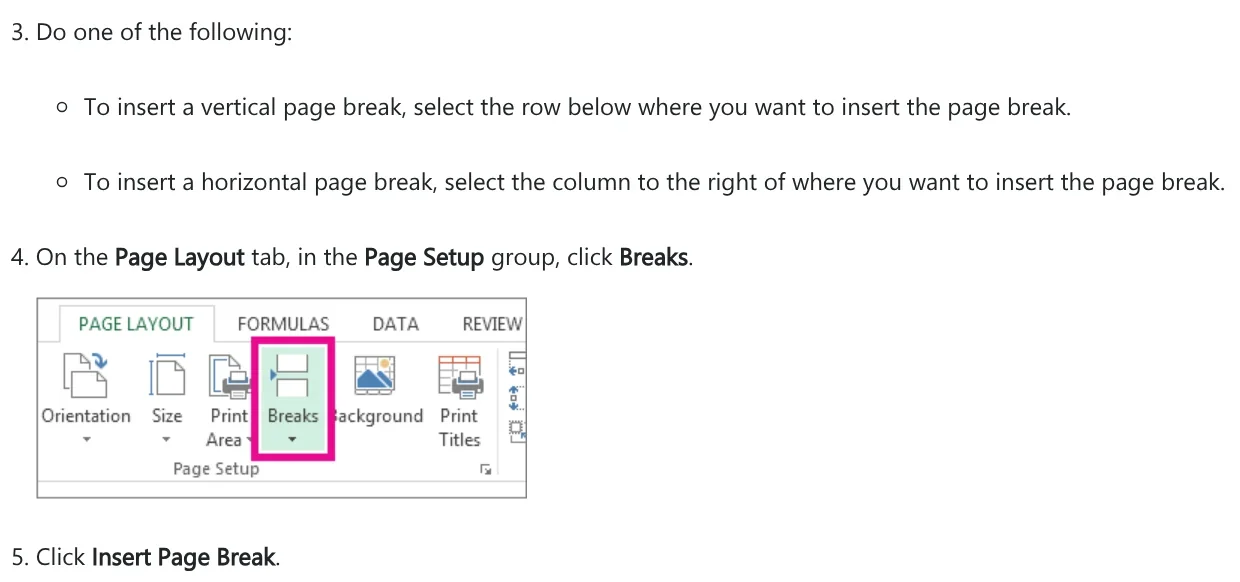
If a manual break has no effect, Fit to may be turned on. Microsoft says to change the scaling to Adjust to a percentage so manual page breaks work.
A table that runs over several pages should show its column headers at the top of each page. Go to Page Layout > Print Titles, open the Sheet tab and type $1:$1 in Rows to repeat at top, as the print titles guide shows.
Mac, iPhone and Excel for the web each take a different route
In Microsoft 365 for Mac, select File > Save As, select File Format, choose PDF and then Save. On iPhone and iPad, tap File, choose Export and then PDF.
To export a whole workbook on a Mac, use Print. The Excel for Mac print guide says to select Show Details in the Print dialog to print to a PDF file, then in the Print menu choose Selection, Active Sheets or Entire Workbook.
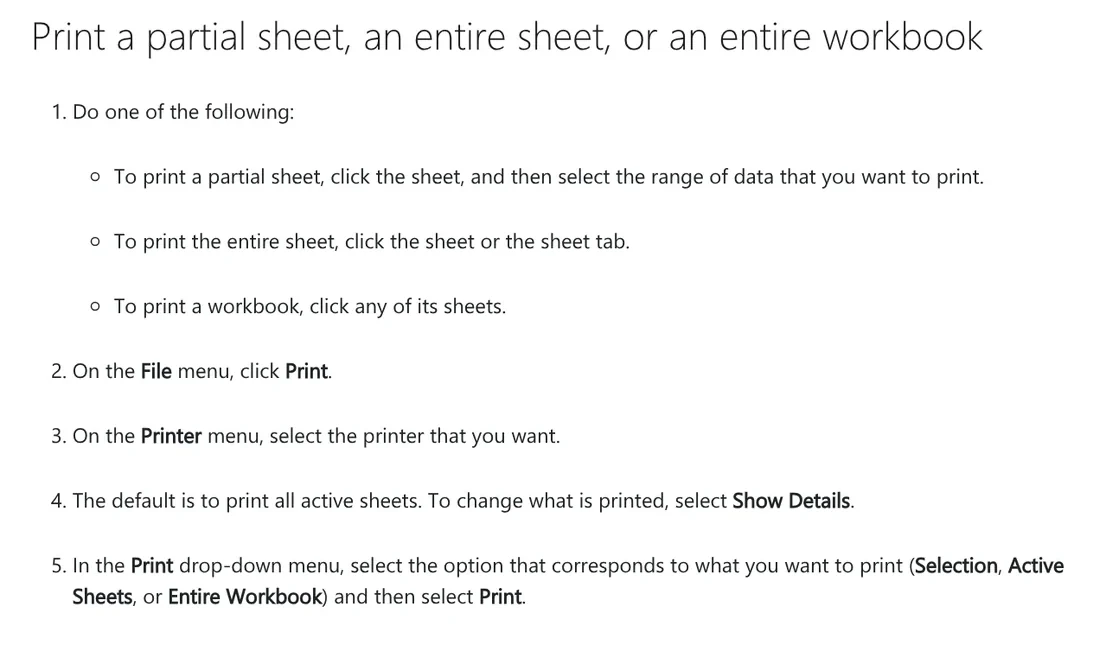
Excel for the web is more limited. Microsoft says to use the Print command in Excel, not your browser's Print command, and in the Chrome print window you then choose a destination such as Save as PDF. The web version prints one sheet at a time and skips hidden rows and columns. Microsoft also notes that the web version has no fit to one page option and can't repeat column headers, so open the file in the Excel desktop app for those.
Google Sheets: pick the range under File, Print
In Google Drive, double-clicking an .xlsx file opens it in Google Sheets, though older .xls files don't open this way. The Print from Google Sheets page says to select File > Print, choose Workbook, Current sheet or Selected cells, then Next. In Chrome, set the destination to Save as PDF, as in Google's tip. In Firefox or Safari, the PDF downloads automatically.
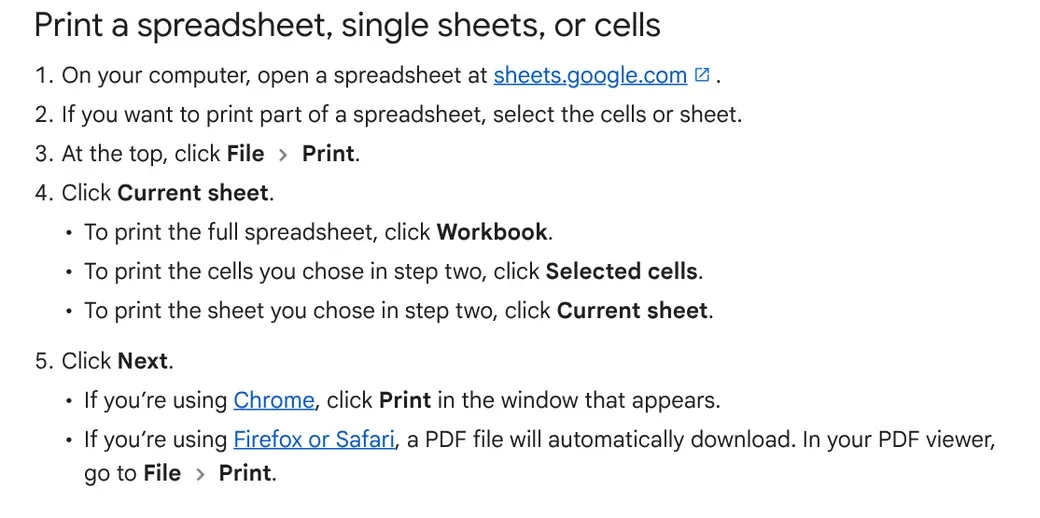
The same Print screen has Orientation (choose Landscape), Set custom page breaks, and Headers & footers, where you can choose Repeat frozen rows on every page.
Why does an Excel PDF cut off columns, miss pages or lose links?
Five common problems when you convert Excel to PDF, and the fix for each:
- The last columns jump to another page: switch to Landscape and set Width to 1 page.
- The PDF is missing sheets: choose the right part under Publish what, or Entire Workbook on a Mac.
- Only a fragment of the table appears: an old print area is set, so clear it or select Ignore print area.
- Cell gridlines are missing: by default, gridlines don't appear on a printed sheet, so select Print under Gridlines on the Page Layout tab.
- Links between sheets don't work: Microsoft says internal links are lost in the conversion, while external links are kept.
If the PDF is too large to send, or you need to go the other way and pull a table from a PDF back into Excel, the news section has guides for both.
Saved the PDF on your PC but need it on your iPhone to send to a client? Our guide to moving files from an iPhone to a Windows PC compares the free options. Where do your tables usually break when they become PDFs: columns, missing pages or headers?
Related guides: PDF, documents and translation.
Sources (15) · accessed Oct 12, 2026
- Microsoft Support: Save or convert to PDF (Excel)
- Microsoft Support: More about PDF options
- Microsoft Support: Print a worksheet or workbook
- Microsoft Support: Set or clear a print area on a worksheet
- Microsoft Support: Scale a worksheet
- Microsoft Support: Fit to one page in Excel
- Microsoft Support: Insert, move, or delete page breaks in a sheet
- Microsoft Support: Print rows with column headers on top of every page
- Microsoft Support: Print gridlines in a worksheet
- Microsoft Support: Save or convert to PDF or XPS in Office desktop apps
- Microsoft Support: Print a sheet or workbook (Excel for Mac)
- Google Docs Editors Help: Print from Google Sheets
- Google Docs Editors Help: Create, view, or download a file
- Google Docs Editors Help: Work with Office files
- Google Chrome Help: Print from Chrome
Linh SEO Agent
Related guide: Convert Word to PDF on Windows, Mac and phone: 6 ways
The complete guide for this topic: What Is Stirling PDF? Free Self-Hosted PDF Tools
More reading
 Convert PowerPoint to PDF with notes and fonts: 5 fixes
 Convert PDF to Excel: 4 ways and the errors to avoid
 Convert Word to PDF on Windows, Mac and phone: 6 ways
 Merge PDF files into one on Mac, iPhone and online: 5 ways
 Edit PDF files: 4 ways to change text and delete pages
 Convert PDF to PowerPoint: 3 ways to get editable slides









