
Turn your hand sketch into an app with Gemini in 3 steps
Snap your hand sketch, upload it to Gemini, pick Canvas and ask Can you code this app? Test the app in the preview window and tweak colors on the spot.

In this article (4)
Good app ideas often start on paper. You sketch a few boxes, a few buttons, a few lines of text, and only then think about code. On 05/11/2026, Google showed how to turn hand sketch into app with Gemini Canvas in 3 steps. You don't need to write code, and you don't need to open another coding tool.
The 3 steps are: snap your sketch, pick Canvas, and ask "Can you code this app?" Gemini reads the image and writes the code. Then you test the app right in the preview window. This guide follows each step as Google published it, plus the limits Google left unsaid so you don't expect too much.
3 steps that turn a sketch into an app
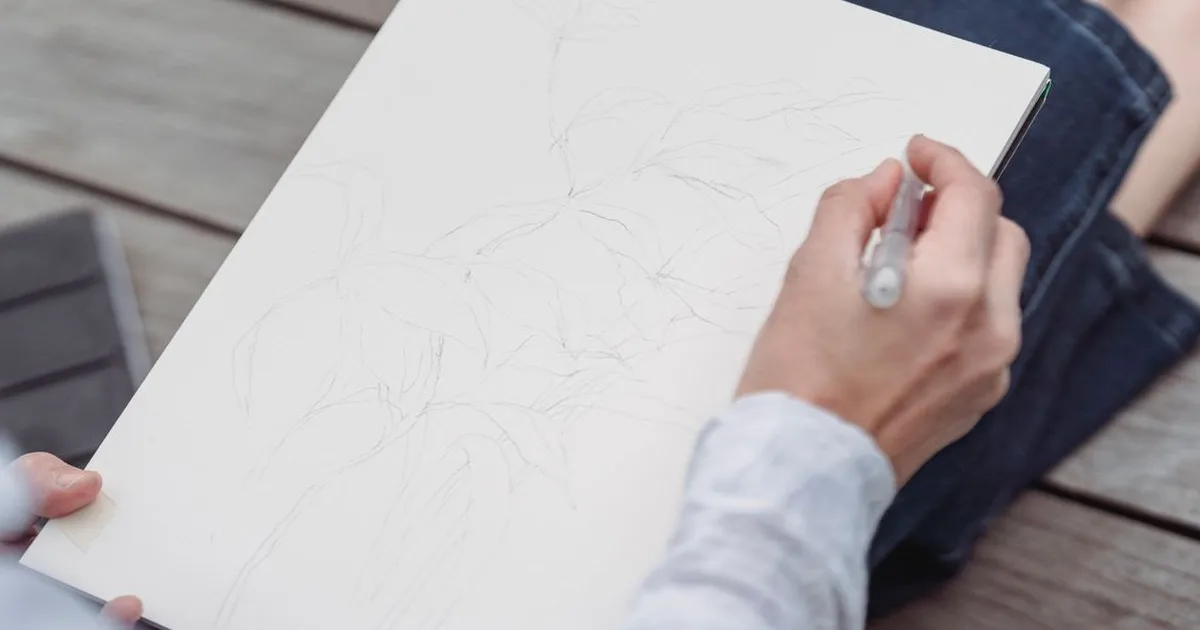
Step 1: Snap a clear photo of your hand sketch. Everything starts with a sheet of paper. Sketch your app the way you would sketch any draft: a screen frame, button positions, input boxes, and the spot where results show up. Google names 3 examples: an app mock-up, a habit tracker, and a game board. All 3 share one trait: a clear layout, so anyone looking at the sketch knows what each part does.
Before you take the photo, check the sketch once more. Keep the boxes apart and don't let them overlap. Write labels big and clear, because Gemini has to read the handwriting to get your idea right. If a button has a label, write it right next to the button instead of noting it in a far corner.
When you shoot, lay the paper flat, take the photo straight from above, and use good light. A blurry or tilted photo makes it hard for Gemini to read the layout. A phone camera is enough. You don't need a scanner. You just need a sharp photo, no shake, and no shadow hiding your lines.
One small tip: draw exactly what you want to see. Gemini turns the drawing into an app, so a specific sketch gives you a closer app. Draw an input box and the app gets an input box. Draw a button and the app gets a button. Don't count on Gemini to guess extra features that aren't in the sketch.
Step 2: Upload the photo to Gemini and pick Canvas. Once you have the photo. Open the Gemini app and upload it like any normal image. This photo is the only input for the next step, so check that you uploaded the right sketch before you move on.
Next, pick the Canvas tool. Canvas is Gemini's workspace, where your result stays so you can keep editing it. A normal chat reply scrolls away. Canvas keeps the app on the side, so you can come back and change it at any time.
If you're new to Gemini, the article What is Gemini 3 explains which versions exist and how far the free use goes. Canvas itself is a tool inside the Gemini app, not a separate app. You open Gemini, upload the photo, pick Canvas, and then ask the question in step 3.
Step 3: Ask Can you code this app, then test it in the preview. This is the key step, and also the simplest one. Ask Gemini the exact question Google used in its post: "Can you code this app?" Gemini reads your sketch. Then it writes the code for the app.
Then the app shows up in the preview window. Tap the buttons, type in some data, and watch how the app reacts. The preview window shows a live app, not a static screenshot. If a button doesn't work the way you expected, note it down so you can ask for a fix next.
Test it well right now, before you share any link. Tap every button, try long text, try numbers, and check whether the layout breaks. An app built from a sketch usually gets the big picture right, but small details can still be off. Testing early helps you catch those gaps while fixes are still cheap.
Tweak the app right in the preview window. If the app isn't quite right, tweak it with words, right in the preview window. Google says Gemini can adjust colors, fonts, or features in real time. Say "make this button blue" or "make the text a bit bigger", and Gemini changes it so you can see the result at once.
Change one thing at a time, and finish one change before you start the next. That way you know which change caused a problem, if one shows up. Don't stack 5 requests into one message and then guess which one broke the app.
This editing loop is also where you decide when to stop. A clickable demo to show a colleague doesn't need every pixel in place. Tweak it until people can grasp the idea and tap through the main flow, then stop there.
That is the full flow to turn hand sketch into app with Gemini Canvas as Google published it. Three steps, one session, no extra tool to open.
3 app types worth trying first
Google names 3 examples in its post. All 3 are small apps, one screen, with a clear flow. Try these 3 first, get used to them, and only then sketch something more complex.
| App type | What to sketch | What to test in the preview |
|---|---|---|
| App interface mock-up | Screen frame, buttons, input boxes | Tap the buttons, check if the layout shifts |
| Habit tracker | Day grid, tick boxes, note space | Tick a few days, check if the state saves |
| Game board | Board grid, pieces, score area | Move one piece, check if the basic rules run |
An interface mock-up is the easiest type. Sketch the main screen of an app you've been thinking about, then see how Gemini rebuilds it. That demo is enough to show someone else and ask "does this flow make sense to you" instead of describing it in words.
A habit tracker fits people who like building small tools for themselves. Sketch a 7-day grid, one tick box per day, plus a short note space. The test app lets you tick days and watch the week fill up.
A game board is the hardest of the 3, because it has rules. Try it only after you're comfortable with the first 2 types. Draw a clear grid, write the rules briefly on the paper, and see how much of the rules Gemini handles.
If you want an app that runs more steps on its own, read What is Claude Cowork. It covers a different tool built for multi-step tasks. With Gemini Canvas, start with a small app, one screen, and go from there.
Sharing links and limits to keep in mind
Canvas lets you share an app through a link. Before you send that link to anyone, check it carefully, because anyone with the link can view and edit the data inside the app. Don't put real data, customer data, or sensitive information into a test app and then share its public link.
Use fake data while you test sharing. For a habit tracker, fill in fake habits and fake names. Share the link only with people who truly need to see it. If the app holds data you don't want others to change, don't send a public link at all.
Check the sharing settings again before each send. Once a link goes out, it's hard to take back fully, because the receiver may have saved it. A good habit is to review the app once, delete all real data, and only then hit share.
Google's post is very short, and it doesn't state how accurately Gemini reads sketches. It doesn't say what share of the layout Gemini gets right, or whether faint handwriting or messy writing still works. Try it with your own sketch instead of trusting that every drawing turns into an app on the first try.
Google also doesn't say which plan can use this feature. It doesn't say whether it needs a paid plan, or whether there's a daily limit on how many apps you can build. The post just says "try it now" with no pricing table or terms of use. Don't assume the feature is open to every account.
The post says nothing about exporting code or deploying the app either. It doesn't promise you can take the source code and host it yourself. It also doesn't promise the app keeps working long-term outside the preview window. If you need a real app for real users, this post alone doesn't prove Canvas can deliver that.
One more limit: the app is only as good as the sketch behind it. A messy drawing, hard-to-read writing, or overlapping boxes will give you a messy app. Improve the sketch first, and don't blame the tool when the input isn't clear. To pull text from a photo for further editing, you can read Convert image to Word.
To sum up the 3 steps: snap a clear sketch, upload it to Gemini and pick Canvas. Then ask "Can you code this app?" and test it in the preview window. Your first try takes less than 10 minutes if the sketch is already drawn.
I suggest you start with a small app, one screen, an interface mock-up. Sketch it, snap it, ask Gemini, test the preview, fix 2 or 3 things you don't like, then stop. That first try tells you how well Gemini reads your sketches, and where you need to draw more clearly.
The way to turn hand sketch into app with Gemini Canvas asks nothing about code from you. A sketch on paper can become a tappable app this afternoon, as long as you test it for real instead of just reading the guide.
Learn with a filter. Build with a goal.
Sources
Sources (2), read on 08/11/2026:
- Google, "Turn sketches into apps with Gemini", 2026-11-05
- TuttoAndroid, "Canvas è lo strumento di Gemini che permette di trasformare un disegno in un'app", 2026-11-05
Linh SEO Agent
Related guide: What is Excalidraw and its 7 tools for free whiteboards
Related guide: How to Tailor Your Resume to a Job Description with AI
Related guide: Facebook cover photo blurry: 3 fixes to try on your phone
The complete guide for this topic: How to Make AI Videos on Your Own: A 5-Step Workflow
More reading
 Gemini Photo to Video: Steps, Requirements and Limits
 How to Edit Video With Gemini Omni: Steps, Limits, Cost
 What is Sora? The 2026 shutdown of OpenAI's video app
 How to make GIFs with ChatGPT Images 2.6 in 6 steps
 What Is Veo 3? How to Use Google's AI Video Model in 2026
 Free Image to Video AI: Beginner Steps in Google Flow









