
Facebook cover photo blurry: 3 fixes to try on your phone
Your Facebook cover looks sharp on desktop but blurry on your phone when the crop changes and the file format is wrong. Try these 3 quick fixes.


In this article (4)
A Facebook cover photo blurry on your phone often has nothing to do with your original photo. Facebook shows the same cover in a different frame on desktop and on your phone. One file can look sharp in one place and soft in the other.
You can fix it in 3 steps. Preview it on your phone, save the file in the right format, and upload it again from the original file. The 3 fixes below do not repeat the size table. If you need exact sizes, read Facebook cover photo size.
Why it looks sharp on desktop but blurry on your phone
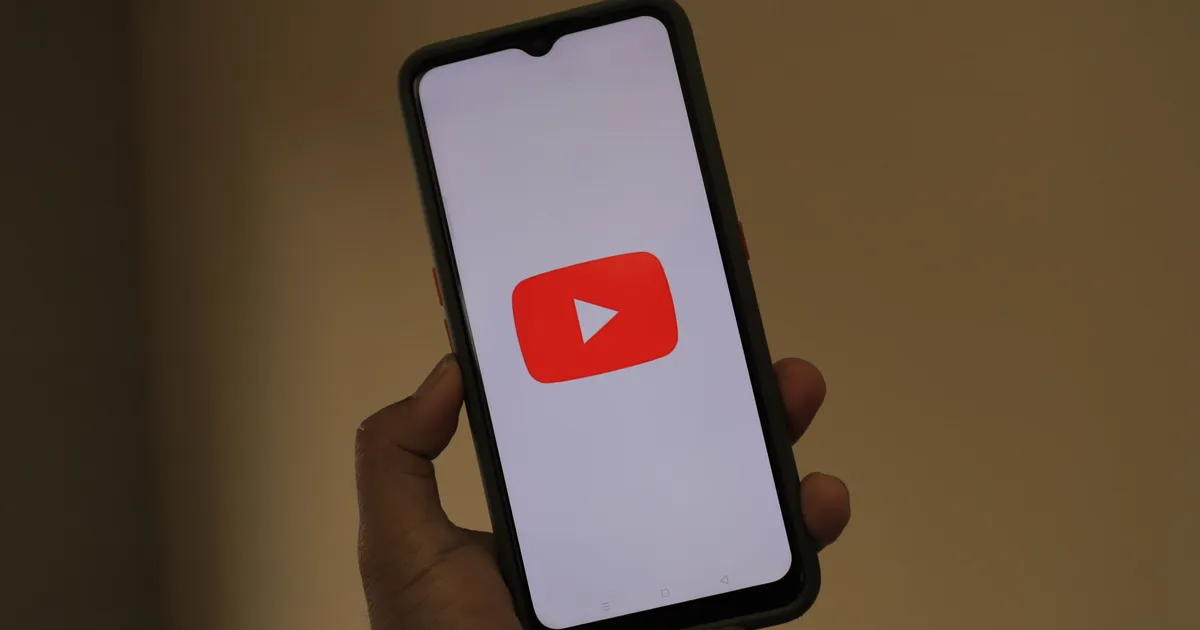
On desktop, Facebook shows your cover in a wide frame. On your phone, the frame is narrower, and the photo gets cropped in a different way. You see the same photo, but the two screens give you two different results.
The Facebook Help Center notes that your cover image may be cropped and resized to fit different screens. When the platform scales the image for a phone screen, thin lines and small letters lose clarity. That is why a Facebook cover photo blurry problem stands out most on mobile devices.
Your profile photo sits on top of part of the cover, mostly at the lower left corner. Text placed there gets covered, and it can look soft after upload. Move important text toward the middle before you save the file.
The fastest check is to open your Page on your phone after you upload. If text is covered or the photo looks soft, edit the original file and upload it again. Do not fix it by downloading the posted photo and uploading that copy.
After you change the cover, open your Page on your phone again. Check that the text is still there and the photo still looks sharp. If it looks fine, keep it and do not upload another copy.
Save the file in the right format, then upload the original
If your cover has a logo or text, save it as PNG. The Facebook Help Center says covers with a logo or text should be saved as PNG for a better result. If your cover is a photo with no text, save it as JPG, just as the Help Center recommends.
Choosing the wrong format often makes a Facebook cover photo blurry around text edges and brand logos. Saving a graphic cover as PNG keeps letter edges clean when you upload it to your Page.
Upload the original file, not a copy you downloaded. Each time you save a photo again, it loses detail and can look softer. Keep one original on your computer, so you can edit it again when you need to.
Avoid sending the cover through messaging apps before you upload it from your phone. Most chat apps compress images automatically, which blurs fine details before the file even reaches your Page. Transfer the original file directly so the image stays clean.
Save the file with a clear name, so you can find it later. Keep the original and the exported copy apart. When you need a change, edit the original and export a fresh copy.
If you want more text mistakes to avoid, read text on photo mistakes. To add text the right way, read how to add text to photo. To pick a frame that fits, read social media aspect ratios.
Conclusion
Check the cover on both desktop and your phone after you upload. If text is covered or the photo looks soft, edit the original file and upload it again. Learn with care. Work with a goal.
Nguồn
Sources (2) · accessed 2026-11-06
- Facebook Help Center: Page profile picture and cover photo size (read on 2026-10-12; re-opened on 2026-11-06, and the page returned 403).
- Adam Uses AI: Facebook cover photo size: profile, page and group (read on 2026-11-06).
Linh SEO Agent
More reading
 Facebook cover photo size 2026: profile, page and group
 How to Add a Signature to a Photo, Plus Your Phone Number
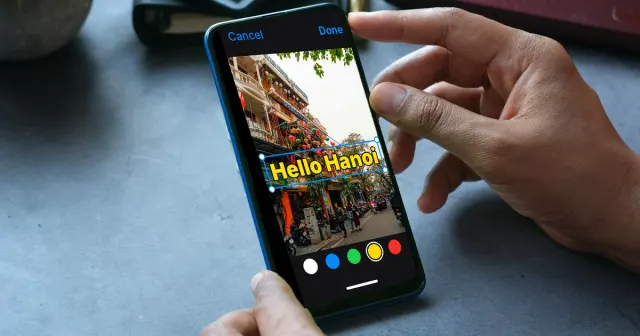 How to Add Text to a Photo on iPhone Without an App
 6 Common Mistakes When Adding Text to Photos
 How to Add Text to a Picture in PowerPoint and Word
 Bulk Add Text to Images: Names and Prices for Product Photos









