
Sharpen blurry photos: 4 ways with built-in apps and AI
Sharpen blurry photos with tools you already have: Google Photos, Photos on Mac and Windows, then Lightroom, Canva or Upscayl. Plus the limits of AI.

In this article (6)
- On your phone, try Unblur in Google Photos first
- On a computer, the built-in Photos app handles slightly soft shots
- Lightroom and Canva are the official AI tools for upscaling
- Upscayl and Real-ESRGAN are free and run on your own machine
- Does AI photo sharpening invent details?
- Three common mistakes when sharpening photos
To sharpen blurry photos, start with the tools already on your phone or computer, then move to AI upscalers like Lightroom, Canva or Upscayl. Never use AI on photos of documents.
As of Oct 12, 2026, Google Photos, Photos on Mac and Photos on Windows all include a built-in sharpening or enhancement tool. Before you pick one, separate two jobs. Sharpening makes edges crisper and better defined. AI upscaling adds pixels and fills in missing detail. A badly out-of-focus shot is hard to save, and Upscayl states plainly that it cannot de-blur or fix focus.
On your phone, try Unblur in Google Photos first
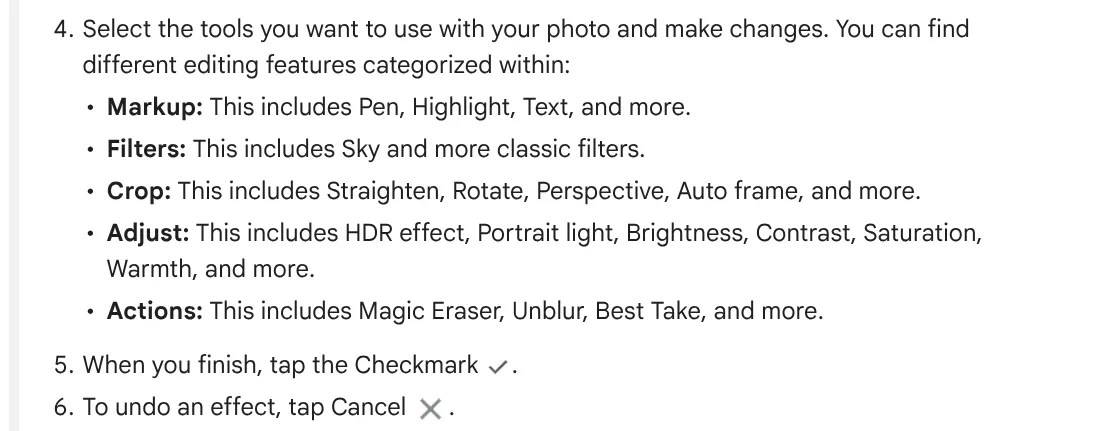
Google Photos has an Unblur tool in the Actions tab. Google Photos Help lists these steps on Android:
- Open the photo in Google Photos and tap Edit. On some phones you also tap Tools.
- Go to the Actions tab and pick Unblur.
- Tap the checkmark when you finish, then choose Save as copy so the original stays untouched.
Most editing features need at least 3 GB of RAM and Android 8.0 or later. The improved Unblur needs 4 GB of RAM. When Google opened Unblur to everyone using Google Photos in May 2024, it said no subscription is required. Devices on iOS 15 or later also qualify.
The built-in Photos app on iPhone uses Adjust instead. Apple Support says to open the photo, tap the edit button, tap Adjust, then swipe left to see every setting. Tap a setting's button to compare the edit with the original before you tap Done.
On a computer, the built-in Photos app handles slightly soft shots
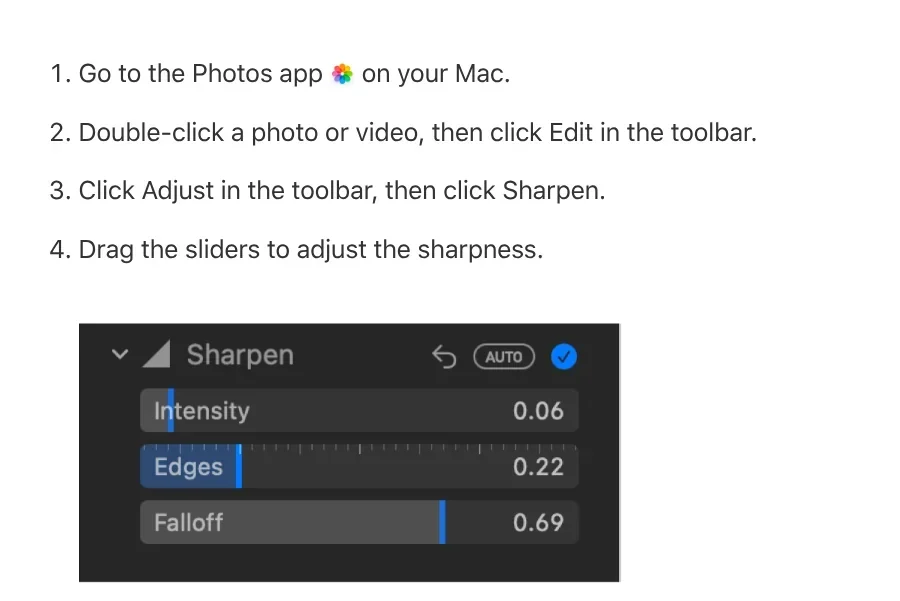
On a Mac, the Photos app has a Sharpen adjustment. Double-click the photo, click Edit, click Adjust, then click Sharpen. You get three sliders: Intensity sets the strength of sharpened edges, Edges sets which pixels count as edges, and Falloff makes the effect stronger or softer.
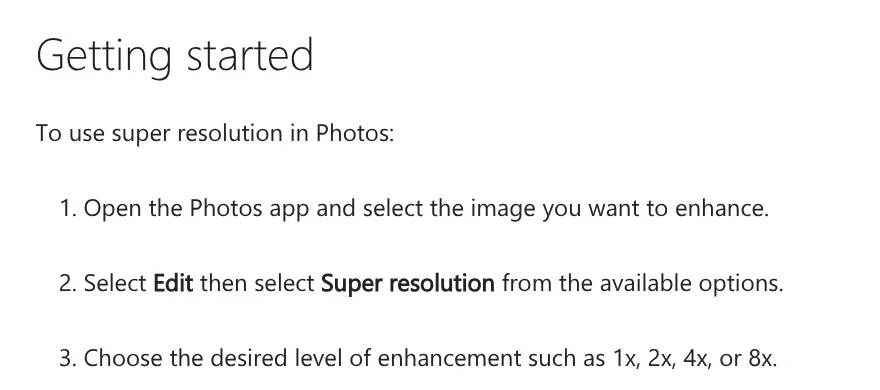
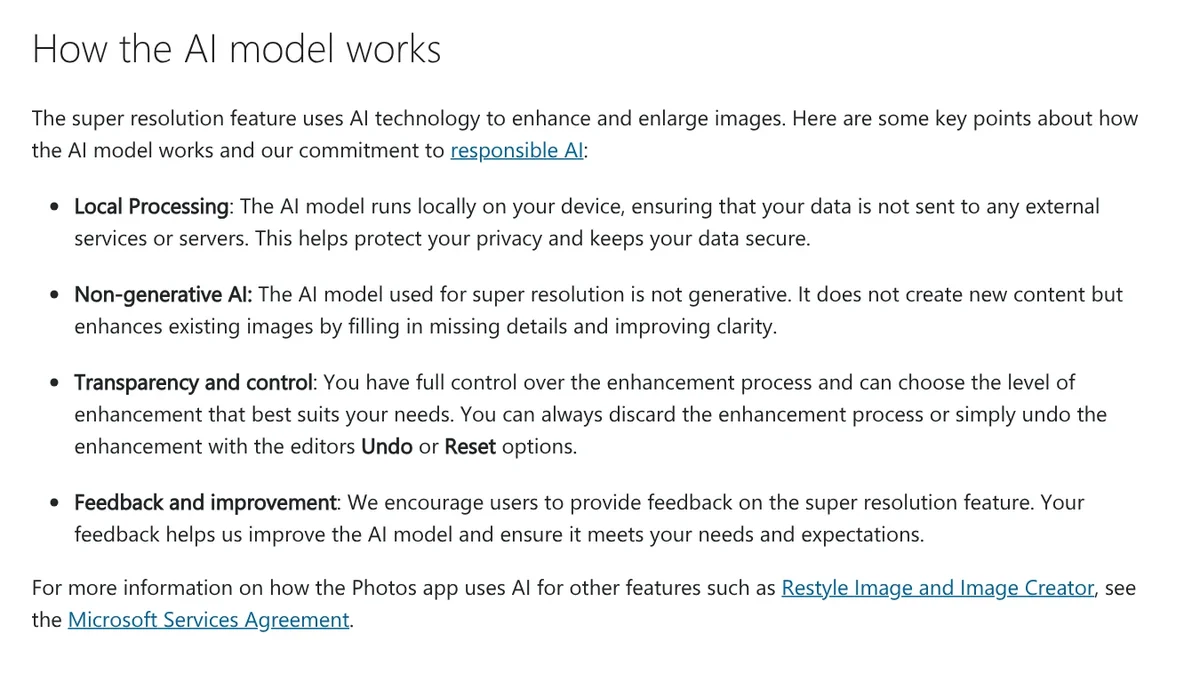
On Windows 11, Super resolution in the Photos app is exclusive to Copilot+ PCs and currently works on images only. Open the image in Photos, select Edit, select Super resolution, then choose 1x, 2x, 4x or 8x. Microsoft says the model runs locally, so your data is not sent to outside servers.
If your Windows PC is not a Copilot+ PC, move on to Canva or the free desktop apps below.
Lightroom and Canva are the official AI tools for upscaling
Adobe Lightroom has an Enhance command with three options: Denoise, Raw Details and Super Resolution. According to Adobe's Lightroom guide, Super Resolution creates an image with twice the width and twice the height. It accepts raw, JPEG and TIFF files, so JPEG photos from a phone work too.
To use it, open the photo in Detail view, go to Photo > Enhance, choose Super Resolution and click Enhance. The result is a new DNG file stacked with the original. Adobe also notes that you can enhance an image only once.
Canva has a sharpen photo tool that works on Canva Free. Canva's feature page (Vietnamese page) says to select the photo, open Edit, go to the image fix panel and choose the sharpen tool. If the result looks off, fine-tune it with the Sharpness and Clarity sliders. The page accepts JPG and PNG files.

Canva runs in the browser, so your photo is uploaded to your Canva account. For private photos, consider the on-device options in the next section.
Upscayl and Real-ESRGAN are free and run on your own machine
Upscayl Desktop is a free, open-source AI image upscaler for Linux, macOS and Windows. Its download page says all processing happens on your machine, with no internet connection needed. As of Oct 12, 2026, the latest version is 2.15.
The catch is hardware. You need a Vulkan-compatible graphics card, and the Upscayl README warns that it won't work with most integrated GPUs or CPUs. The team also sells Upscayl Cloud on credits, with a Pro plan at $24.99 per month for 300 credits, while the desktop app stays free.
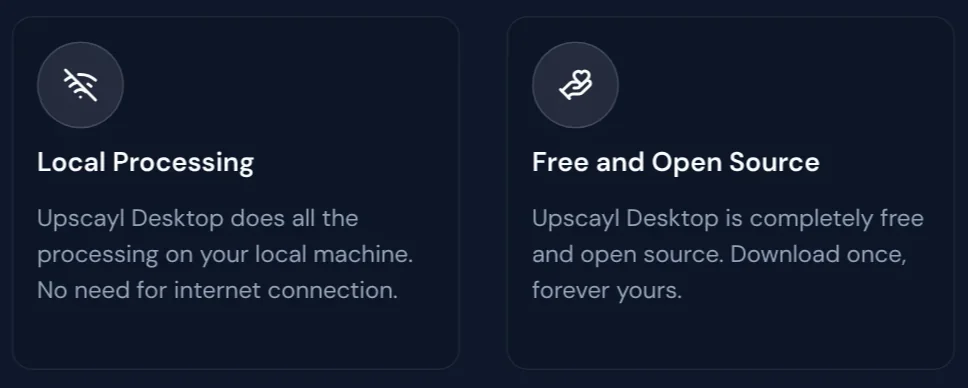
Under the hood, Upscayl uses the Real-ESRGAN model. If you are comfortable with the command line, you can download Real-ESRGAN's portable executables for Windows, Linux and macOS, which work with Intel, AMD or Nvidia GPUs. They upscale 2, 3 or 4 times, with 4 as the default.
Need to move iPhone photos to a Windows PC before running Upscayl? See the photo transfer guides in News.
Does AI photo sharpening invent details?
It can. Upscayl says its models enhance images by guessing what the details could be. Microsoft calls its model non-generative, yet it also describes the model as filling in missing details. The added detail is a guess, not information that was in the original photo.
So don't use AI-sharpened images for IDs, contracts, receipts, license plates or anything used as evidence. Small letters and numbers can be redrawn as different characters that still look real. For documents, retake the photo or rescan the original.
Check portraits closely too: zoom in on the eyes, teeth and hair before you post. Always keep the original for comparison. Google Photos has Save as copy, Lightroom writes a separate DNG, and Windows lets you discard the edit with Undo or Reset.
Three common mistakes when sharpening photos
Pushing the slider too far. Edges turn harsh and noise becomes more visible. On a Mac, a higher Falloff makes the effect stronger, so raise it a little at a time and compare with the original.
Sharpening a compressed copy or a screenshot. Once detail is gone, every tool can only guess it back. Work from the original file. Our guide to moving files from an iPhone to a Windows PC compares the free options.
Running AI over and over. Each pass adds another layer of guessing. Lightroom only lets you enhance an image once. With Canva or Upscayl, pick the scale you actually need from the start.
Is your photo blurry because it lacks pixels, or because it was out of focus when you took it?
Related guides: AI images.
Sources (9) · accessed Oct 12, 2026
- Google Photos Help: Edit your photos (Android)
- Google: Google Photos editing features availability (post dated Apr 10, 2024)
- Apple: Edit photos and videos on iPhone
- Apple: Sharpen a photo or video on Mac
- Microsoft: Super resolution in Photos
- Adobe: Easily enhance image quality in Lightroom
- Canva: Sharpen photos online with AI (Vietnamese page)
- Upscayl: Download Upscayl, Upscayl Cloud pricing, README on GitHub
- Real-ESRGAN: GitHub repository
Linh SEO Agent
Related guide: How to Take Product Photos With Your Phone, Then Fix Them With AI
The complete guide for this topic: How to Make TikTok Videos With AI: 9:16, Captions, Voice
More reading
 How to Trim a Video on iPhone, Mac, and Windows, No App Needed
 How to Add Text to a Video on Your Phone or Computer
 How to merge videos: 6 ways on iPhone, Android and computer
 English translation apps: 5 official apps compared
 Free AI Voices for Vietnamese: 5 Text-to-Speech Tools
 How to Auto Generate Subtitles for Video: 4 Free Ways









