
How to merge videos: 6 ways on iPhone, Android and computer
Merge several clips into one video with iMovie, Google Photos, Clipchamp, QuickTime, CapCut, or ffmpeg, and keep one aspect ratio to avoid black bars.

In this article (9)
- On iPhone, iMovie joins clips in the order you pick them
- On Android, Google Photos merges clips into a highlight video
- On Windows, Clipchamp merges videos when clips sit side by side
- On Mac, QuickTime adds a clip to the end, and iMovie gives you more control
- In CapCut for desktop, place two clips next to each other with no gap
- For command line users, ffmpeg merges videos without re-encoding
- Why does a merged video get black bars or cropped edges?
- Export in the right frame for TikTok, Reels, and YouTube
- Three common mistakes when you merge videos
You can merge videos, joining several clips into one, with free tools: iMovie on iPhone, Google Photos on Android, Clipchamp on Windows, and QuickTime on Mac. To avoid black bars, give every clip the same aspect ratio.
This guide is for videos you shot yourself or have permission to use. Merging someone else's videos to repost them can infringe copyright.
On iPhone, iMovie joins clips in the order you pick them
Apple's guide How to combine videos on iPhone, published November 17, 2023, uses iMovie, a free download from the App Store:
- Open iMovie, tap Start New Project, then tap Movie.
- Tap Media > Video > All.
- Tap each video you want to combine, then tap the check mark.
- Tap Create Movie. Videos are combined in the order you selected them.
- Tap the Share button, then tap Save Video.
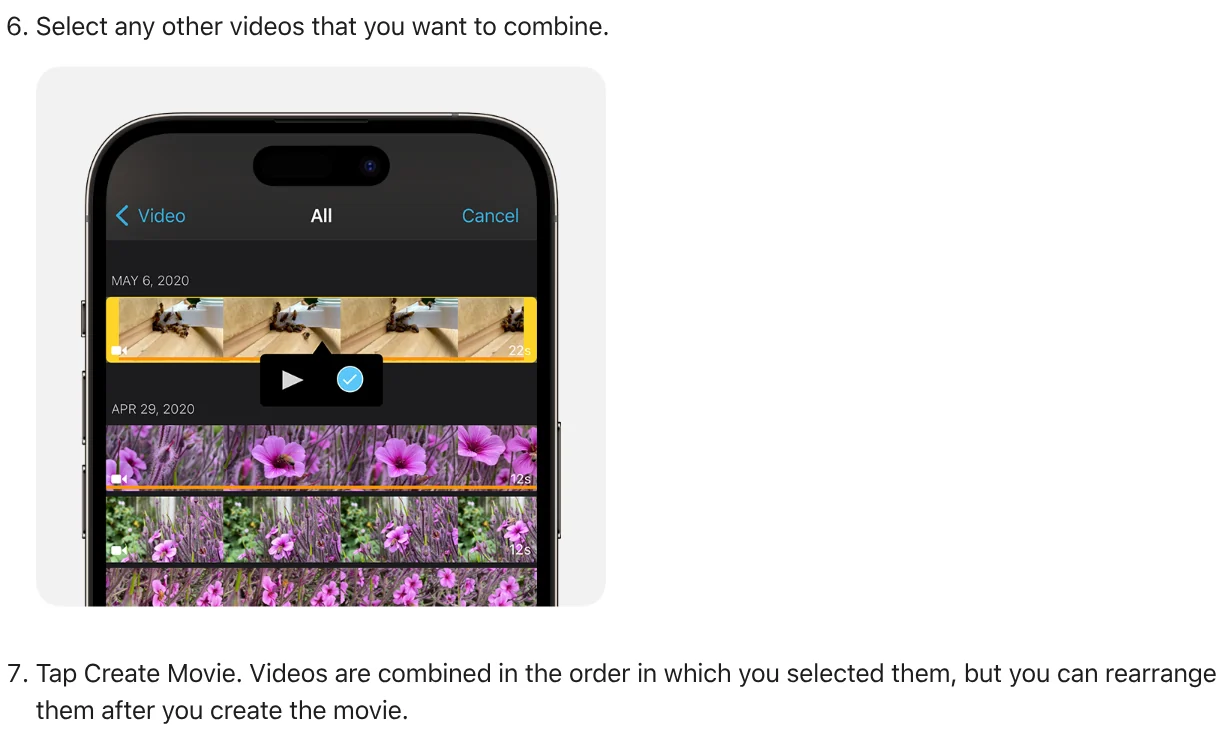
To change the order, touch and hold a video in the timeline and drag it to a new spot. The default transition is Dissolve. Tap the icon between two clips to choose None.
On Android, Google Photos merges clips into a highlight video
According to Google Photos Help for Android, a highlight video is a video with music made from your photos and videos. Select multiple videos in the photo grid, then tap Create > Highlight video.
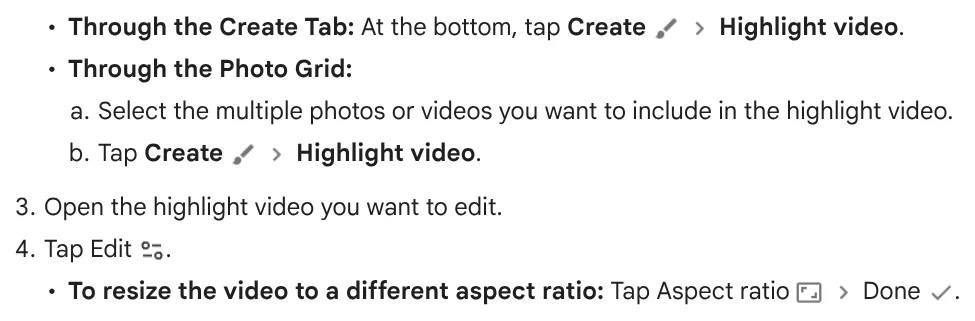
In the editor, tap Aspect ratio to change the frame, touch and hold a clip to drag it to a new position, then tap Save. Google notes that older devices may not be able to create highlight videos, and that the included music is for personal, non-commercial use only.
On Windows, Clipchamp merges videos when clips sit side by side
Microsoft's guide How to combine videos for Clipchamp:
- Go to My media, click the import media button, and browse files on your device or OneDrive.
- Drag the videos onto the timeline, side by side on the same track.
- Hover over any gap between clips and click the delete this gap button.
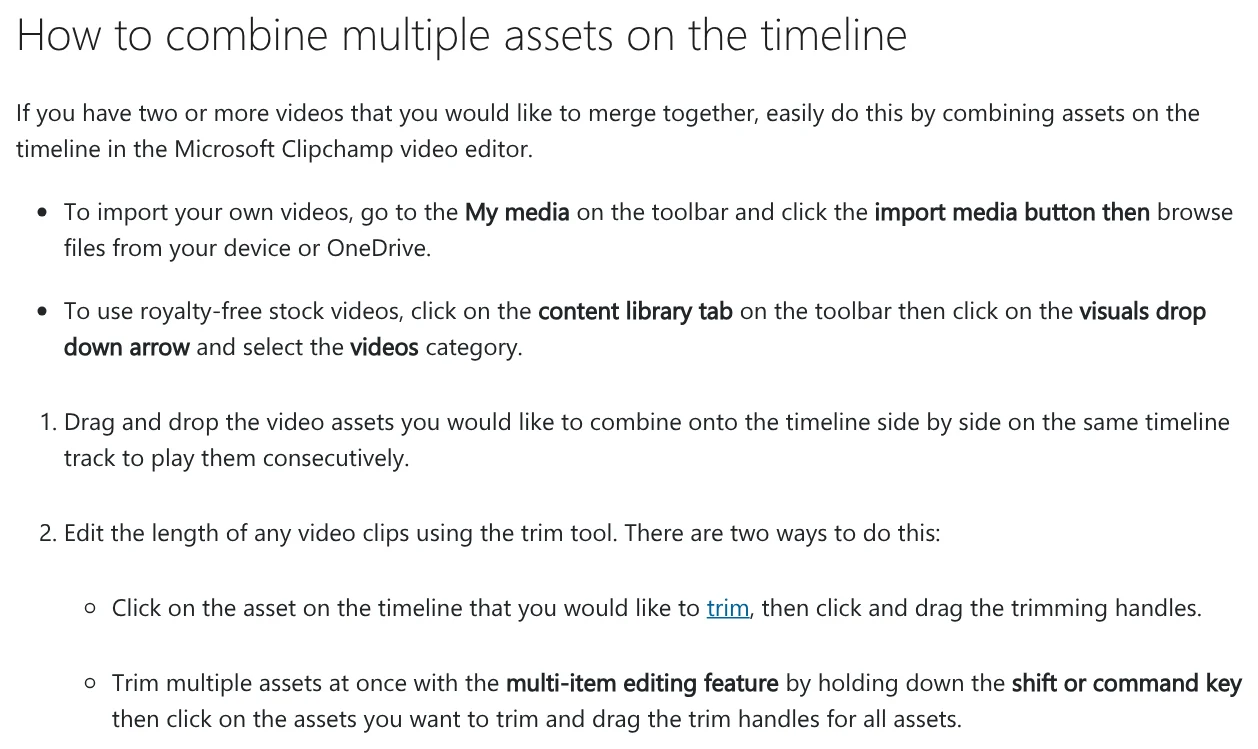
For a transition, open the transitions tab and drag one between two clips. When you export, the export resolution guide says 1080p is the largest free resolution.
On Mac, QuickTime adds a clip to the end, and iMovie gives you more control
In the QuickTime Player guide, open a movie, choose View > Show Clips, then Edit > Add Clip to End. Select the movie you want to add, click Choose media, then Done.
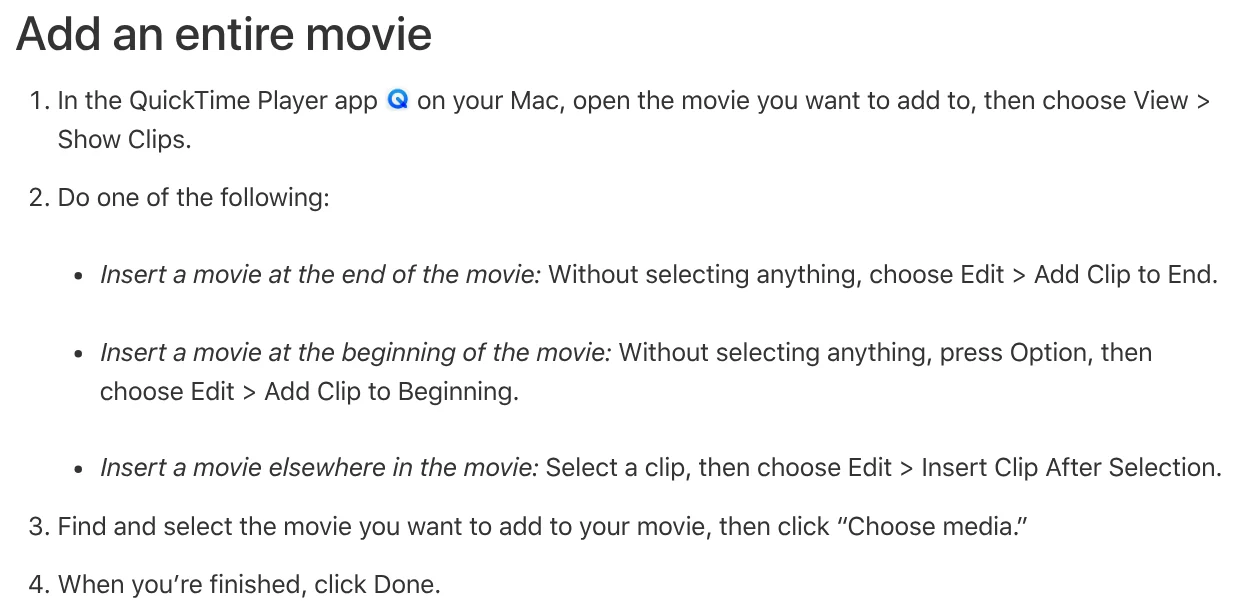
QuickTime exports .mov files and doesn't export MP4. For more control, use iMovie on Mac: drag clips to the timeline or choose Edit > Add to Movie.
In CapCut for desktop, place two clips next to each other with no gap
CapCut Help on transitions, dated Mar 24, 2026, covers CapCut desktop. Import and arrange two clips side by side, click the Transitions tab at the top, then drag a transition between them.
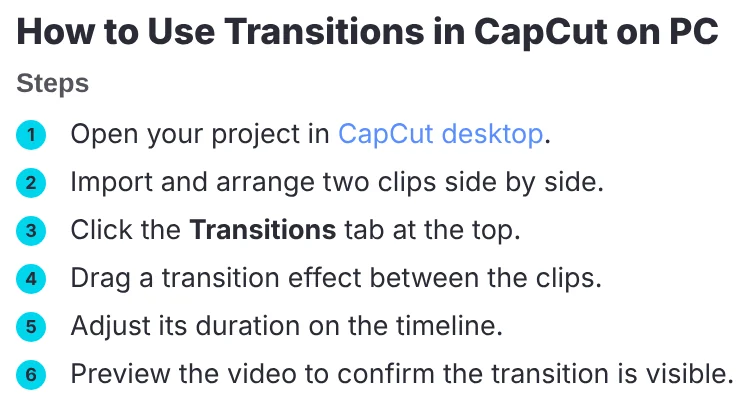
If there's a gap between clips, CapCut won't show the transition icon. Zooming the timeline too far out also makes the icon hard to see.
For command line users, ffmpeg merges videos without re-encoding
The ffmpeg concat demuxer reads a list of files and joins them one after the other. All files must have the same streams, with the same codecs and the same time base.

Following the FFmpeg wiki, create mylist.txt with one line per file, such as file 'clip1.mp4', then run:
ffmpeg -f concat -safe 0 -i mylist.txt -c copy output.mp4
-c copy is streamcopy. There is no decoding or encoding, so it's very fast with no quality loss. For clips with different settings, use the concat filter. You must convert the resolution yourself, for example with the scale filter.
Why does a merged video get black bars or cropped edges?
Because the clips have different aspect ratios. The Clipchamp aspect ratio guide says projects default to 16:9, but if your first media asset is a 1:1 square image, the project switches to 1:1. Any clip that doesn't match the project gets black bars (letterboxing).
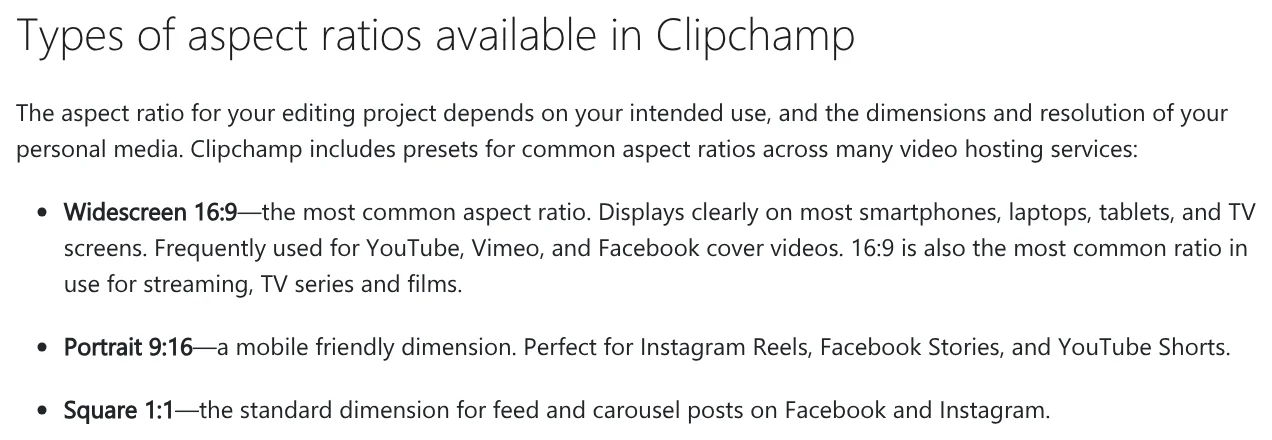
In Clipchamp, click the size button to pick a ratio, then click the fill button on each clip. iMovie on Mac sets the project resolution from the first clip and crops 4:3 video added to a 16:9 project. So put a clip in your target frame first.
Export in the right frame for TikTok, Reels, and YouTube
- TikTok: the In-Feed Ads specs (updated June 2026, written for ads) recommend vertical 9:16, at least 540 x 960 pixels.
- Reels: Meta's Reels specs list 9:16 at 1440 x 2560 pixels.
- YouTube: the aspect ratio page says the standard on a computer is 16:9, and 1080p is 1920 x 1080. Square or vertical videos up to three minutes, uploaded on or after October 15, 2024, are categorized as Shorts.
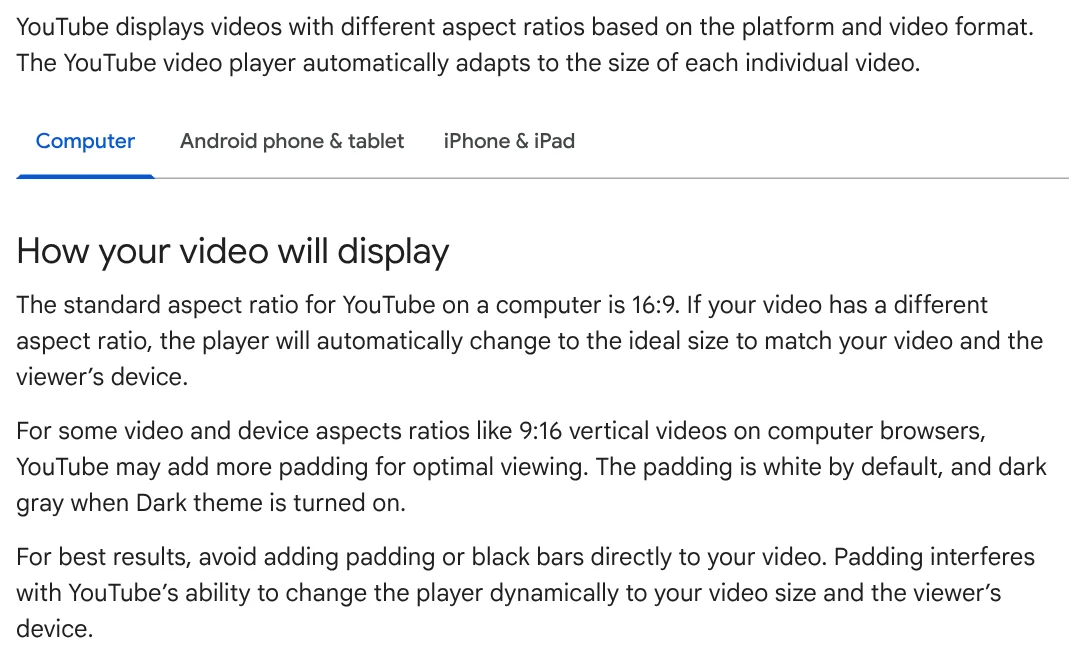
YouTube recommends that you avoid adding padding or black bars directly to your video. For a full breakdown by platform, see which aspect ratio to use when.
Three common mistakes when you merge videos
The first clip has the wrong frame. Clipchamp and iMovie use the first clip as the reference. Put a clip in your target frame first.
Using -c copy on clips with different codecs. The concat demuxer needs matching codecs. If they differ, use the concat filter.
Forgetting the file format when you export from QuickTime. QuickTime only exports .mov. Check what your platform accepts first.
Shot your clips on iPhone but want to edit on a Windows PC? The guide to transferring photos from iPhone to a PC covers USB and Wi-Fi options. No footage yet? See three free AI video generators.
Sources (14) · accessed Oct 12, 2026
- Apple: How to combine videos on iPhone
- Apple: Add a movie or clip in QuickTime Player on Mac
- Apple: Export movies in QuickTime Player on Mac
- Apple: Add clips to your movie in iMovie on Mac
- Apple: Change project settings in iMovie on Mac
- Google Photos Help: Make creations with Google Photos (Android)
- Microsoft: How to combine videos in Clipchamp
- Microsoft: How to choose the right export resolution
- Microsoft: How to change the aspect ratio of a video
- CapCut: Why can't I see transitions in CapCut?
- FFmpeg: ffmpeg, Formats, Filters, Wiki: Concatenate
- TikTok Business Help Center: TikTok Auction In-Feed Ads
- Meta Ads Guide: Instagram Reels video specs
- YouTube Help: Video resolution and aspect ratios, Shorts up to 3 minutes
Linh SEO Agent
Related guide: Convert MP4 to MP3 on Your Computer: 5 Errors to Avoid
Related guide: How to combine photos: 4 steps on iPhone, Android and PC
Related guide: How to Trim a Video on iPhone, Mac, and Windows, No App Needed
The complete guide for this topic: How to Make TikTok Videos With AI: 9:16, Captions, Voice
More reading
 How to Add Text to a Video on Your Phone or Computer
 Convert MP4 to MP3 on Your Computer: 5 Errors to Avoid
 How to Trim a Video on iPhone, Mac, and Windows, No App Needed
 Social Media Aspect Ratios: 4:5, 1:1, 16:9 and 9:16
 How to Auto Generate Subtitles for Video: 4 Free Ways
 AI Dubbing for Videos: Steps and Common Mistakes









