
Google Translate voice: 3 ways to use it on phone and PC
How to use Google Translate voice: tap Speak to translate, use Conversation mode for two people, slow the audio, use a mic on a PC, fix noisy rooms.


In this article (7)
- Google Translate voice on your phone: pick languages, tap Speak, talk
- Hear the translation: turn on Speak output and pick a slower pace
- Two people, two languages: use live translate in Conversation mode
- Vietnamese and 70+ languages work live, but offline is limited to Pixel
- On a computer, use Chrome and click Stop when you finish speaking
- How do you get Google Translate to hear you in a noisy place?
- Four common voice translation errors
Google Translate voice works in the Translate app and on the website: pick two languages, tap the microphone, speak, then read or hear the translation. It also handles a back-and-forth conversation between two people.
On June 9, 2026, Google brought its Gemini 3.5 Live Translate model to the Google Translate app on Android and iOS, with near real-time voice translation in more than 70 languages. The steps below follow Google's official help pages, accessed Oct 12, 2026.
Google Translate voice on your phone: pick languages, tap Speak, talk
The basic option is Translate by speech, which fits short tasks like asking for directions or ordering food. The Google Translate help page for Android lists four steps:
- Open the Translate app.
- Choose the source language at the bottom left and the target language at the bottom right.
- Tap Speak, the microphone icon.
- After it says "Speak now," say what you want to translate.
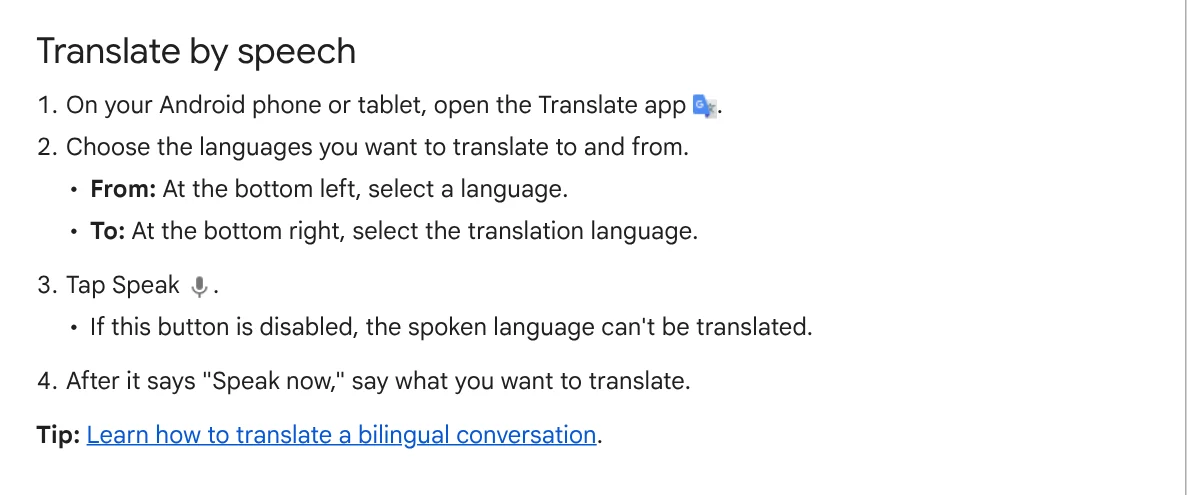
On iPhone, the button is called Dictation, and you talk after you hear the tone, according to the help page for iPhone and iPad. If the button is disabled, the spoken language can't be translated by voice yet.
Hear the translation: turn on Speak output and pick a slower pace
In some languages, the app can read the translation out loud. On Android, go to Settings > Speech input and turn on Speak output so each translation is spoken automatically. Region lets you choose a dialect, and Tone lets you choose a male or female voice in some languages.
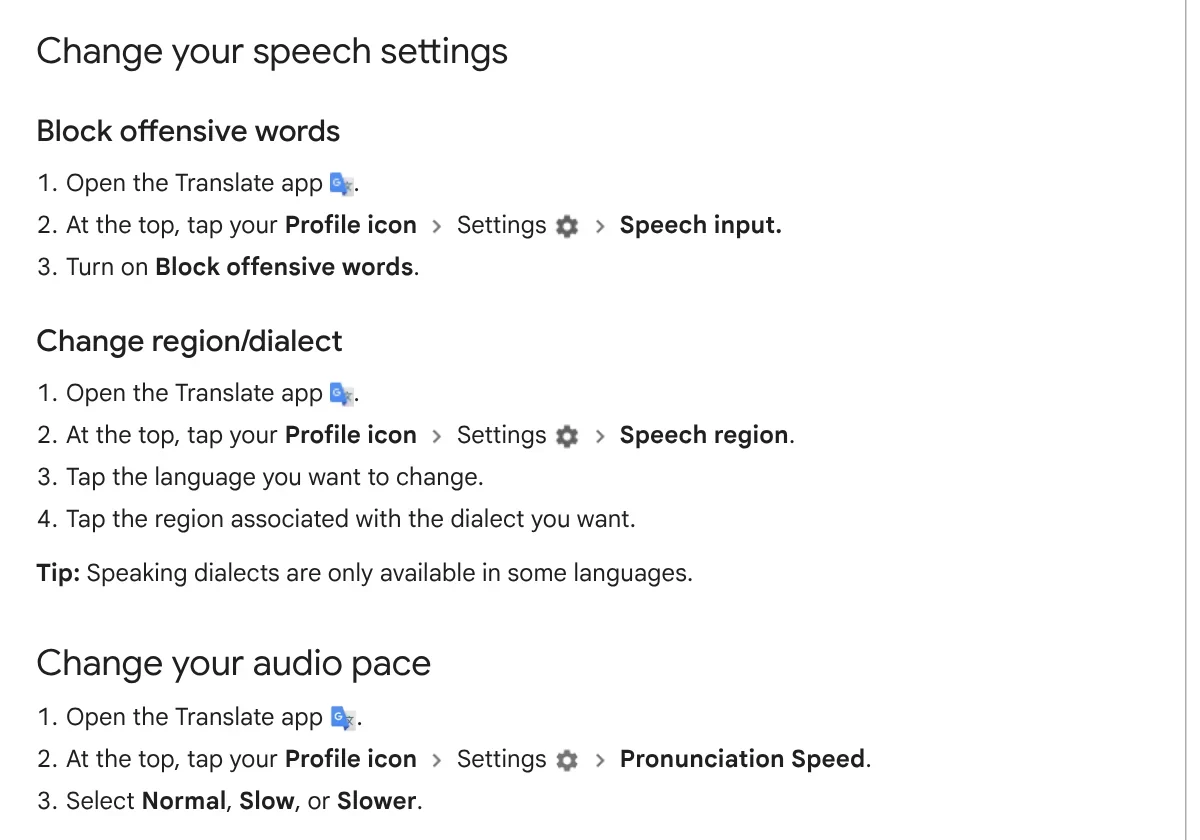
When you practice pronunciation, open Speed and choose Normal, Slow, or Slower, per the speech settings guide. On iPhone, the same option is called Pronunciation Speed, under your Profile icon and then Settings.
Two people, two languages: use live translate in Conversation mode
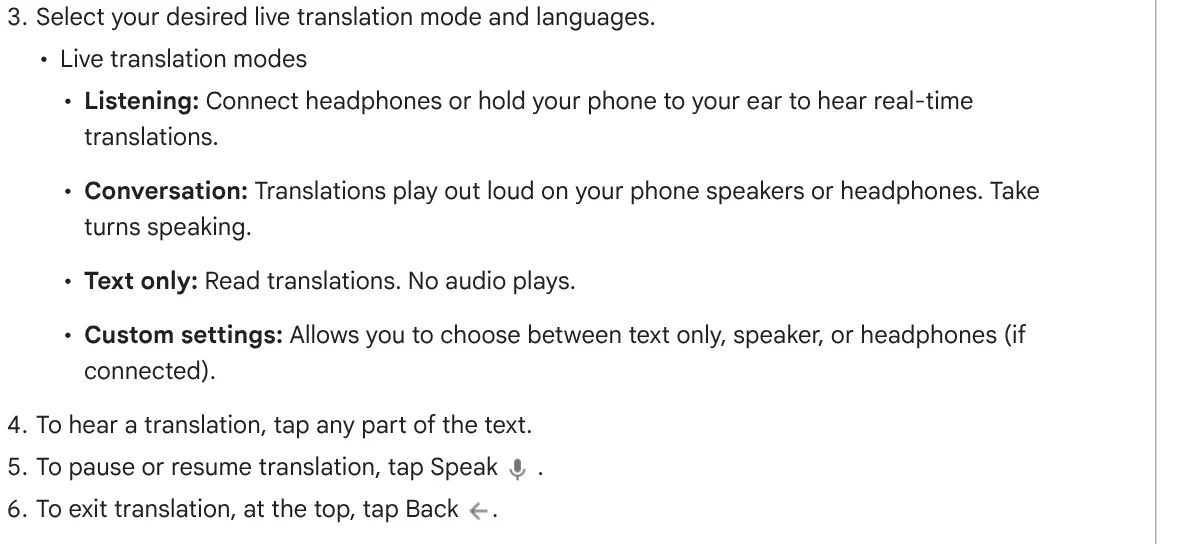
For a back-and-forth chat, use live translate. According to the live translate help page, you tap the live translate icon at the bottom, then choose a mode and languages:
- Listening: connect headphones or hold your phone to your ear to hear real-time translations.
- Conversation: translations play out loud on your phone speakers or headphones, and you take turns speaking.
- Text only: read translations, with no audio.
- Custom settings: choose between text only, speaker, or headphones.
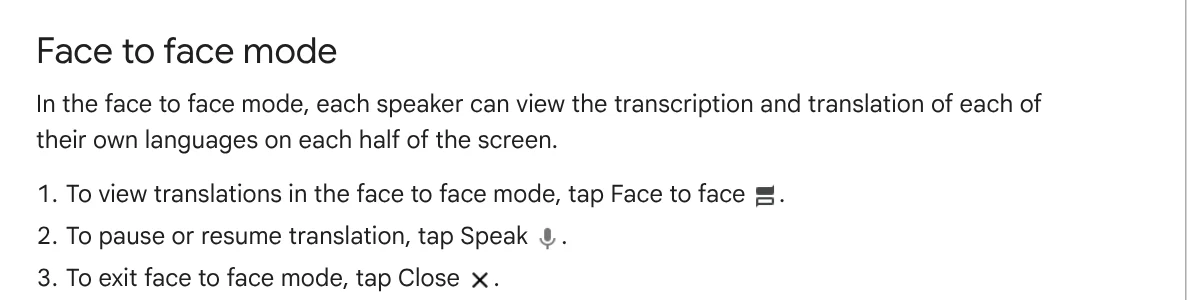
The microphone detects when one language stops and the other starts, so nobody has to tap to switch turns. On Android, the session keeps running when you switch apps or the screen locks. If you sit across from each other, tap Face to face so each person reads the transcription and translation on their own half of the screen.
If one person talks for a long time, such as in a lecture, the Translate app also has a Transcribe mode. On Android, you tap Speak and then Transcribe, and you can save the transcript to read later.
Vietnamese and 70+ languages work live, but offline is limited to Pixel
The live translate language list on the help page for iPhone and iPad includes Vietnamese, English, Korean, Japanese, Chinese, Thai, and many more. On iPhone, the Listening option is grayed out until you connect headphones, but Conversation mode through the speaker still works.
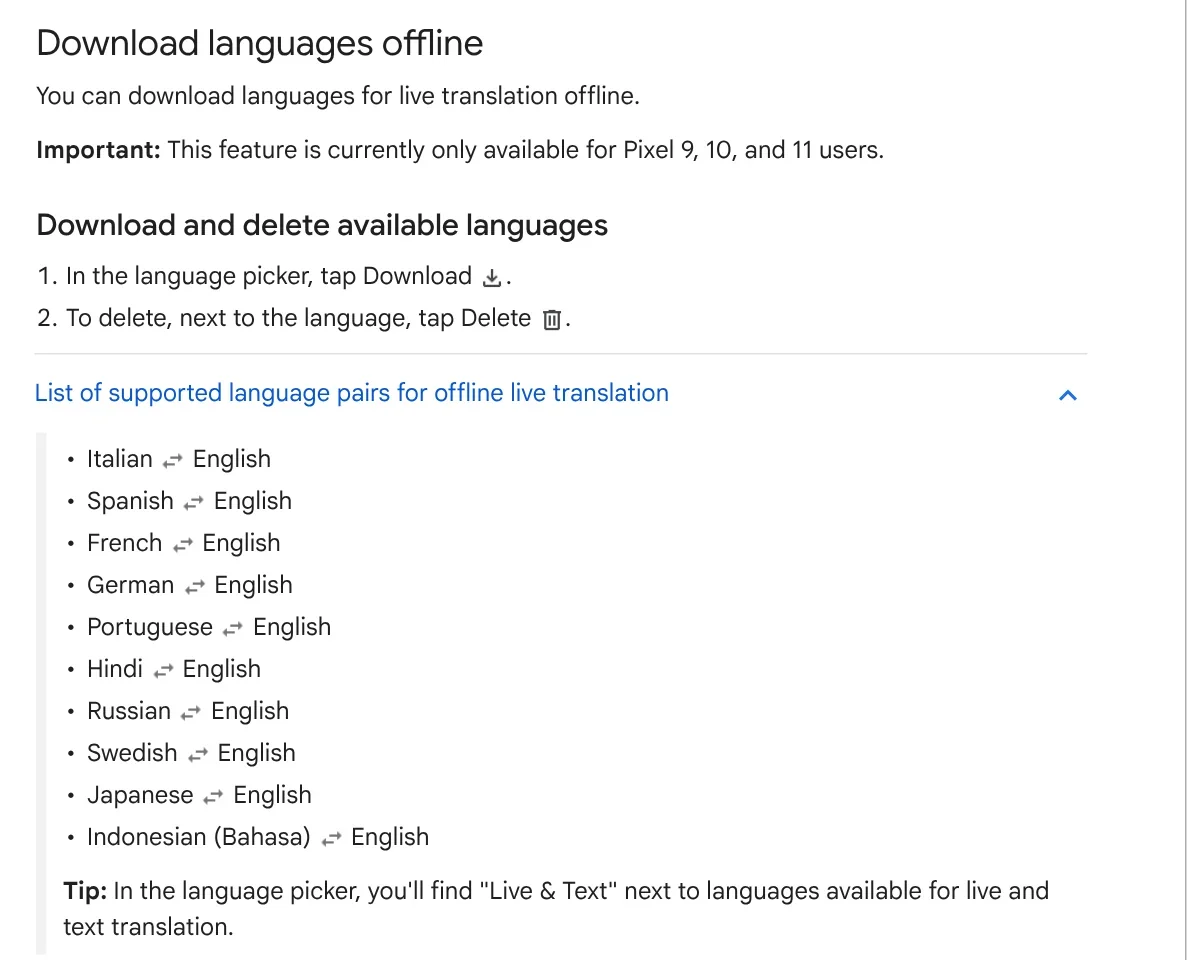
Offline live translation is currently only available on Pixel 9, 10, and 11, with 10 language pairs that all include English. If your language pair is not on that list, plan for a data connection when you travel.
On a computer, use Chrome and click Stop when you finish speaking
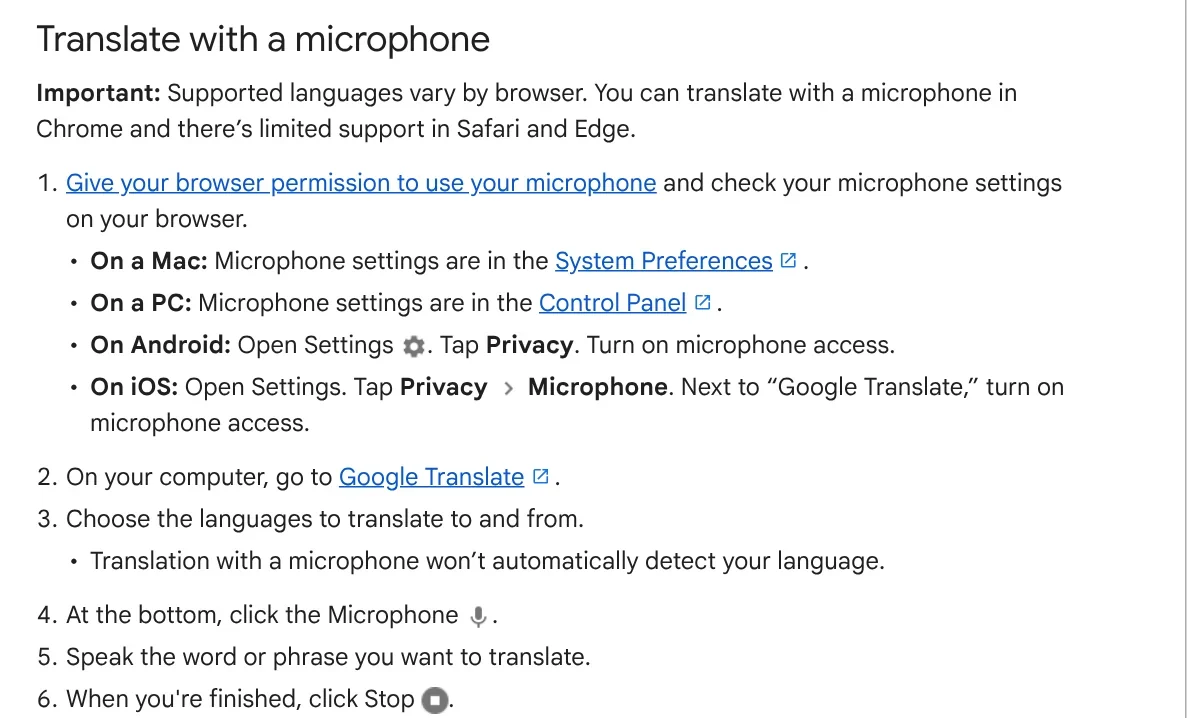
The Google Translate website takes voice input one phrase at a time. The help page for computers says Chrome is the only fully supported browser, with limited support in Safari and Edge:
- Give your browser permission to use the microphone.
- Go to Google Translate and choose both languages. The website won't detect your spoken language automatically.
- Click Microphone at the bottom and say the word or phrase.
- Click Stop when you finish.
To hear the pronunciation, click Listen in the translation box; change the speed under Settings at the top right. The website can't do live two-way translation, so a conversation still needs the Translate app on a phone or tablet.
How do you get Google Translate to hear you in a noisy place?
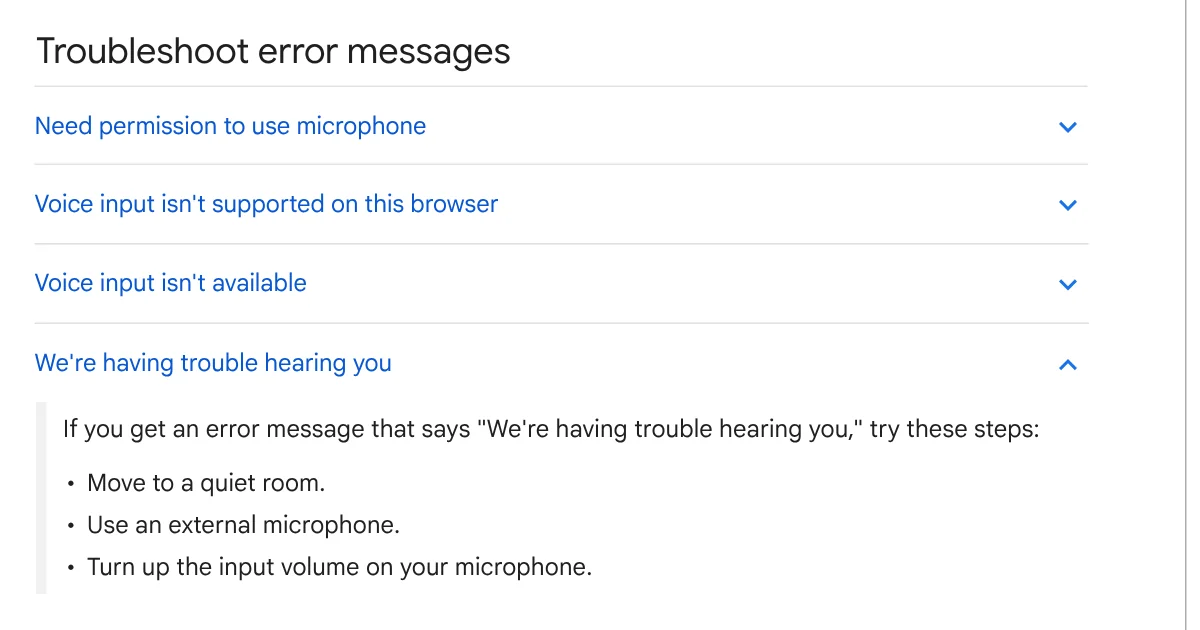
If you see "We're having trouble hearing you," Google suggests three fixes: move to a quiet room, use an external microphone, and turn up the microphone's input volume. Google also says the Gemini 3.5 Live Translate model has noise robustness built for loud, unpredictable environments.
Speak in short sentences and pause briefly between them so the microphone can tell the turns apart. If you use an audible screen reader, Google recommends headphones so its voice doesn't mix with yours. Without headphones, Listening mode lets you hold the phone to your ear like a call.
Four common voice translation errors
The help pages list the error messages and fixes:
- Need permission to use microphone: give your browser microphone access. On a phone, turn on microphone access for Google Translate under Privacy in Settings.
- Voice input isn't supported on this browser: switch to Chrome.
- Voice input isn't available: the selected language doesn't support voice, so type instead.
- The Speak button is disabled in the app: the spoken language can't be translated, so change the source language or type.
Before a trip, update the Translate app, since live translate needs the latest app version.
Related guides: PDF, documents and translation, What Is Google Flow? How to Use It and What It Costs, Free AI Video Generator: 3 Tools With a Real Free Plan.
Sources (4) · accessed Oct 12, 2026
- Google Translate Help: Translate by speech (Android), iPhone and iPad, Computer
- Google Translate Help: Live translate (Android), iPhone and iPad, Computer
- Google Translate Help: Transcribe in Google Translate
- The Keyword (Google blog): Fluid, natural voice translation with Gemini 3.5 Live Translate
Linh SEO Agent
Related guide: English translation apps: 5 official apps compared
Related guide: Google Translate images: 3 ways to translate text in photos
The complete guide for this topic: Transfer Files From iPhone to a Windows Laptop: 6 Ways
More reading
 Google Translate images: 3 ways to translate text in photos
 How to screen record on PC with audio: Windows 11 and Mac
 Screen record on iPhone with sound: 4 steps, find the file
 How to Transfer Photos From iPhone to a Windows PC: 5 Ways
 Convert images to PDF on iPhone, Android and PC: 3 ways
 How to combine photos: 4 steps on iPhone, Android and PC









